---
source: https://carbone.io/documentation/design/template-formats/svg.html
title: "SVG Templates | Generate PNG and PDF from JSON | Carbone"
description: "Generate SVG images, PNG and PDF files from SVG templates and JSON with the Carbone API. Passes, charts, product cards and social images follow your data."
generated_at: "2026-11-11"
---

# SVG templates

Design an image in Illustrator, add Carbone tags, and generate it from JSON data as an SVG, a PNG or a PDF.  
COMMUNITY FEATURE Available for:  
✓ Carbone Cloud  
✓ Carbone On-premise  
✓ Embedded Carbone JS   v5.0+ 

Any SVG file can be a template. Write Carbone tags in its text and attributes, and send your JSON data to the API. You get back an SVG, or a PNG, JPG, WebP or PDF drawn by Chromium, for event passes, KPI cards, charts, product cards and social images.

## Basic

Write a tag in a text element to insert a value from the JSON data. In `{d.attendee.firstName}`, `d` is the root of the data and `attendee.firstName` is the path to the value. The value takes the style of its text: font, size, color and letter spacing.

**Data** ([basic-data.json](/file/svg/basic-data.json)):

```json
{
  "event": {
    "name": "Lumen Summit",
    "dates": "March 18-19, 2026",
    "venue": "Pier 27",
    "city": "San Francisco"
  },
  "attendee": {
    "id": "LS26-0418",
    "firstName": "Maya",
    "lastName": "Okafor",
    "jobTitle": "Head of Operations",
    "company": "Brightline Logistics",
    "role": "Speaker",
    "access": "All days",
    "zone": "Hall A"
  }
}
```

**Template** ([basic-template.svg](/file/svg/basic-template.svg)):

```svg
<?xml version="1.0" encoding="UTF-8"?>
<svg id="pass" xmlns="http://www.w3.org/2000/svg" font-family="Helvetica Neue, Inter, Arial, sans-serif" width="360" height="560" viewBox="0 0 360 560">
  <title>Event pass</title>
  <desc>Created by carbone.io for the SVG templates guide: https://carbone.io/documentation/design/template-formats/svg.html</desc>
  <defs>
    <clipPath id="clippath">
      <rect width="360" height="560" rx="28" ry="28" fill="none"/>
    </clipPath>
    <linearGradient id="night" x1="0" y1="280" x2="360" y2="280" gradientTransform="translate(460 100) rotate(90)" gradientUnits="userSpaceOnUse">
      <stop offset="0" stop-color="#1a1f3d"/>
      <stop offset="1" stop-color="#0b0f1a"/>
    </linearGradient>
    <radialGradient id="glow-violet" cx="310" cy="70" fx="310" fy="70" r="230" gradientUnits="userSpaceOnUse">
      <stop offset="0" stop-color="#635bff" stop-opacity=".75"/>
      <stop offset="1" stop-color="#635bff" stop-opacity="0"/>
    </radialGradient>
    <radialGradient id="glow-cyan" cx="30" cy="540" fx="30" fy="540" r="240" gradientUnits="userSpaceOnUse">
      <stop offset="0" stop-color="#22d3ee" stop-opacity=".35"/>
      <stop offset="1" stop-color="#22d3ee" stop-opacity="0"/>
    </radialGradient>
    <radialGradient id="glow-pink" cx="380" cy="400" fx="380" fy="400" r="170" gradientUnits="userSpaceOnUse">
      <stop offset="0" stop-color="#ff4d8d" stop-opacity=".3"/>
      <stop offset="1" stop-color="#ff4d8d" stop-opacity="0"/>
    </radialGradient>
    <linearGradient id="chip" x1="28" y1="345" x2="136" y2="345" gradientUnits="userSpaceOnUse">
      <stop offset="0" stop-color="#635bff"/>
      <stop offset="1" stop-color="#ff4d8d"/>
    </linearGradient>
  </defs>
  <g clip-path="url(#clippath)">
    <rect width="360" height="560" fill="url(#night)"/>
    <circle cx="310" cy="70" r="230" fill="url(#glow-violet)"/>
    <circle cx="30" cy="540" r="240" fill="url(#glow-cyan)"/>
    <circle cx="380" cy="400" r="170" fill="url(#glow-pink)"/>
  </g>
  <circle cx="37" cy="48" r="9" fill="#fff"/>
  <circle cx="49" cy="48" r="9" fill="#635bff" opacity=".9"/>
  <text transform="translate(68 53)" fill="#fff" font-size="14" font-weight="500"><tspan x="0" y="0">{d.event.name}</tspan></text>
  <text transform="translate(28 140)" fill="#b4b9ff" font-size="13" font-weight="500" letter-spacing=".02em"><tspan x="0" y="0">{d.event.dates}</tspan></text>
  <text transform="translate(28 196)" fill="#fff" font-size="46" font-weight="700" letter-spacing="-.03em"><tspan x="0" y="0">{d.attendee.firstName}</tspan></text>
  <text transform="translate(28 246)" fill="#fff" font-size="46" font-weight="700" letter-spacing="-.03em"><tspan x="0" y="0">{d.attendee.lastName}</tspan></text>
  <text transform="translate(28 282)" fill="#c7cbd6" font-size="15"><tspan x="0" y="0">{d.attendee.jobTitle}</tspan></text>
  <text transform="translate(28 304)" fill="#fff" font-size="15" font-weight="500"><tspan x="0" y="0">{d.attendee.company}</tspan></text>
  <rect x="28" y="330" width="108" height="30" rx="15" ry="15" fill="url(#chip)"/>
  <text transform="translate(44 350)" fill="#fff" font-size="11" font-weight="700" letter-spacing=".16em"><tspan x="0" y="0">{d.attendee.role:upperCase}</tspan></text>
  <line x1="26" y1="404" x2="334" y2="404" fill="none" opacity=".3" stroke="#fff" stroke-dasharray="2 6"/>
  <circle cy="404" r="14" fill="#fff"/>
  <circle cx="360" cy="404" r="14" fill="#fff"/>
  <text transform="translate(28 446)" fill="#8b93a7" font-size="10" font-weight="500" letter-spacing=".14em"><tspan x="0" y="0">ACCESS</tspan></text>
  <text transform="translate(28 470)" fill="#fff" font-size="15" font-weight="500"><tspan x="0" y="0">{d.attendee.access}</tspan></text>
  <text transform="translate(140 446)" fill="#8b93a7" font-size="10" font-weight="500" letter-spacing=".14em"><tspan x="0" y="0">ZONE</tspan></text>
  <text transform="translate(140 470)" fill="#fff" font-size="15" font-weight="500"><tspan x="0" y="0">{d.attendee.zone}</tspan></text>
  <text transform="translate(240 446)" fill="#8b93a7" font-size="10" font-weight="500" letter-spacing=".14em"><tspan x="0" y="0">PASS</tspan></text>
  <text transform="translate(240 470)" fill="#fff" font-size="15" font-weight="500"><tspan x="0" y="0">{d.attendee.id}</tspan></text>
  <text transform="translate(28 524)" fill="#8b93a7" font-size="12"><tspan x="0" y="0">{d.event.venue} · {d.event.city}</tspan></text>
</svg>
```

**Result** ([basic-report.svg](/file/svg/basic-report.svg)):

![Event pass generated by Carbone from JSON data](/file/svg/basic-report.svg)

-   Type the tags in Illustrator and export the artboard as SVG. The settings that keep the tags readable are in [Export from Illustrator](#export-from-illustrator).
-   Use `:upperCase` instead of All Caps: Illustrator exports the capital letters, and `{D.ATTENDEE.ROLE}` is not a tag.
-   SVG text does not wrap. Leave room for the longest value, like a long last name.

Learn more about [tags](/documentation/design/substitutions/the-basics.md).

## Attributes

Tags work in attributes too, so the data can change a color, a size or a position. In this card, the growth badge turns red when the growth is negative: `fill="{d.growth:ifLT(0):show('#df1b41'):elseShow('#16a34a')}"`.

**Data** ([attributes-data.json](/file/svg/attributes-data.json)):

```json
{
  "period": "Fiscal year 2026",
  "previousPeriod": "FY 2025",
  "revenue": 48200000,
  "target": 56000000,
  "growth": 18.4,
  "grossMargin": 0.72,
  "retention": 0.94
}
```

**Template** ([attributes-template.svg](/file/svg/attributes-template.svg)):

```svg
<?xml version="1.0" encoding="UTF-8"?>
<svg id="results" xmlns="http://www.w3.org/2000/svg" font-family="Helvetica Neue, Inter, Arial, sans-serif" width="600" height="300" viewBox="0 0 600 300">
  <title>Annual results</title>
  <desc>Created by carbone.io for the SVG templates guide: https://carbone.io/documentation/design/template-formats/svg.html</desc>
  <defs>
    <linearGradient id="target-gradient" x1="319.5" y1="150" x2="384.5" y2="150" gradientUnits="userSpaceOnUse">
      <stop offset="0" stop-color="#635bff"/>
      <stop offset="1" stop-color="#22d3ee"/>
    </linearGradient>
    <linearGradient id="margin-gradient" x1="407.5" y1="150" x2="472.5" y2="150" gradientUnits="userSpaceOnUse">
      <stop offset="0" stop-color="#ff4d8d"/>
      <stop offset="1" stop-color="#ff8a3d"/>
    </linearGradient>
    <linearGradient id="retention-gradient" x1="495.5" y1="150" x2="560.5" y2="150" gradientUnits="userSpaceOnUse">
      <stop offset="0" stop-color="#22c55e"/>
      <stop offset="1" stop-color="#a3e635"/>
    </linearGradient>
    <filter id="shadow" x="-10%" y="-10%" width="120%" height="140%">
      <feDropShadow dy="12" stdDeviation="16" flood-color="#0b0f1a" flood-opacity=".08"/>
    </filter>
  </defs>
  <rect width="600" height="300" fill="#f4f5f7"/>
  <rect id="card" x="20" y="20" width="560" height="260" rx="24" ry="24" fill="#fff" filter="url(#shadow)"/>
  <text transform="translate(52 72)" fill="#635bff" font-size="11" font-weight="500" letter-spacing=".16em"><tspan x="0" y="0">{d.period:upperCase}</tspan></text>
  <text transform="translate(48 142)" fill="#0b0f1a" font-size="64" font-weight="700" letter-spacing="-.04em"><tspan x="0" y="0">{d.revenue:div(1000000):formatC(1)}M</tspan></text>
  <text transform="translate(52 172)" fill="#6b7280" font-size="15"><tspan x="0" y="0">Total revenue</tspan></text>
  <rect id="delta" x="52" y="196" width="84" height="28" rx="14" ry="14" fill="{d.growth:ifLT(0):show('#fdecef'):elseShow('#e8f7ee')}"/>
  <polygon id="arrow" points="64 215 70 205 76 215 64 215" fill="{d.growth:ifLT(0):show('#df1b41'):elseShow('#16a34a')}" transform="rotate({d.growth:ifLT(0):show(180):elseShow(0)} 70 210)"/>
  <text transform="translate(82 215)" fill="{d.growth:ifLT(0):show('#df1b41'):elseShow('#16a34a')}" font-size="13" font-weight="500"><tspan x="0" y="0">{d.growth:abs:formatN(1)}%</tspan></text>
  <text transform="translate(146 215)" fill="#6b7280" font-size="13"><tspan x="0" y="0">vs {d.previousPeriod}</tspan></text>
  <line x1="300" y1="60" x2="300" y2="240" fill="none" stroke="#eef0f4"/>
  <circle cx="352" cy="150" r="32" fill="none" stroke="#eef0f4" stroke-width="9"/>
  <circle id="target" cx="352" cy="150" r="32" fill="none" stroke="url(#target-gradient)" stroke-linecap="round" stroke-dasharray="{d.revenue:div(.target):mul(201.06)} 201.06" transform="rotate(-90 352 150)" stroke-width="9"/>
  <text transform="translate(352 155)" text-anchor="middle" fill="#0b0f1a" font-size="15" font-weight="700" letter-spacing="-.02em"><tspan x="0" y="0">{d.revenue:div(.target):mul(100):formatN(0)}%</tspan></text>
  <text transform="translate(352 214)" text-anchor="middle" fill="#0b0f1a" font-size="13" font-weight="500"><tspan x="0" y="0">Target</tspan></text>
  <text transform="translate(352 232)" text-anchor="middle" fill="#6b7280" font-size="11"><tspan x="0" y="0">of {d.target:div(1000000):formatC(0)}M</tspan></text>
  <circle cx="440" cy="150" r="32" fill="none" stroke="#eef0f4" stroke-width="9"/>
  <circle id="margin" cx="440" cy="150" r="32" fill="none" stroke="url(#margin-gradient)" stroke-linecap="round" stroke-dasharray="{d.grossMargin:mul(201.06)} 201.06" transform="rotate(-90 440 150)" stroke-width="9"/>
  <text transform="translate(440 155)" text-anchor="middle" fill="#0b0f1a" font-size="15" font-weight="700" letter-spacing="-.02em"><tspan x="0" y="0">{d.grossMargin:mul(100):formatN(0)}%</tspan></text>
  <text transform="translate(440 214)" text-anchor="middle" fill="#0b0f1a" font-size="13" font-weight="500"><tspan x="0" y="0">Margin</tspan></text>
  <text transform="translate(440 232)" text-anchor="middle" fill="#6b7280" font-size="11"><tspan x="0" y="0">Gross</tspan></text>
  <circle cx="528" cy="150" r="32" fill="none" stroke="#eef0f4" stroke-width="9"/>
  <circle id="retention" cx="528" cy="150" r="32" fill="none" stroke="url(#retention-gradient)" stroke-linecap="round" stroke-dasharray="{d.retention:mul(201.06)} 201.06" transform="rotate(-90 528 150)" stroke-width="9"/>
  <text transform="translate(528 155)" text-anchor="middle" fill="#0b0f1a" font-size="15" font-weight="700" letter-spacing="-.02em"><tspan x="0" y="0">{d.retention:mul(100):formatN(0)}%</tspan></text>
  <text transform="translate(528 214)" text-anchor="middle" fill="#0b0f1a" font-size="13" font-weight="500"><tspan x="0" y="0">Retention</tspan></text>
  <text transform="translate(528 232)" text-anchor="middle" fill="#6b7280" font-size="11"><tspan x="0" y="0">Net revenue</tspan></text>
</svg>
```

**Result** ([attributes-report.svg](/file/svg/attributes-report.svg)):
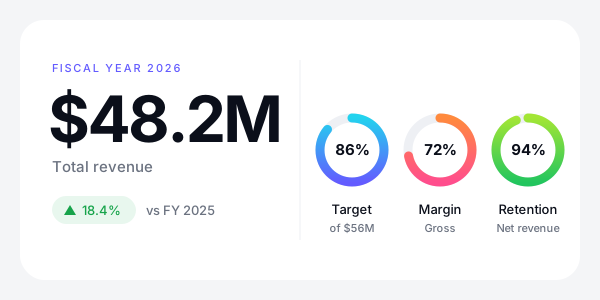
![Annual results card with three rings and a growth badge drawn from the data](/file/svg/attributes-report.svg)

-   Each ring is a dashed circle, and the data sets the length of the dash: `stroke-dasharray="{d.grossMargin:mul(201.06)} 201.06"`. 201.06 is the length of the circle.
-   With `"lang": "en-us"`, `{d.revenue:div(1000000):formatC(1)}M` prints $48.2M.
-   A path that starts with a dot reads a value of the same object: `{d.revenue:div(.target)}` divides the revenue by the target.
-   Write the tags of the attributes in a code editor, after the export. Illustrator removes them when it opens the SVG, so keep the Illustrator file as the source of the design.

Learn more about [math formatters](/documentation/design/computation/simple-mathematics.md), [currencies](/documentation/design/formatters/currency.md) and [inline conditions](/documentation/design/conditions/inline-conditions.md).

## Loops

A loop repeats an element for each item of an array, like the bars of this chart:

1.  In Illustrator, group the bar with its value and its label (Object > Group).
2.  Duplicate the group, and write `[i+1]` in its tags, like `{d.quarters[i+1].label}`.

Carbone repeats the first group for each quarter and removes the second one.

**Data** ([loops-data.json](/file/svg/loops-data.json)):

```json
{
  "title": "Revenue by quarter",
  "subtitle": "Fiscal year 2026, in USD",
  "scaleMax": 18000000,
  "quarters": [
    { "label": "Q1", "revenue": 9800000 },
    { "label": "Q2", "revenue": 11400000 },
    { "label": "Q3", "revenue": 12100000 },
    { "label": "Q4", "revenue": 14900000 }
  ]
}
```

**Template** ([loops-template.svg](/file/svg/loops-template.svg)):

```svg
<?xml version="1.0" encoding="UTF-8"?>
<svg id="revenue" xmlns="http://www.w3.org/2000/svg" font-family="Helvetica Neue, Inter, Arial, sans-serif" width="600" height="360" viewBox="0 0 600 360">
  <title>Revenue by quarter</title>
  <desc>Created by carbone.io for the SVG templates guide: https://carbone.io/documentation/design/template-formats/svg.html</desc>
  <defs>
    <clipPath id="clippath">
      <rect width="600" height="360" rx="24" ry="24" fill="none"/>
    </clipPath>
    <linearGradient id="night" x1="0" y1="180" x2="600" y2="180" gradientTransform="translate(480 -120) rotate(90)" gradientUnits="userSpaceOnUse">
      <stop offset="0" stop-color="#141a38"/>
      <stop offset="1" stop-color="#0a0d1c"/>
    </linearGradient>
    <radialGradient id="glow-violet" cx="110" cy="-30" fx="110" fy="-30" r="280" gradientUnits="userSpaceOnUse">
      <stop offset="0" stop-color="#635bff" stop-opacity=".5"/>
      <stop offset="1" stop-color="#635bff" stop-opacity="0"/>
    </radialGradient>
    <radialGradient id="glow-cyan" cx="580" cy="380" fx="580" fy="380" r="220" gradientUnits="userSpaceOnUse">
      <stop offset="0" stop-color="#22d3ee" stop-opacity=".22"/>
      <stop offset="1" stop-color="#22d3ee" stop-opacity="0"/>
    </radialGradient>
    <linearGradient id="bar" x2="0" y2="1">
      <stop offset="0" stop-color="#9a94ff"/>
      <stop offset="1" stop-color="#635bff"/>
    </linearGradient>
  </defs>
  <g clip-path="url(#clippath)">
    <rect width="600" height="360" fill="url(#night)"/>
    <circle cx="110" cy="-30" r="280" fill="url(#glow-violet)"/>
    <circle cx="580" cy="380" r="220" fill="url(#glow-cyan)"/>
  </g>
  <text transform="translate(40 64)" fill="#fff" font-size="24" font-weight="700" letter-spacing="-.02em"><tspan x="0" y="0">{d.title}</tspan></text>
  <text transform="translate(40 90)" fill="#a1a8bd" font-size="14"><tspan x="0" y="0">{d.subtitle}</tspan></text>
  <text transform="translate(560 66)" text-anchor="end" fill="#fff" font-size="28" font-weight="700" letter-spacing="-.02em"><tspan x="0" y="0">{d.quarters[].revenue:aggSum:div(1000000):formatC(1)}M</tspan></text>
  <text transform="translate(560 90)" text-anchor="end" fill="#a1a8bd" font-size="13"><tspan x="0" y="0">Full year</tspan></text>
  <line x1="40" y1="300" x2="560" y2="300" fill="none" stroke="#2a3150"/>
  <g transform="translate({d.quarters[i].label:print(.i):mul(130)} 0)">
    <rect x="65" y="{d.quarters[i].revenue:div(..scaleMax):mul(-180):add(300)}" width="80" height="{d.quarters[i].revenue:div(..scaleMax):mul(180)}" rx="10" ry="10" fill="url(#bar)"/>
    <text transform="translate(105 {d.quarters[i].revenue:div(..scaleMax):mul(-180):add(288)})" text-anchor="middle" fill="#fff" font-size="15" font-weight="500"><tspan x="0" y="0">{d.quarters[i].revenue:div(1000000):formatC(1)}M</tspan></text>
    <text transform="translate(105 326)" text-anchor="middle" fill="#a1a8bd" font-size="13" font-weight="500"><tspan x="0" y="0">{d.quarters[i].label}</tspan></text>
  </g>
  <g>
    <rect x="195" y="180" width="80" height="120" rx="10" ry="10" fill="url(#bar)"/>
    <text transform="translate(235 168)" text-anchor="middle" fill="#fff" font-size="15" font-weight="500"><tspan x="0" y="0">{d.quarters[i+1].revenue:div(1000000):formatC(1)}M</tspan></text>
    <text transform="translate(235 326)" text-anchor="middle" fill="#a1a8bd" font-size="13" font-weight="500"><tspan x="0" y="0">{d.quarters[i+1].label}</tspan></text>
  </g>
</svg>
```

**Result** ([loops-report.svg](/file/svg/loops-report.svg)):
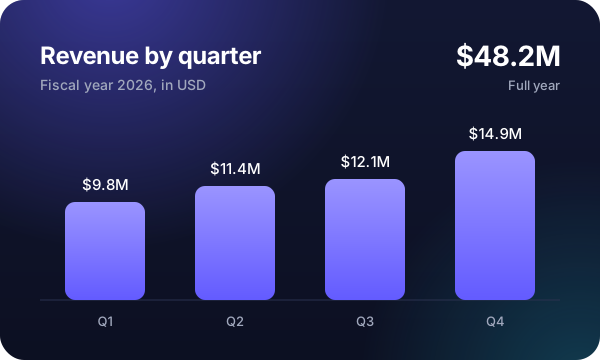
![Bar chart with one bar per quarter generated by Carbone](/file/svg/loops-report.svg)

-   **Place each bar**: every copy starts at the position of the first group. `translate({d.quarters[i].label:print(.i):mul(130)} 0)` moves each bar 130 units to the right of the previous one. `.i` is the number of the item: 0, 1, 2...
-   **Size each bar**: `{d.quarters[i].revenue:div(..scaleMax):mul(180)}` gives each bar a height between 0 and 180, in proportion to its revenue. `..scaleMax` reads `scaleMax` in the parent object.
-   **Show a total**: `{d.quarters[].revenue:aggSum}` sums the revenue of all quarters.

Learn more about [loops](/documentation/design/repetitions/with-arrays.md), [the loop index](/documentation/design/repetitions/with-arrays.md#access-the-loop-iterator-value) and [aggregators](/documentation/design/computation/aggregation.md).

## Conditions

Conditions remove or switch elements, depending on the data:

-   **Conditional blocks** remove everything between `:showBegin` and `:showEnd`. Write them around a group, between two elements: `{d.product.onSale:ifEQ(true):showBegin}` and `{d.product.onSale:showEnd}` remove the Save badge when the product is not on sale.
-   **Inline conditions** print one value or another, in a text or an attribute: the color of the dot and the delivery time follow the stock.

**Data** ([conditions-data.json](/file/svg/conditions-data.json)):

```json
{
  "product": {
    "name": "Aurora One",
    "tagline": "Big sound. Small footprint.",
    "price": 249,
    "saving": 50,
    "isNew": true,
    "onSale": false,
    "stock": 0
  }
}
```

**Template** ([conditions-template.svg](/file/svg/conditions-template.svg)):

```svg
<?xml version="1.0" encoding="UTF-8"?>
<svg id="product" xmlns="http://www.w3.org/2000/svg" font-family="Helvetica Neue, Inter, Arial, sans-serif" width="600" height="360" viewBox="0 0 600 360">
  <title>Product card</title>
  <desc>Created by carbone.io for the SVG templates guide: https://carbone.io/documentation/design/template-formats/svg.html</desc>
  <defs>
    <clipPath id="clippath">
      <rect width="600" height="360" rx="24" ry="24" fill="none"/>
    </clipPath>
    <linearGradient id="paper" x1="0" y1="180" x2="600" y2="180" gradientTransform="translate(305.88 -169.81) rotate(60)" gradientUnits="userSpaceOnUse">
      <stop offset="0" stop-color="#fff"/>
      <stop offset="1" stop-color="#eceef4"/>
    </linearGradient>
    <radialGradient id="halo" cx="170" cy="200" fx="170" fy="200" r="180" gradientUnits="userSpaceOnUse">
      <stop offset="0" stop-color="#635bff" stop-opacity=".2"/>
      <stop offset="1" stop-color="#635bff" stop-opacity="0"/>
    </radialGradient>
    <linearGradient id="body" x1="80" y1="200" x2="260" y2="200" gradientTransform="translate(370 30) rotate(90)" gradientUnits="userSpaceOnUse">
      <stop offset="0" stop-color="#3a3f4d"/>
      <stop offset="1" stop-color="#111318"/>
    </linearGradient>
    <radialGradient id="cone" cx="170" cy="200" fx="170" fy="200" r="54" gradientUnits="userSpaceOnUse">
      <stop offset="0" stop-color="#4a5060"/>
      <stop offset="1" stop-color="#15171e"/>
    </radialGradient>
    <radialGradient id="cap" cx="170" cy="200" fx="170" fy="200" r="18" gradientUnits="userSpaceOnUse">
      <stop offset="0" stop-color="#5a6072"/>
      <stop offset="1" stop-color="#22252e"/>
    </radialGradient>
    <filter id="blur" x="-20%" y="-200%" width="140%" height="500%">
      <feGaussianBlur stdDeviation="6"/>
    </filter>
  </defs>
  <g clip-path="url(#clippath)">
    <rect width="600" height="360" fill="url(#paper)"/>
    <circle cx="170" cy="200" r="180" fill="url(#halo)"/>
  </g>
  <ellipse cx="170" cy="300" rx="100" ry="10" fill="#0b0f1a" opacity=".35" filter="url(#blur)"/>
  <rect x="80" y="110" width="180" height="180" rx="44" ry="44" fill="url(#body)"/>
  <rect x="96" y="126" width="148" height="148" rx="32" ry="32" fill="#1b1e27"/>
  <circle cx="170" cy="200" r="54" fill="url(#cone)"/>
  <circle cx="170" cy="200" r="18" fill="url(#cap)"/>
  <rect x="86" y="114" width="168" height="44" rx="22" ry="22" fill="#fff" opacity=".07"/>
  <circle cx="170" cy="142" r="3" fill="#22d3ee"/>
  {d.product.isNew:ifEQ(true):showBegin}
  <g id="new">
    <text transform="translate(330 112)" fill="#f56300" font-size="14" font-weight="500"><tspan x="0" y="0">New</tspan></text>
  </g>
  {d.product.isNew:showEnd}
  <text transform="translate(330 154)" fill="#0b0f1a" font-size="38" font-weight="700" letter-spacing="-.03em"><tspan x="0" y="0">{d.product.name}</tspan></text>
  <text transform="translate(330 182)" fill="#6b7280" font-size="15"><tspan x="0" y="0">{d.product.tagline}</tspan></text>
  <text transform="translate(330 232)" fill="#0b0f1a" font-size="22" font-weight="500"><tspan x="0" y="0">{d.product.price:formatC}</tspan></text>
  <circle id="dot" cx="335" cy="262" r="4" fill="{d.product.stock:ifGT(0):show('#16a34a'):elseShow('#d97706')}"/>
  <text transform="translate(346 266)" fill="#374151" font-size="13"><tspan x="0" y="0">{d.product.stock:ifGT(0):show(&apos;In stock&apos;):elseShow(&apos;Ships in 2 weeks&apos;)}</tspan></text>
  {d.product.onSale:ifEQ(true):showBegin}
  <g id="save">
    <rect x="330" y="286" width="104" height="26" rx="13" ry="13" fill="#fff1e6"/>
    <text transform="translate(344 304)" fill="#c2410c" font-size="12" font-weight="500"><tspan x="0" y="0">Save {d.product.saving:formatC(0)}</tspan></text>
  </g>
  {d.product.onSale:showEnd}
</svg>
```

**Result** ([conditions-report.svg](/file/svg/conditions-report.svg)):
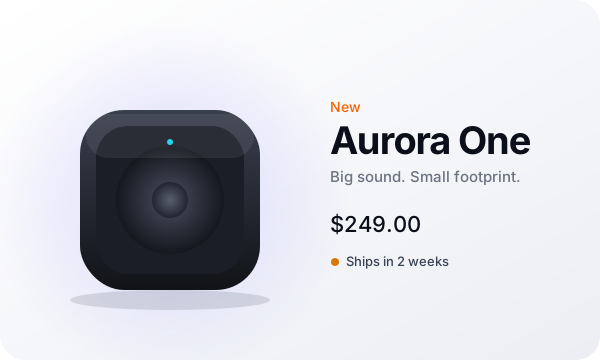
![Product card with the New label, without the Save badge, and an orange delivery time](/file/svg/conditions-report.svg)

To hide an element without removing it, print its `display` attribute: `display="{d.product.stock:ifLT(5):show('inline'):elseShow('none')}"`.

Learn more about [conditional blocks](/documentation/design/conditions/conditional-blocks.md) and [inline conditions](/documentation/design/conditions/inline-conditions.md).

## Images

Write a tag in the `href` of an image to insert a picture from the data, given as a public URL or a Base64 data URI, like the logo. In Illustrator, place any picture and export with **Images: Link**: the file name goes in the `href`, and you replace it with the tag, `xlink:href="{d.brand.logo}"`.

**Data** ([images-data.json](/file/svg/images-data.json)):

```json
{
  "brand": {
    "name": "Aurora",
    "logo": "data:image/svg+xml;base64,PHN2ZyB4bWxucz0iaHR0cDovL3d3dy53My5vcmcvMjAwMC9zdmciIHZpZXdCb3g9IjAgMCA0MCA0MCI+PGRlZnM+PGxpbmVhckdyYWRpZW50IGlkPSJnIiB4Mj0iMSIgeTI9IjEiPjxzdG9wIG9mZnNldD0iMCIgc3RvcC1jb2xvcj0iIzlhOTRmZiIvPjxzdG9wIG9mZnNldD0iMSIgc3RvcC1jb2xvcj0iI2ZmNGQ4ZCIvPjwvbGluZWFyR3JhZGllbnQ+PC9kZWZzPjxyZWN0IHdpZHRoPSI0MCIgaGVpZ2h0PSI0MCIgcng9IjExIiBmaWxsPSJ1cmwoI2cpIi8+PGNpcmNsZSBjeD0iMjAiIGN5PSIyMCIgcj0iOCIgZmlsbD0ibm9uZSIgc3Ryb2tlPSIjZmZmIiBzdHJva2Utd2lkdGg9IjMiLz48L3N2Zz4="
  },
  "event": {
    "type": "Live launch",
    "title": "Hear it first.",
    "date": "2026-12-08",
    "time": "6:00 PM CET",
    "url": "aurora.example/live"
  }
}
```

**Template** ([images-template.svg](/file/svg/images-template.svg)):

```svg
<?xml version="1.0" encoding="UTF-8"?>
<svg id="launch" xmlns="http://www.w3.org/2000/svg" font-family="Helvetica Neue, Inter, Arial, sans-serif" width="600" height="315" xmlns:xlink="http://www.w3.org/1999/xlink" viewBox="0 0 600 315">
  <title>Launch card</title>
  <desc>Created by carbone.io for the SVG templates guide: https://carbone.io/documentation/design/template-formats/svg.html</desc>
  <defs>
    <clipPath id="clippath">
      <rect width="600" height="315" fill="none"/>
    </clipPath>
    <radialGradient id="glow-violet" cx="480" cy="40" fx="480" fy="40" r="260" gradientUnits="userSpaceOnUse">
      <stop offset="0" stop-color="#635bff" stop-opacity=".8"/>
      <stop offset="1" stop-color="#635bff" stop-opacity="0"/>
    </radialGradient>
    <radialGradient id="glow-pink" cx="620" cy="320" fx="620" fy="320" r="230" gradientUnits="userSpaceOnUse">
      <stop offset="0" stop-color="#ff4d8d" stop-opacity=".55"/>
      <stop offset="1" stop-color="#ff4d8d" stop-opacity="0"/>
    </radialGradient>
    <radialGradient id="glow-cyan" cx="300" cy="360" fx="300" fy="360" r="220" gradientUnits="userSpaceOnUse">
      <stop offset="0" stop-color="#22d3ee" stop-opacity=".3"/>
      <stop offset="1" stop-color="#22d3ee" stop-opacity="0"/>
    </radialGradient>
    <radialGradient id="orb" cx="468" cy="158" fx="468" fy="158" r="84" gradientUnits="userSpaceOnUse">
      <stop offset="0" stop-color="#fff"/>
      <stop offset=".35" stop-color="#a9a4ff"/>
      <stop offset="1" stop-color="#4b3fe0"/>
    </radialGradient>
  </defs>
  <g clip-path="url(#clippath)">
    <rect width="600" height="315" fill="#07070c"/>
    <circle cx="480" cy="40" r="260" fill="url(#glow-violet)"/>
    <circle cx="620" cy="320" r="230" fill="url(#glow-pink)"/>
    <circle cx="300" cy="360" r="220" fill="url(#glow-cyan)"/>
  </g>
  <circle cx="468" cy="158" r="112" fill="none" opacity=".14" stroke="#fff"/>
  <circle cx="468" cy="158" r="84" fill="url(#orb)"/>
  <ellipse cx="444" cy="124" rx="34" ry="20" fill="#fff" opacity=".3"/>
  <image width="80" height="80" transform="translate(40 36) scale(.45)" xlink:href="{d.brand.logo}"/>
  <text transform="translate(86 60)" fill="#fff" font-size="15" font-weight="500"><tspan x="0" y="0">{d.brand.name}</tspan></text>
  <text transform="translate(40 128)" fill="#c9c6ff" font-size="12" font-weight="500" letter-spacing=".2em"><tspan x="0" y="0">{d.event.type:upperCase}</tspan></text>
  <text transform="translate(38 180)" fill="#fff" font-size="46" font-weight="700" letter-spacing="-.04em"><tspan x="0" y="0">{d.event.title}</tspan></text>
  <text transform="translate(40 216)" fill="#c7cbd6" font-size="16"><tspan x="0" y="0">{d.event.date:formatD(&apos;dddd, MMMM D&apos;)} · {d.event.time}</tspan></text>
  <rect x="40" y="242" width="124" height="38" rx="19" ry="19" fill="#fff"/>
  <text transform="translate(102 266)" text-anchor="middle" fill="#0b0f1a" font-size="14" font-weight="500"><tspan x="0" y="0">Watch live</tspan></text>
  <text transform="translate(180 266)" fill="#a1a8bd" font-size="13"><tspan x="0" y="0">{d.event.url}</tspan></text>
</svg>
```

**Result** ([images-report.svg](/file/svg/images-report.svg)):

![Launch card with the logo from the data, as an SVG and as a JPG converted by Chromium](/file/svg/images-report.svg)

![Launch card with the logo from the data, as an SVG and as a JPG converted by Chromium, card.jpg](/img/doc/svg-images-result-card.webp)

Download: [images-card.jpg](/file/svg/images-card.jpg)

Carbone downloads the pictures given as URLs when it converts the SVG to an image or a PDF. To display the SVG itself in a browser, give the pictures as data URIs.

See [Convert SVG to PNG or PDF](#convert-svg-to-png-or-pdf) to get `card.jpg`.

## Update shapes

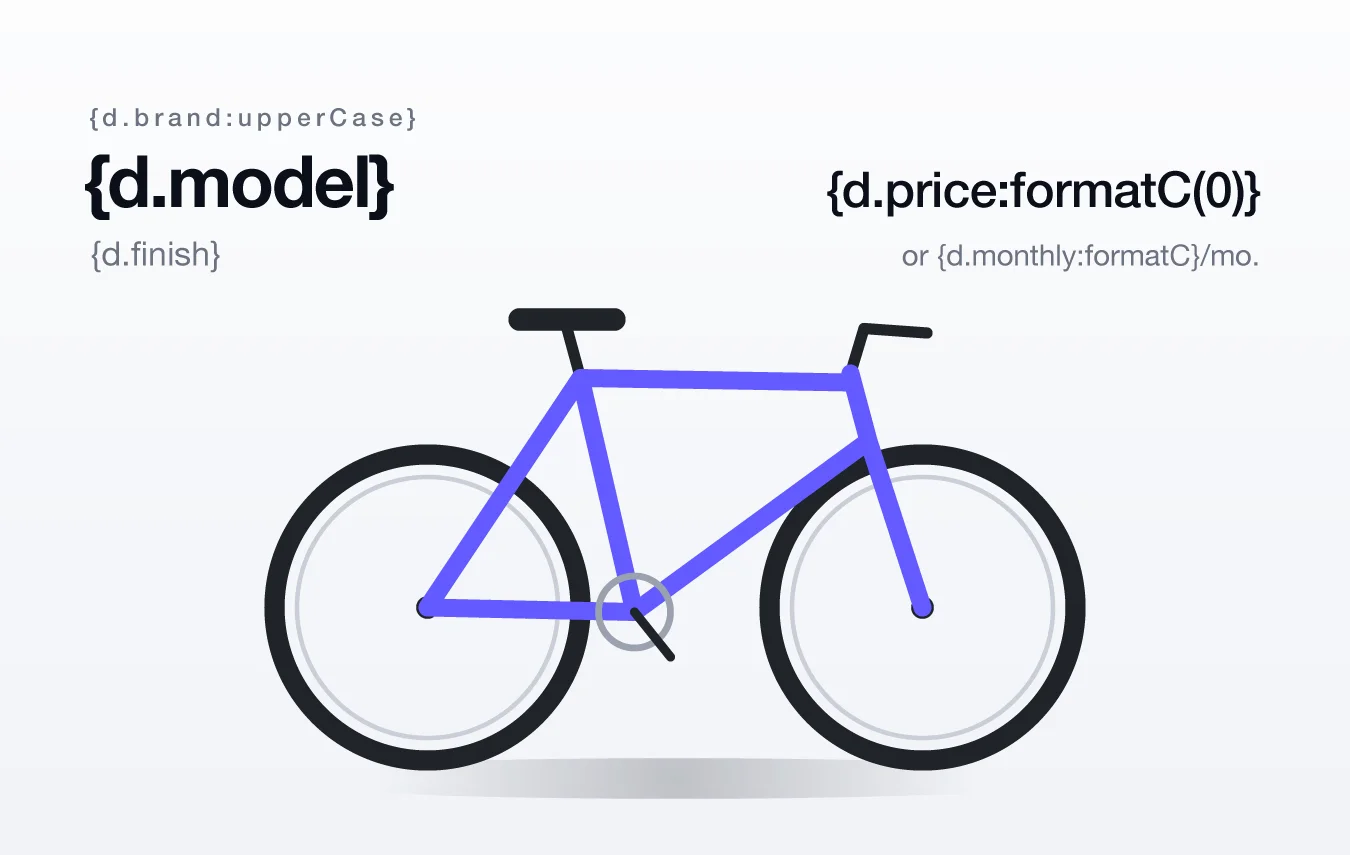
`:svgUpdate` sets an attribute of the shapes whose `id` is in the data, with no tag in the shapes. It suits drawings with many parts, like product configurators, maps, floor plans and seat maps. In Illustrator, name the shapes or groups in the Layers panel and export with **Object IDs: Layer Names**: the names become ids.

`{d.parts[].color:svgUpdate('stroke', .id)}` sets the `stroke` of the element whose id is the `id` of each part, and of its direct children. Write the tag in a comment, anywhere in the SVG.

**Data** ([shapes-data.json](/file/svg/shapes-data.json)):

```json
{
  "brand": "Velora",
  "model": "City 3",
  "finish": "Coral, gum wall tires",
  "price": 1290,
  "monthly": 107.5,
  "parts": [
    { "id": "frame", "color": "#ff5a4e" },
    { "id": "rims", "color": "#1f2329" },
    { "id": "tires", "color": "#b88a5e" }
  ]
}
```

**Template** ([shapes-template.svg](/file/svg/shapes-template.svg)):

```svg
<?xml version="1.0" encoding="UTF-8"?>
<svg id="configurator" xmlns="http://www.w3.org/2000/svg" font-family="Helvetica Neue, Inter, Arial, sans-serif" width="600" height="380" viewBox="0 0 600 380">
  <title>Bike configurator</title>
  <desc>Created by carbone.io for the SVG templates guide: https://carbone.io/documentation/design/template-formats/svg.html</desc>
  <defs>
    <linearGradient id="paper" x1="0" y1="190" x2="600" y2="190" gradientTransform="translate(490 -110) rotate(90)" gradientUnits="userSpaceOnUse">
      <stop offset="0" stop-color="#fff"/>
      <stop offset="1" stop-color="#eef0f5"/>
    </linearGradient>
    <filter id="blur" x="-20%" y="-200%" width="140%" height="500%">
      <feGaussianBlur stdDeviation="6"/>
    </filter>
  </defs>
  <!-- {d.parts[].color:svgUpdate('stroke', .id)} -->
  <rect width="600" height="380" fill="url(#paper)"/>
  <text transform="translate(40 56)" fill="#6b7280" font-size="11" font-weight="500" letter-spacing=".2em"><tspan x="0" y="0">{d.brand:upperCase}</tspan></text>
  <text transform="translate(38 92)" fill="#0b0f1a" font-size="32" font-weight="700" letter-spacing="-.03em"><tspan x="0" y="0">{d.model}</tspan></text>
  <text transform="translate(40 118)" fill="#6b7280" font-size="15"><tspan x="0" y="0">{d.finish}</tspan></text>
  <text transform="translate(560 92)" text-anchor="end" fill="#0b0f1a" font-size="22" font-weight="500"><tspan x="0" y="0">{d.price:formatC(0)}</tspan></text>
  <text transform="translate(560 118)" text-anchor="end" fill="#6b7280" font-size="13"><tspan x="0" y="0">or {d.monthly:formatC}/mo.</tspan></text>
  <ellipse cx="300" cy="344" rx="170" ry="7" fill="#0b0f1a" opacity=".3" filter="url(#blur)"/>
  <g id="tires">
    <circle cx="190" cy="270" r="68" fill="none" stroke="#1f2329" stroke-width="9"/>
    <circle cx="410" cy="270" r="68" fill="none" stroke="#1f2329" stroke-width="9"/>
  </g>
  <g id="rims">
    <circle cx="190" cy="270" r="58" fill="none" stroke="#c9ced8" stroke-width="2"/>
    <circle cx="410" cy="270" r="58" fill="none" stroke="#c9ced8" stroke-width="2"/>
  </g>
  <circle cx="190" cy="270" r="5" fill="#1f2329"/>
  <circle cx="410" cy="270" r="5" fill="#1f2329"/>
  <line x1="258" y1="168" x2="252" y2="146" fill="none" stroke="#1f2329" stroke-linecap="round" stroke-width="5"/>
  <line x1="378" y1="166" x2="384" y2="146" fill="none" stroke="#1f2329" stroke-linecap="round" stroke-width="5"/>
  <line x1="384" y1="146" x2="412" y2="148" fill="none" stroke="#1f2329" stroke-linecap="round" stroke-width="5"/>
  <rect x="226" y="137" width="52" height="10" rx="5" ry="5" fill="#1f2329"/>
  <g id="frame">
    <line x1="190" y1="270" x2="282" y2="272" fill="none" stroke="#635bff" stroke-linecap="round" stroke-width="8"/>
    <line x1="190" y1="270" x2="258" y2="168" fill="none" stroke="#635bff" stroke-linecap="round" stroke-width="8"/>
    <line x1="258" y1="168" x2="282" y2="272" fill="none" stroke="#635bff" stroke-linecap="round" stroke-width="8"/>
    <line x1="258" y1="168" x2="378" y2="170" fill="none" stroke="#635bff" stroke-linecap="round" stroke-width="8"/>
    <line x1="282" y1="272" x2="386" y2="196" fill="none" stroke="#635bff" stroke-linecap="round" stroke-width="8"/>
    <line x1="378" y1="166" x2="386" y2="196" fill="none" stroke="#635bff" stroke-linecap="round" stroke-width="8"/>
    <line x1="386" y1="196" x2="410" y2="270" fill="none" stroke="#635bff" stroke-linecap="round" stroke-width="8"/>
  </g>
  <circle cx="282" cy="272" r="16" fill="none" stroke="#9aa1ae" stroke-width="3"/>
  <line x1="282" y1="272" x2="298" y2="292" fill="none" stroke="#1f2329" stroke-linecap="round" stroke-width="4"/>
</svg>
```

![SVG template of a bike configurator with an svgUpdate tag in a comment, Illustrator](/img/doc/svg-shapes-template-illustrator.webp)

**Result** ([shapes-report.svg](/file/svg/shapes-report.svg)):
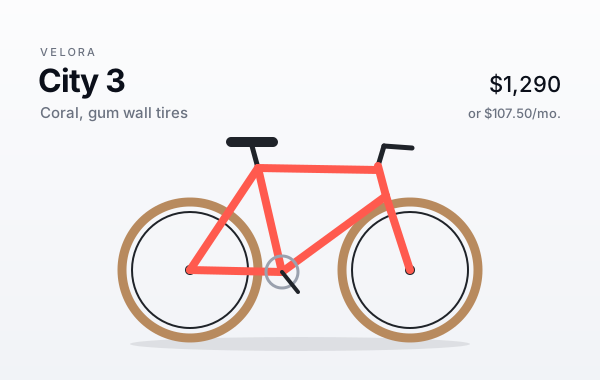
![Bike configurator with the frame, rims and tires colored from the data](/file/svg/shapes-report.svg)

-   Only the basic shapes are updated: `rect`, `circle`, `ellipse`, `line`, `polyline`, `polygon` and `path`. A group passes the attribute to its direct children.
-   A third parameter changes the selection: `'id'` updates only the shape with this id, `'id *'` all the shapes inside the group.
-   `:svgSelectiveUpdate` selects the shapes from the data instead: `{d.rooms[status='busy'].id:svgSelectiveUpdate('fill', '#fdecef')}` fills the busy rooms of a floor plan.
-   Export with **Styling: Presentation Attributes**. With Internal CSS, the colors of the CSS classes win over the attributes set by `:svgUpdate`.

## Export from Illustrator

Choose File > Export > Export As, select SVG, check **Use Artboards**, then set the SVG options:

| Option | Value | Why |
| --- | --- | --- |
| Styling | Presentation Attributes | Each element keeps its own colors, and `:svgUpdate` can change them. |
| Font | SVG | Text stays text. Convert To Outlines turns the tags into paths. |
| Images | Link | The file name of a placed picture goes in the `href`, ready for a tag. Use Embed for fixed pictures. |
| Object IDs | Layer Names | The names of the Layers panel become ids, for `:svgUpdate`. |
| Minify | Off | One element per line, easier to edit. |
| Responsive | Off | Keeps the `width` and `height` of the artboard. |

Then type the tags with these rules:

-   Use point text: click with the Type tool, do not drag a text box. Illustrator exports a text box line by line, at fixed positions.
-   Set **Kerning** to 0 in the Character panel. With Auto or Optical kerning, Illustrator splits the tags into several `tspan` elements: Carbone joins a split tag, but the next `tspan` keeps its position and the text overlaps.
-   Keep one style per tag. A change of font, size or color in a tag starts a new `tspan`.
-   Illustrator exports centered and right-aligned text at the position of its first character. Add `text-anchor="middle"` or `text-anchor="end"` with the x of the center or of the right edge, like `transform="translate(560 92)" text-anchor="end"` for the price.

## Best practices

-   **Size**: keep `width`, `height` and `viewBox` on the `svg` element: the PNG and the PDF take this size. For a sharp PNG, convert with `Scale: 2`: a 600 x 315 SVG gives a 1200 x 630 image.
-   **Fonts**: set the fonts once, on the `svg` element, with fallbacks, like `font-family="Helvetica Neue, Inter, Arial, sans-serif"`. The converter uses the first font of the list that it has. A Google font imported in a `<style>` element is downloaded during the conversion. See [font support](/documentation/design/overview/font-support.md).
-   **Attributes**: put free text in text elements, and keep attributes for colors, numbers and URLs.

## Automate an SVG file

Store the template once, then generate an SVG file for each set of data. These commands use the files of the [Loops](#loops) example.

**1\. Upload the template.** Carbone returns its template ID in `data.id`:

```bash
curl --request POST 'https://api.carbone.io/template' \
  --header 'carbone-version: 5' \
  --header 'Authorization: Bearer API_TOKEN' \
  --form 'versioning=true' \
  --form 'template=@loops-template.svg'
```

**2\. Generate the document** with the template ID and the JSON data:

```bash
curl --request POST 'https://api.carbone.io/render/TEMPLATE_ID?download=true' \
  --header 'carbone-version: 5' \
  --header 'Content-Type: application/json' \
  --header 'Authorization: Bearer API_TOKEN' \
  --data-raw "{ \"data\": $(cat loops-data.json) }" \
  --output report.svg
```

Without `convertTo`, the report has the format of the template. To get a PNG, a JPG, a WebP or a PDF, see [Convert SVG to PNG or PDF](#convert-svg-to-png-or-pdf). Learn more about [template storage](/documentation/developer/http-api/manage-templates.md).

## Convert SVG to PNG or PDF

To generate a PNG, a JPG, a WebP or a PDF from an SVG template with the Carbone API:

1.  **Prepare two files**: an SVG template with Carbone tags, like `{d.name}`, and the JSON data to populate it. You can use the files of the [Images](#images) example.
2.  **Generate the image** in one of three ways:
    -   Use an official Carbone integration, like N8N, Make, Zapier, Airtable or Bubble.
    -   Use a Carbone SDK: Node.js, Go, Python, Java, JavaScript or PHP.
    -   Send a `POST /render/template` HTTP request to the [Carbone API](/documentation/developer/http-api/introduction.md), like this curl command:

```bash
curl --location --request POST 'https://api.carbone.io/render/template?download=true' \
  --header 'carbone-version: 5' \
  --header 'Content-Type: application/json' \
  --header 'Authorization: Bearer API_TOKEN' \
  --data-raw "{
    \"data\": $(cat images-data.json),
    \"template\": \"$(base64 -i images-template.svg)\",
    \"lang\": \"en-us\",
    \"convertTo\": { \"formatName\": \"jpg\", \"formatOptions\": { \"Scale\": 2, \"Quality\": 85 } },
    \"converter\": \"C\"
  }" \
  --output card.jpg
```

> 💡 **Linux users**: replace `base64 -i images-template.svg` with `base64 -w 0 images-template.svg`

**Key parameters**

| Parameter | Description |
| --- | --- |
| `template` | Your SVG template, encoded as a Base64 string. |
| `data` | JSON data used to populate the template. |
| `lang` | Language of the report, used by the formatters: `"en-us"` prints `{d.event.date:formatD('dddd, MMMM D')}` as Tuesday, December 8. |
| `convertTo` | `"png"`, `"jpg"`, `"webp"` or `"pdf"`, or `"svg"` (by default). Add `formatOptions` for an image: `Scale` (0.1 to 4) multiplies the resolution, `Quality` (0 to 100) sets the compression of a JPG or a WebP. See [image options](/documentation/developer/http-api/generate-reports.md#image-options-chromium). |
| `converter` | `"C"` (Chromium) draws the SVG like a browser, letter spacing included. See [converters](/documentation/developer/http-api/generate-reports.md#converters). |
| `?download=true` | Query parameter to download the document as a stream. |
| `Authorization` | Header required for the Carbone Cloud API. [Get your API key here.](https://account.carbone.io/) |

The images are drawn on a white background. To convert an SVG without data, use the [conversion API](/documentation/developer/http-api/convert-reports.md#svg-to-pdf). For more details, refer to the [Carbone API Documentation](/documentation/developer/http-api/introduction.md).

## Related topics

- [XML templates](/documentation/design/template-formats/xml.md)
- [XLSX templates](/documentation/design/template-formats/xlsx.md)
- [TXT templates](/documentation/design/template-formats/txt.md)
- [PPTX templates](/documentation/design/template-formats/pptx.md)
- [PDF templates](/documentation/design/template-formats/pdf.md)
- [Markdown templates](/documentation/design/template-formats/markdown.md)