How to automate secure electronic signatures with Carbone and Subnoto


This tutorial shows how to automate document signatures from start to finish. Once it is in place, nobody opens a PDF to place signature fields by hand: the document is generated, then sent for signature on its own. That is what lets you handle high volumes of any kind of document, from contracts and quotes to purchase orders and NDAs.
The hard part is placement. Signature APIs want a page and coordinates for every field, and in a generated document those keep moving. Add a row to a table or an optional clause, and the signature ends up on the next page. Carbone solves this by telling you where each signature field landed when it renders the document. Subnoto then puts the signature blocks right there and runs a confidential signing process.
💡 Our example for this article: an employment contract signed by the employee, then countersigned by the HR director. Nothing in the flow is specific to HR.
Why Carbone and Subnoto
- No manual placement, even when the layout moves: You don't place anything by hand, even when the layout moves. Signature spots are tags in the template, so if a longer document pushes a signature to the next page, your code doesn't change. Just check one draft after you edit a template, before sending at scale.
- One script for all your templates. Each signature field carries the details of the person who signs it, so the same code sends any template to Subnoto, as long as your data describes signers the same way.
- Confidential end to end. Carbone does not keep the generated document once downloaded, and Subnoto processes it in Trusted Execution Environments so only the signers can read it.
- Legally binding in Europe and the US. Subnoto signatures are Simple Electronic Signatures (SES) under the EU eIDAS regulation and comply with the US ESIGN Act and UETA, with an audit trail for each signature. That covers most business documents.
Before you start
- Get a Carbone API key: Create one from your Carbone account. Signature fields are a Carbone v5 feature, so every request in this guide sends the
carbone-version: 5header. - A Subnoto API key: In the Subnoto app, open Settings, then API Keys, and click Create new API key. Tick Documents → Manage: that single permission covers everything in this guide. Copy the Secret Key right away, Subnoto only shows it once. Subnoto API credits: Sending an envelope through the API uses one credit per signer. On the Free plan you can build envelopes through the API, but the send call returns
API credits limit exceeded. Buy credits from Settings → Buy API credits or move to a paid plan before your first real send. - Environment require: Node.js 22 or newer.
- Download the complete example:
Add your API keys to .env, put your own email addresses in data.json, and follow the README.
Prefer to build it yourself? Set up the project:
mkdir contracts && cd contracts
npm init -y && npm pkg set type=module
npm install @subnoto/api-client
And create a .env file:
CARBONE_API_KEY=your_carbone_key
CARBONE_TEMPLATE_ID=
SUBNOTO_ACCESS_KEY=your_subnoto_access_key
SUBNOTO_SECRET_KEY=your_subnoto_secret_key
Step 1: Add signature fields to your template
Start from a document you already use, in Word or LibreOffice. Variable parts become Carbone tags such as {d.employee.signer.firstname}, and every spot where someone signs or dates the document gets a :sign tag. Here is the signature section of the example contract:
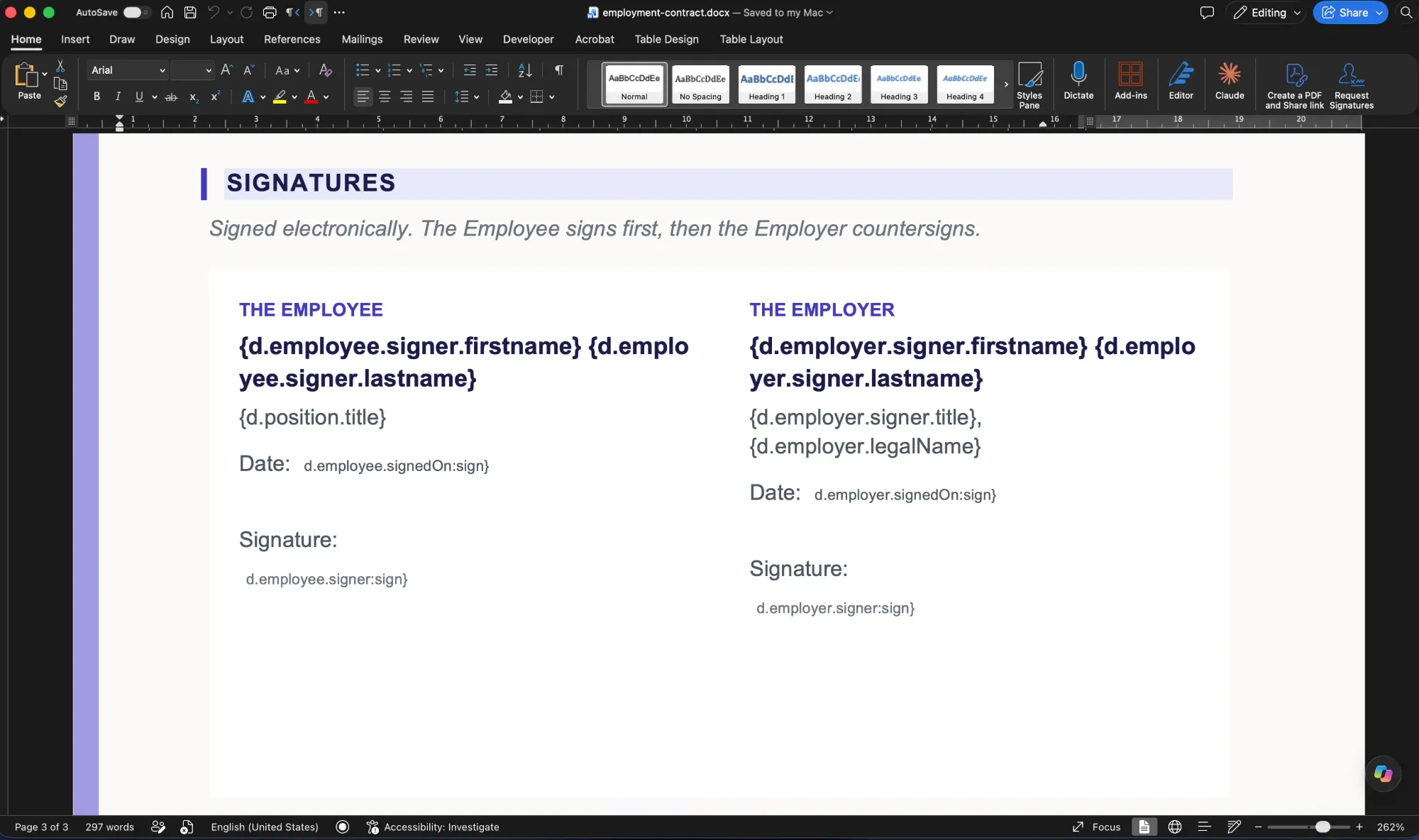
At render time, Carbone replaces each :sign tag with a small technical marker and records its position on the page. Three details keep the result clean:
- Use Arial or Calibri in the paragraphs that hold
:signtags. Carbone needs one of them to measure positions accurately. - Color the first
{of each:signtag white, or whatever your background is. The marker picks up that formatting, so nothing shows in the PDF. - Leave some room around each tag, since Subnoto draws its blocks from there, toward the right and down. Keep about four empty lines below a signature tag, and the rest of the line plus one empty line after a date tag.
That's also why positions can't be hardcoded. The rest of the template changes the length of the document from one contract to the next. Here, one clause only shows up for fixed term contracts, another only when remote work applies, and the list of benefits grows with each item:
This is a fixed term contract starting on {d.contract.startDate:formatD('MMMM D, YYYY')} and ending on {d.contract.endDate:formatD('MMMM D, YYYY')}.{d.contract.type:ifNE(fixed):drop(p)}

The Employee may work remotely up to {d.remote.daysPerWeek} days per week, in line with the group remote work policy.{d.remote.daysPerWeek:ifEQ(0):drop(p)}

•  {d.benefits[i].label}
{d.benefits[i+1]}
:drop(p) removes the paragraph when its condition is true, and the [i] and [i+1] pair repeats the line for each benefit. Every one of these changes pushes the signature section up or down, sometimes onto another page. Since Carbone measures the :sign tags after the content is in place, the positions it returns are always the final ones.
Step 2: Shape the data like a Subnoto signer
The object you pass to a :sign tag comes back untouched in Carbone's response. So you can store, right in your data, everything Subnoto will need later.
Here's the data for the example contract (trimmed, the full file is in the download):
{
  "reference": "HR-2026-04817",
  "employer": {
    "legalName": "Orvane France SAS",
    "signer": {
      "type": "signature",
      "order": 2,
      "email": "thomas.leclerc@orvane.example",
      "firstname": "Thomas",
      "lastname": "Leclerc",
      "title": "HR Director"
    },
    "signedOn": { "type": "date", "email": "thomas.leclerc@orvane.example" }
  },
  "employee": {
    "birthDate": "1991-04-12",
    "signer": {
      "type": "signature",
      "order": 1,
      "email": "sofia.moreau@example.com",
      "firstname": "Sofia",
      "lastname": "Moreau"
    },
    "signedOn": { "type": "date", "email": "sofia.moreau@example.com" }
  },
  "position": { "title": "Senior Data Engineer", "grade": "P4" },
  "contract": { "type": "permanent", "startDate": "2027-01-04", "endDate": null },
  "remote": { "daysPerWeek": 2 },
  "salary": { "base": 68000, "bonusTargetPercent": 10 },
  "benefits": [
    { "label": "Health and life insurance, fully paid by the employer" },
    { "label": "25 days of paid leave plus 10 RTT days per year" }
  ]
}
Each signer object holds what Subnoto needs: email, firstname and lastname to invite the person, type for the kind of block, and order for when they sign. The template prints the names from that same object.
Date fields are simpler. A type and the signer's email are enough, and Subnoto fills in the date at signing time.
Step 3: Upload the template to Carbone
Upload the template once, then reuse its ID for every contract. Create upload-template.mjs:
import { readFile } from "node:fs/promises";

process.loadEnvFile();

const template = await readFile("./templates/employment-contract.docx");

const form = new FormData();
form.append("versioning", "true");
form.append("template", new Blob([template]), "employment-contract.docx");

const response = await fetch("https://api.carbone.io/template", {
  method: "POST",
  headers: {
    Authorization: `Bearer ${process.env.CARBONE_API_KEY}`,
    "carbone-version": "5"
  },
  body: form
});

const result = await response.json();
if (!result.success) throw new Error(result.error);

console.log("Template ID:", result.data.id);
Run node upload-template.mjs and paste the ID into CARBONE_TEMPLATE_ID.
The file goes into the form as a Blob. A raw Node Buffer would be sent as plain text, and Carbone would answer "template" field is empty.
With versioning on, uploading a new version of the template under the same ID lets you update the contract without touching the code. You can also manage templates and preview them with sample data in Carbone Studio.
Step 4: Render the document and read the signature positions
Create index.mjs, starting with the Carbone part:
import { readFile } from "node:fs/promises";
import { SubnotoClient } from "@subnoto/api-client";

process.loadEnvFile();

const data = JSON.parse(await readFile("./data.json", "utf8"));

// Generate the PDF with Carbone
const response = await fetch(`https://api.carbone.io/render/${process.env.CARBONE_TEMPLATE_ID}`, {
  method: "POST",
  headers: {
    Authorization: `Bearer ${process.env.CARBONE_API_KEY}`,
    "carbone-version": "5",
    "Content-Type": "application/json"
  },
  body: JSON.stringify({ data, convertTo: "pdf", lang: "en-us" })
});

const render = await response.json();
if (!render.success) throw new Error(render.error);

const { renderId, signatures } = render.data;

// Download the PDF. The link works once and needs no API key
const pdfResponse = await fetch(`https://api.carbone.io/render/${renderId}`);
const pdf = Buffer.from(await pdfResponse.arrayBuffer());
Here are the two employee fields from the signatures array Carbone returned:
[
  {
    "data": { "type": "date", "email": "sofia.moreau@example.com" },
    "page": 3,
    "x": 103,
    "y": 196
  },
  {
    "data": {
      "type": "signature",
      "order": 1,
      "email": "sofia.moreau@example.com",
      "firstname": "Sofia",
      "lastname": "Moreau"
    },
    "page": 3,
    "x": 76,
    "y": 249
  }
]
For each field, you get the page and the tag's position, in PDF points from the top left corner, plus the data you attached to it. One thing to know: the array doesn't follow the reading order of the document. That's why the signing order comes from the order field in your data, not from the array.
Step 5: Map the positions to Subnoto signers and blocks
Still in index.mjs, re-structure those fields for Subnoto:
// Each signature field becomes a block on the page
const blocks = signatures.map((field) => ({
  type: field.data.type,
  page: String(field.page),
  x: field.x,
  y: field.y,
  recipientEmail: field.data.email
}));

// Each person with a signature field becomes a signer, once, in signing order
const signers = [];
for (const field of signatures) {
  const person = field.data;
  if (person.type === "signature" && !signers.some((s) => s.email === person.email)) {
    signers.push(person);
  }
}
signers.sort((a, b) => a.order - b.order);
Positions need no conversion. Subnoto uses the same unit and the same corner as Carbone, so x and y go straight through. The only catch is the page number: Subnoto wants it as a string.
Step 6: Create the envelope and send it
Finish index.mjs with the Subnoto part:
const subnoto = new SubnotoClient({
  accessKey: process.env.SUBNOTO_ACCESS_KEY,
  secretKey: process.env.SUBNOTO_SECRET_KEY
});

// Call the Subnoto API and stop on the first error
async function subnotoCall(path, body) {
  const { data, error } = await subnoto.POST(path, { body });
  if (error) throw new Error(`${path}: ${JSON.stringify(error)}`);
  return data;
}

// Upload the PDF as a draft envelope
const { envelopeUuid, documentUuid } = await subnoto.uploadDocument({
  fileBuffer: pdf,
  envelopeTitle: `Employment contract ${data.reference}`
});

// Signers sign one after the other, and read every page first
await subnotoCall("/public/envelope/update", {
  envelopeUuid,
  update: { signatureOrder: true, documents: [{ uuid: documentUuid, mustReadAllPages: true }] }
});

// Add the signers, then give each one their turn
await subnotoCall("/public/envelope/add-recipients", {
  envelopeUuid,
  recipients: signers.map(({ email, firstname, lastname }) => ({ type: "manual", email, firstname, lastname }))
});

for (const { email, order } of signers) {
  await subnotoCall("/public/envelope/update-recipient", { envelopeUuid, email, role: "signer", updates: { order } });
}

// Place the signature and date fields
await subnotoCall("/public/envelope/add-blocks", { envelopeUuid, documentUuid, blocks });

// Send it, or keep it as a draft with: node index.mjs --draft
if (process.argv.includes("--draft")) {
  console.log("Draft ready in Subnoto:", envelopeUuid);
} else {
  await subnotoCall("/public/envelope/send", { envelopeUuid });
  console.log("Sent for signature:", envelopeUuid);
}
Run node index.mjs. The employee receives the invitation first, and the HR director once the employee has signed.
A few notes on these calls:
update-recipientis what sets the signing order. Signers added together all start at the same position, so without it they would be invited at the same time.- Every call uses your team's default workspace. To use another one, add
workspaceUuidto each call.
💡 Test without sending Run node index.mjs --draft while you fine tune the template. The envelope stays in draft: open it in the Subnoto app, check every block, and send it from there when it looks right. No email goes out and no API credit is used.The result
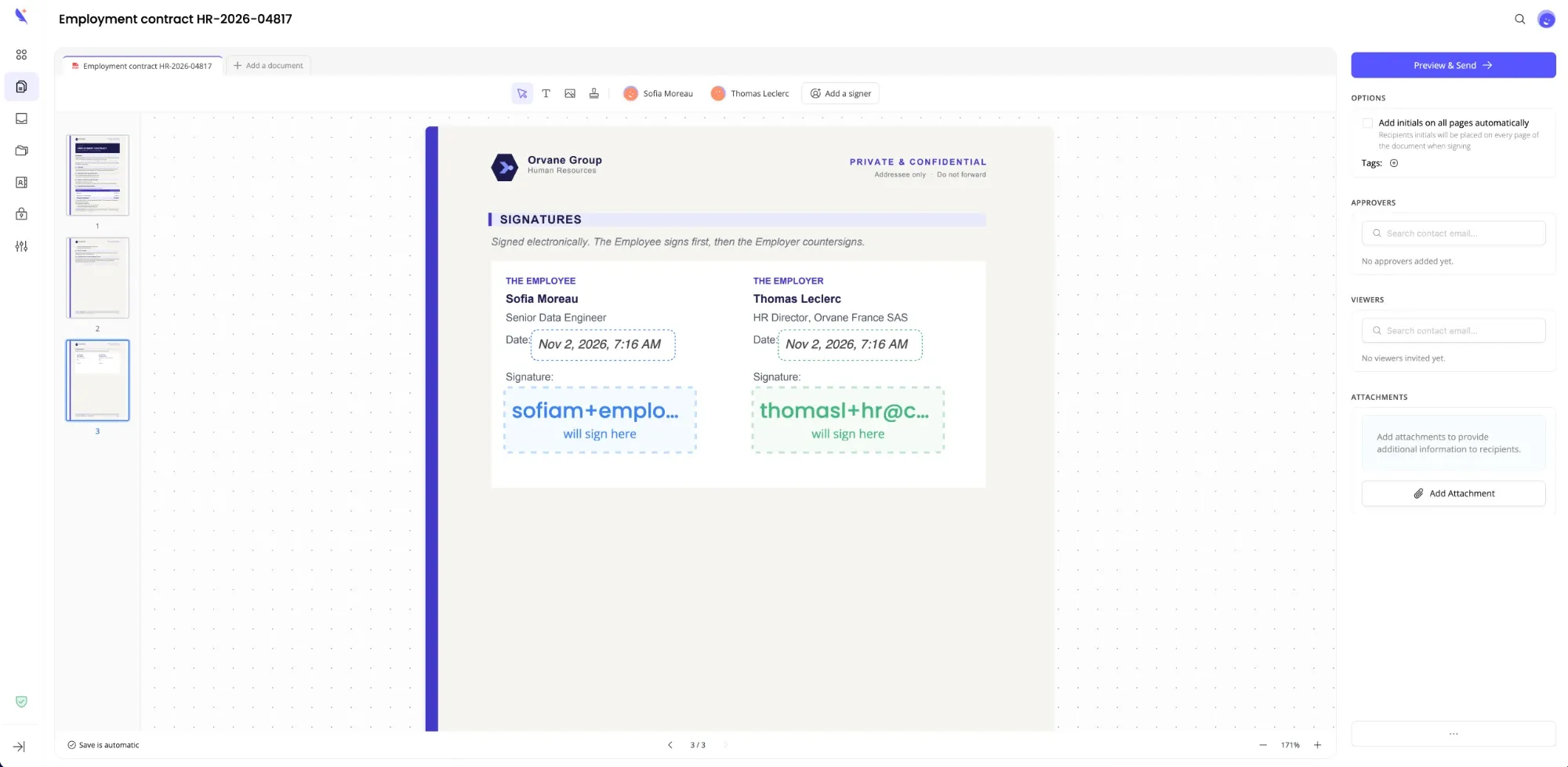
Here is the draft opened in the Subnoto editor. The signature and date blocks sit where the :sign tags were in the Word template, with no manual placement. Each signer gets a color: blue for Sofia, who signs first, green for Thomas, who countersigns.
Going further
This script sends one document. The natural next step is to replace data.json with a call to your CRM, ERP or HR system, and run the script whenever something needs a signature: a deal closes, an order is confirmed, an offer is accepted.
If you prefer not to code: Carbone and Subnoto both ship an MCP server, so you can connect them to Claude, ChatGPT or Microsoft Copilot and ask, in plain words, for a document to be prepared and sent for signature.
You will find the full reference for signature tags in the Carbone documentation.