
Best Selling Vehicles Awards
Create Professional Award Documents with Carbone
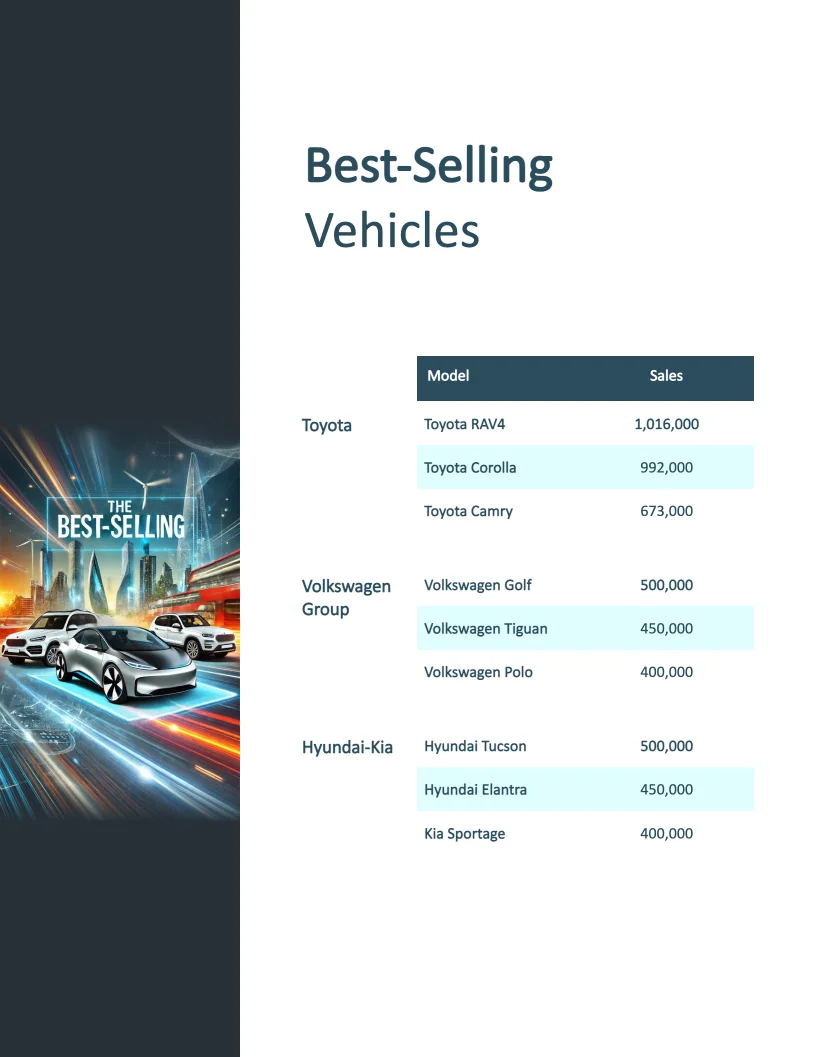
- Template type document docx simple
- Carbone min. v4.0.0+
- Features loop nested array
- Target award management sales result
Overview
This example demonstrates how to generate a professional award document that includes:
- A structured main table for organizing content
- A nested table for displaying detailed information
- Dynamic data integration using JSON
Step-by-Step Guide
Follow these steps to create your award document template with Carbone:
1. Design the Main Layout
Start by creating the main structure in Microsoft Word:
- Open Microsoft Word
- Insert a table for the main content
- Configure the table properties:
- Go to Table Properties
- Under the Table tab, set Text Wrapping to None
- In the Row tab, uncheck Allow row to break across pages for better layout control
2. Add Dynamic Data
Use Carbone tags to display your data:
- Use
{d.manufacturers[i].name}to display items from your data array - Add
{d.manufacturers[i+1]}in the next row to create a loop - Set up the header row:
- Select the first row of your table
- Right-click and choose Table Properties
- Go to the Row tab
- Check Repeat as header row at the top of each page
3. Implement Nested Tables
Add nested tables to show hierarchical information:
- Insert a table inside a table cell
- Use
{d.manufacturers[i].models[i].name}to display nested data - Add
{d.manufacturers[i].models[i+1]}to loop through nested items - Use Table Design to remove borders from the nested table for a clean look
Related Examples
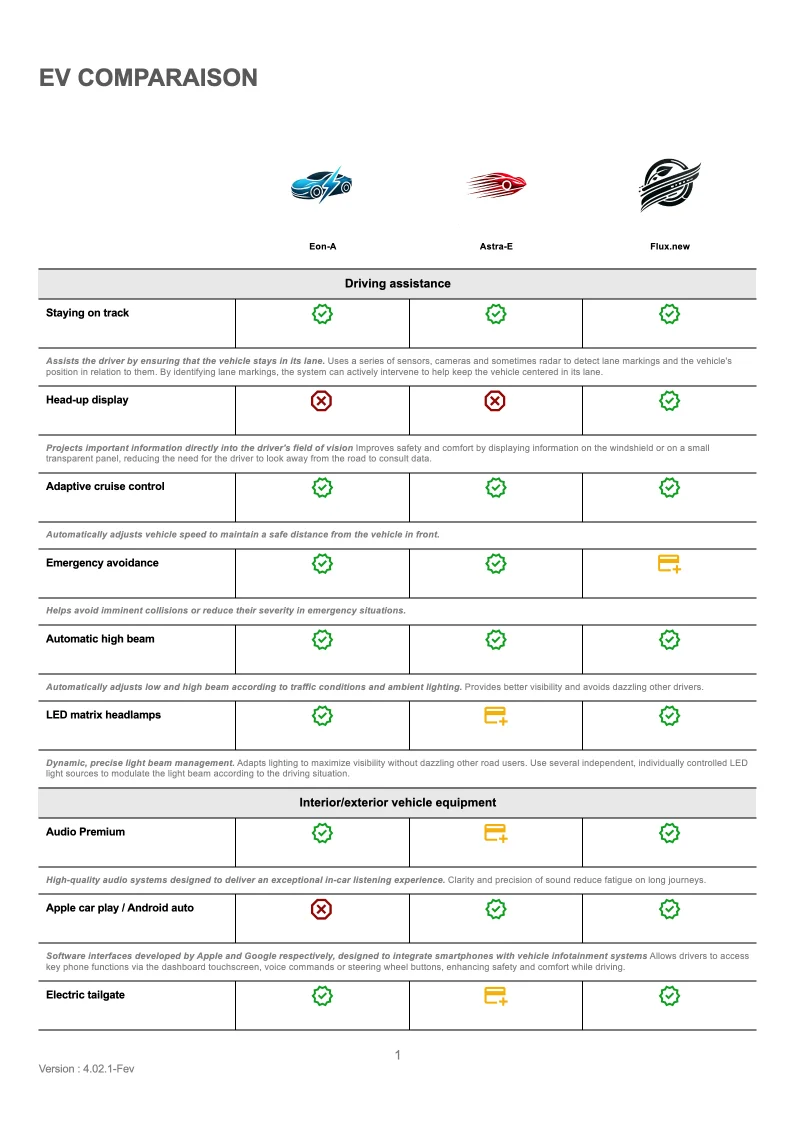
Trusted by 800+ paid customers in 40+ countries
Finance
Healthcare
Insurance
Legal
Public
Retail
Energy
Software
Telecom