
Planning with subtotals
Share your planning with Carbone
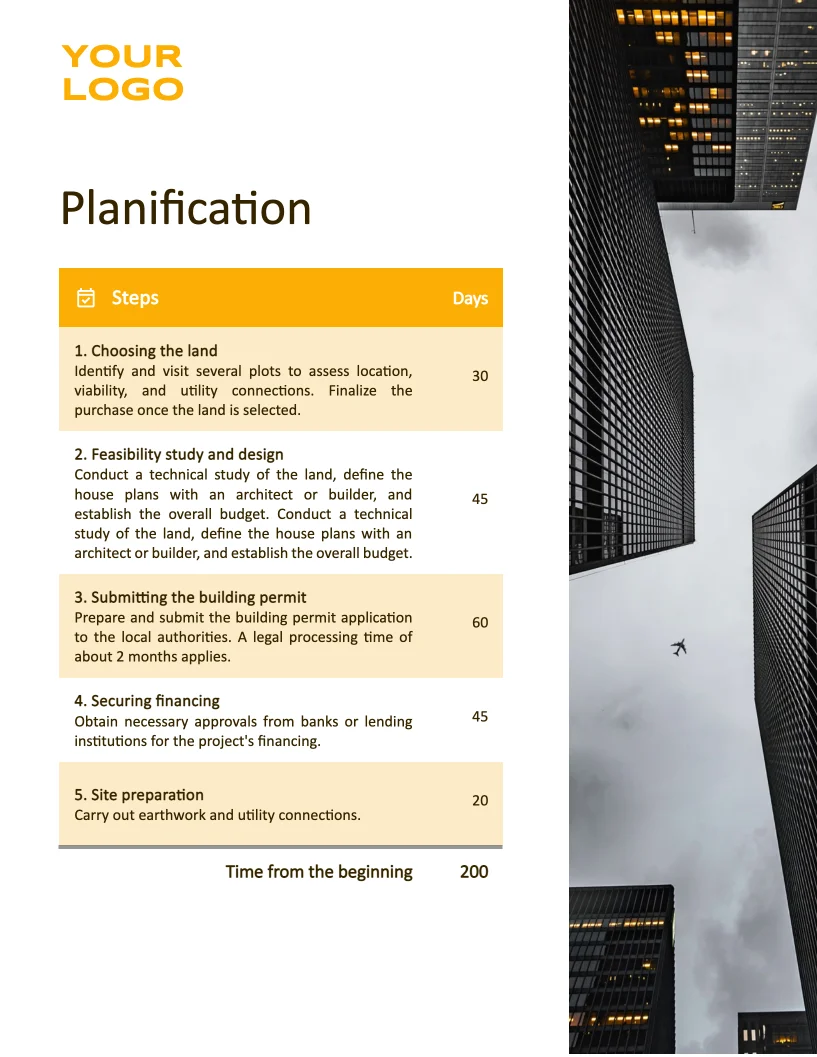
- Template type document docx expert
- Carbone min. v5.0.0+
- Features loop filter alias aggregator
- Target planning
Overview
This guide shows you how to generate a professional planning report that includes:
- Dynamic tables that adapt column widths between first and subsequent pages
- Smart content layout that adjusts based on text length
- Simple and maintainable template syntax
- Automatic subtotal calculations for first-page items
Step-by-Step Guide
Follow these steps to create your planning template:
1. Calculate Characters per Line
First, create the initial table for page one. Since descriptions can vary in length and may take multiple lines, we need to:
- Determine how many characters fit on one line based on your layout
- Use 40 characters as a standard line length for this example
2. Calculate Description Line Count
To determine how many lines each description needs:
- Get the description length using the :len formatter
- Divide by characters per line (40) using :div
- Round up to the nearest whole number with :ceil
- Calculate running totals using :cumSum
- Store the result using :set
Use this formula:
{d.steps[].description:len:div(40):ceil:cumSum:set(.nbRow)}
This adds a nbRow property to each item, showing how many lines it needs in the first table.
Input JSON Example
{
  "steps": [
    {
      "step": 1,
      "name": "Choosing the land",
      "duration_days": "30",
      "description": "Identify and visit several plots to assess location, viability, and utility connections. Finalize the purchase once the land is selected."
    },
    {...},
    {
      "step": 6,
      "name": "Foundations",
      "duration_days": "20",
      "description": "Dig trenches, pour the foundations, and set up the base structure."
    },
    {...}
  ]
}
Output JSON Example
{
  "steps": [
    {
      "step": 1,
      "name": "Choosing the land",
      "duration_days": "30",
      "description": "Identify and visit several plots to assess location, viability, and utility connections. Finalize the purchase once the land is selected.",
      "nbRow": 4
    },
    {...},
    {
      "step": 6,
      "name": "Foundations",
      "duration_days": "20",
      "description": "Dig trenches, pour the foundations, and set up the base structure.",
      "nbRow": 22
    },
    {...}
  ]
}
3. Create and Use Aliases
Use aliases to make your template code cleaner:
{#steps = d.steps[i, nbRow < 22]}
{#steps2 = d.steps[i, nbRow > 21]}
Then use {$steps.description} and {$steps2.description} in your tables.
4. Add Subtotal Calculations
Calculate subtotals using the :aggSum formatter:
{d.steps[nbRow<22].duration_days:aggSum}
Technical Tips for Better Layout
Prevent Row Breaks Across Pages
- Select the entire table
- Right-click → Table Properties
- Go to Row tab
- Uncheck "Allow rows to break across pages"
Repeat Headers on New Pages
- Select the table's header row
- Right-click → Table Properties
- Go to Row tab
- Check "Repeat as header row at the top of each page"
Related Examples

Trusted by 800+ paid customers in 40+ countries