
Planning
Create Professional Project Planning Documents with Carbone
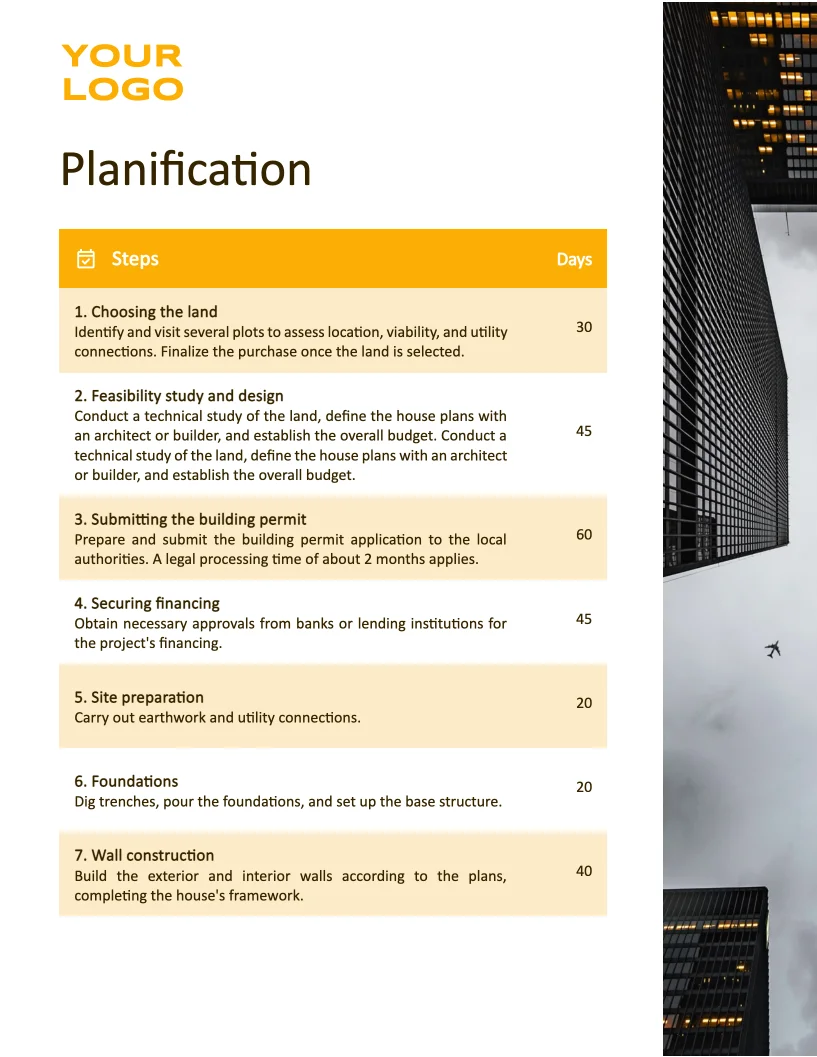
- Template type document docx simple
- Carbone min. v4.0.0+
- Features loop
- Target planning project management timeline
Overview
Create a professional project planning document that includes:
- A clear, organized table structure
- Project timeline information
- Easy-to-read formatting
Step-by-Step Guide
Follow these simple steps to generate your project planning document using Carbone:
1. Design Your Document Layout
- Add your document title
- Set up the header section
- Include your company logo and relevant images
2. Create the Planning Table
- Navigate to Insert > Table
- Create a table with your desired dimensions (e.g., 2x3)
- Add clear column headers
- Insert Carbone tags to display your data (example:
{d.steps[i].name}) - Use
[i+1]notation to specify the position of iteration of your array
Note: To enhance table appearance, select from pre-designed styles in the Table Design menu or customize colors through Modify table style.
Technical Tips for Better Layout
Prevent Row Breaks Across Pages
- Select the entire table
- Right-click → Table Properties
- Go to Row tab
- Uncheck "Allow rows to break across pages"
Repeat Headers on New Pages
- Select the table's header row
- Right-click → Table Properties
- Go to Row tab
- Check "Repeat as header row at the top of each page"
Related Examples
Trusted by 800+ paid customers in 40+ countries
Finance
Healthcare
Insurance
Legal
Public
Retail
Energy
Software
Telecom