
Best Manufacturer Awards
Streamline your document creation process with Carbone

- Template type document docx simple
- Carbone min. v4.0.0+
- Features loop filter
- Target classification management result
Overview
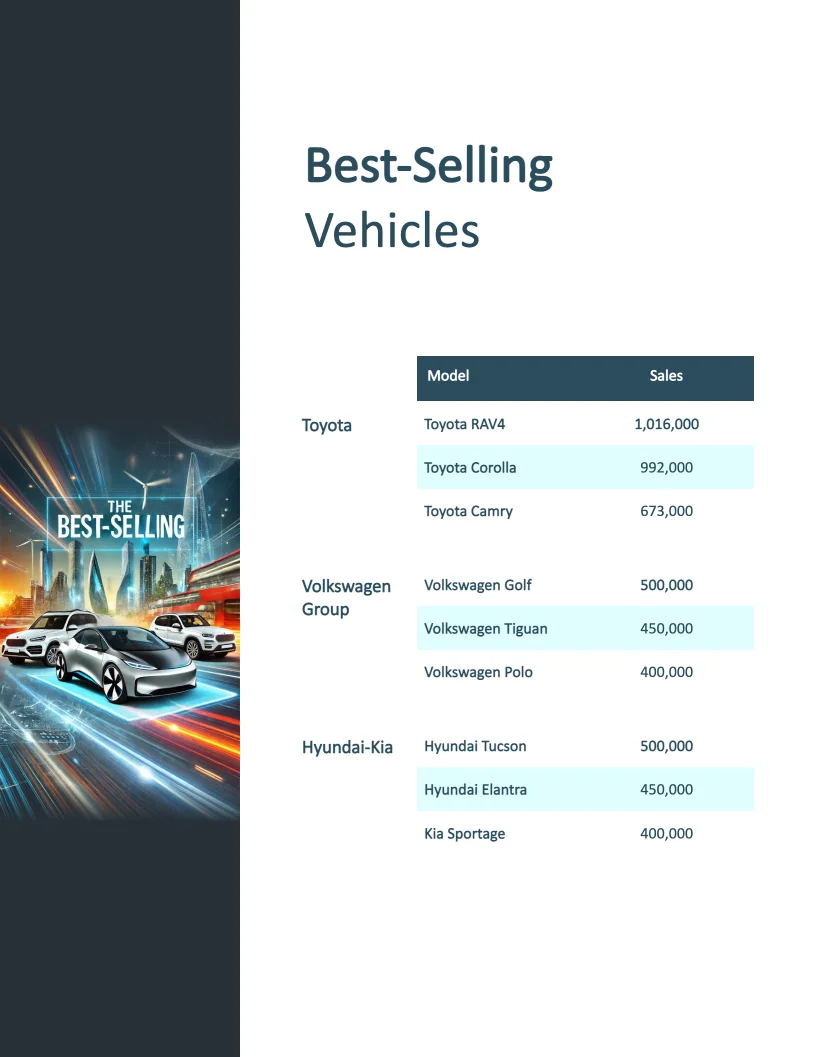
This example shows how to create a classification report with different table layouts on multiple pages. Specifically, you'll learn how to display tables with different column widths on the first page versus subsequent pages.
Step-by-Step Solution
The solution uses two separate tables to handle different layouts: one for the first page and another for subsequent pages. Here's how to create this template in Carbone:
1. Create the First Page Table
- Determine how many items you want to show on the first page (e.g., 3 entries)
- Use a filter to select only these first items:
- Formula syntax:
{d[i,i<3].manufacturer} - This selects the first 3 manufacturers from your data
- Formula syntax:
- Add row iteration using:
{d[i+1,i<3]}- This generates a new row for each selected item
2. Create the Subsequent Pages Table
- Set up the table to display remaining items:
- Use the filter:
{d[i,i>2].manufacturer} - This selects all manufacturers after the third one
- Use the filter:
- Add row iteration using:
{d[i+1,i>2]}- This generates rows for all remaining items
Technical Details
- Uses filtering to control data display
- Implements array iteration for dynamic row generation
- Supports different table layouts while maintaining data consistency
Related Examples
Trusted by 800+ paid customers in 40+ countries
Finance
Healthcare
Insurance
Legal
Public
Retail
Energy
Software
Telecom