
Menu
Generate Professional Restaurant Menus with Carbone
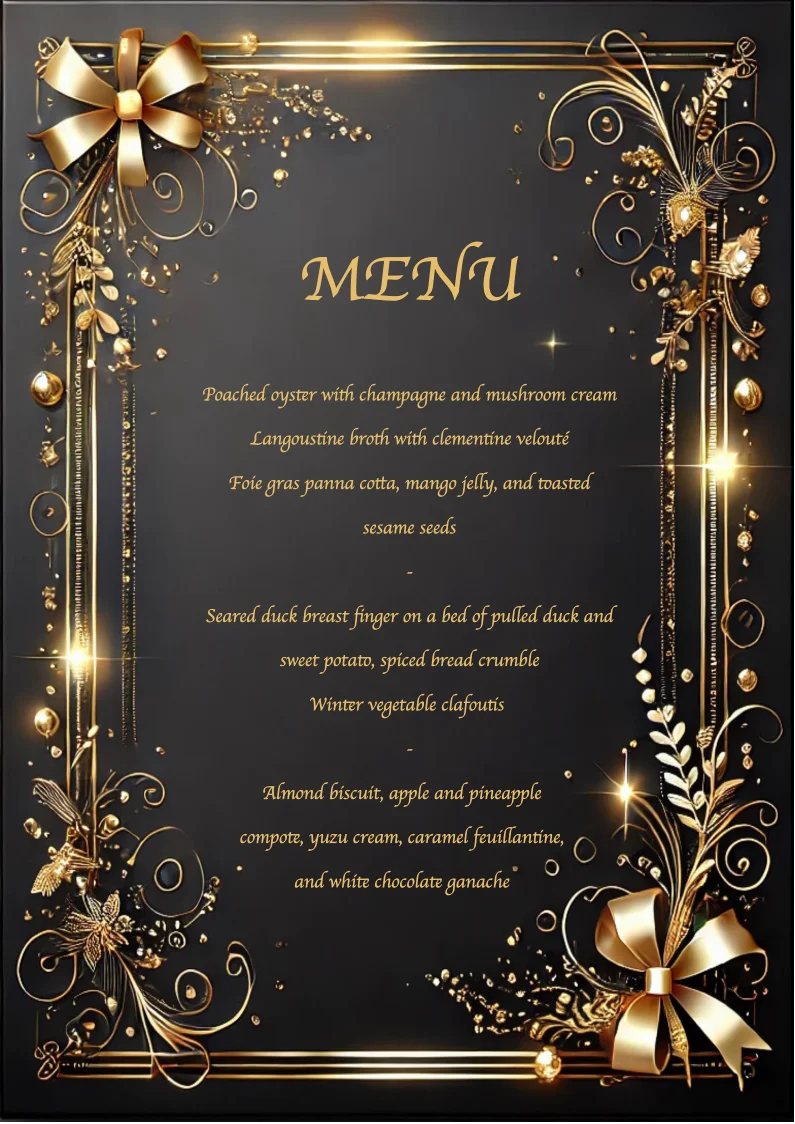
- Template type document odt simple
- Carbone min. v4.0.0+
- Features tag image
- Target menu restaurant food service template menu generator
Overview
Learn how to generate professional restaurant menus using Carbone. This guide will show you how to:
- Design an attractive menu layout
- Add dynamic menu items using data arrays
- Include your restaurant's branding and images
- Format text and prices consistently
Step-by-Step Guide
1. Create the Menu Layout
Set up your document in LibreOffice:
- Open the Layout menu
- Choose your Orientation (portrait or landscape)
- Set your Page Size through More options > Area tab
Add your restaurant's branding:
- Click the Image button
- Select Add/Import
- Upload your logo or image
- Choose Stretched style in the Options panel
2. Insert Menu Content
Add menu items using Carbone tags:
- Use array notation for multiple items
- Apply consistent fonts and styles
- Organize items by category
Example code for menu items:
{d.starter[i].choice}
{d.starter[i+1]}
Best Practices
- Group menu items into clear categories (Appetizers, Main Courses, Desserts)
- Use consistent formatting for prices and descriptions
- Include clear item descriptions and pricing
- Test your template with sample data
- Keep the design clean and easy to read
Related Examples
Trusted by 800+ paid customers in 40+ countries
Finance
Healthcare
Insurance
Legal
Public
Retail
Energy
Software
Telecom