
Stock inventory spreadsheet
Create stunning reports for your stock inventory
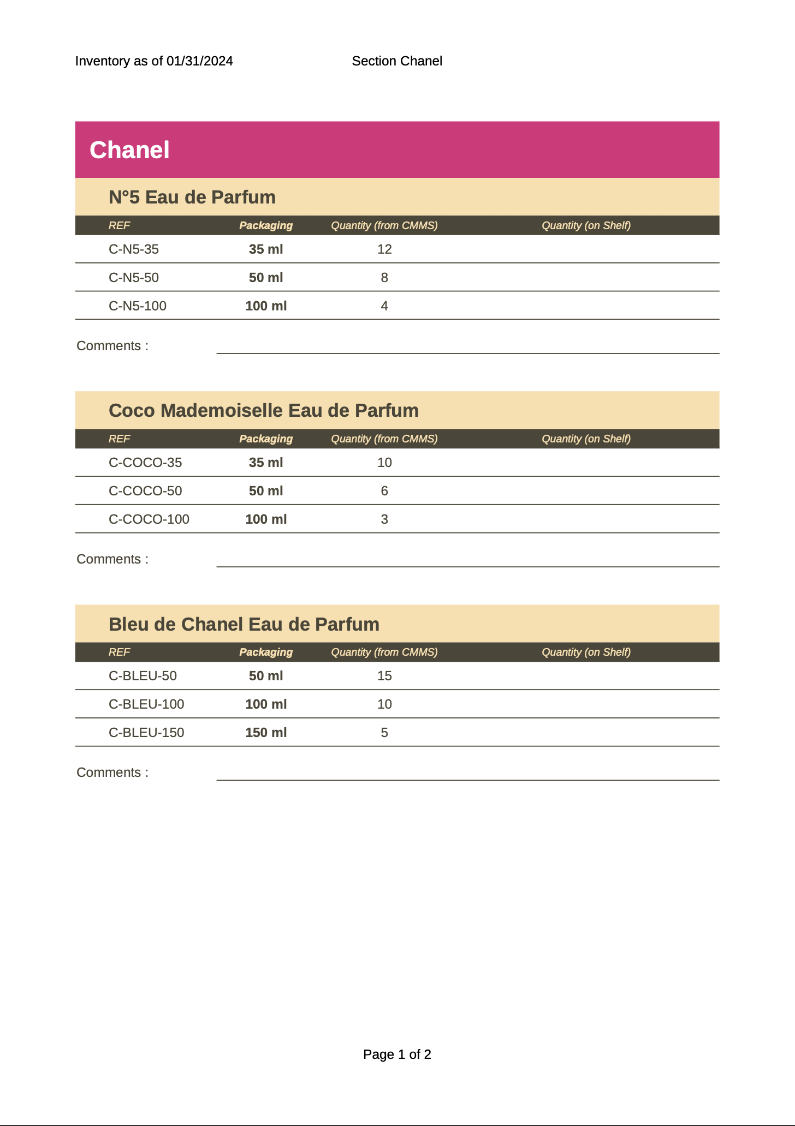
- Template type spreadsheet ods simple
- Carbone min. v4.24.0+
- Features loop alias
- Target inventory checking new sheet
Overview
Learn how to generate professional spreadsheets for your stock inventory management that can:
- Create multiple sheets automatically
- Display product lists using loops
- Handle nested data structures for product characteristics
Step-by-Step Guide
Follow these steps to create an ODS (OpenDocument Spreadsheet) template with Carbone:
1. Design Your First Sheet
Start by creating the main sheet layout using Carbone tags. Implement loops and nested loops to display your data dynamically.
Example template structure:
{d.brands[i].products[i].name}
    {d.brands[i].products[i].packaging[i].size} {d.brands[i].products[i].packaging[i].quantity}
    {d.brands[i].products[i].packaging[i+1]}
{d.brands[i].products[i+1]}
2. Set Up Sheet Name Aliases
Define aliases using the {#...=...} syntax to create dynamic sheet names:
{#sheet1 = d.brands[i].name}
{#sheet2 = d.brands[i+1].name}
3. Apply Dynamic Sheet Names
To rename your sheets using the aliases:
- Right-click on the sheet tab
- Select Rename sheet...
- Enter the alias using the
{$...}syntax:- First sheet:
{$sheet1} - Second sheet:
{$sheet2}
- First sheet:
Your template is now ready to generate dynamic inventory reports!
Related Examples
Check out these similar templates to learn more:

Trusted by 800+ paid customers in 40+ countries
Finance
Healthcare
Insurance
Legal
Public
Retail
Energy
Software
Telecom