
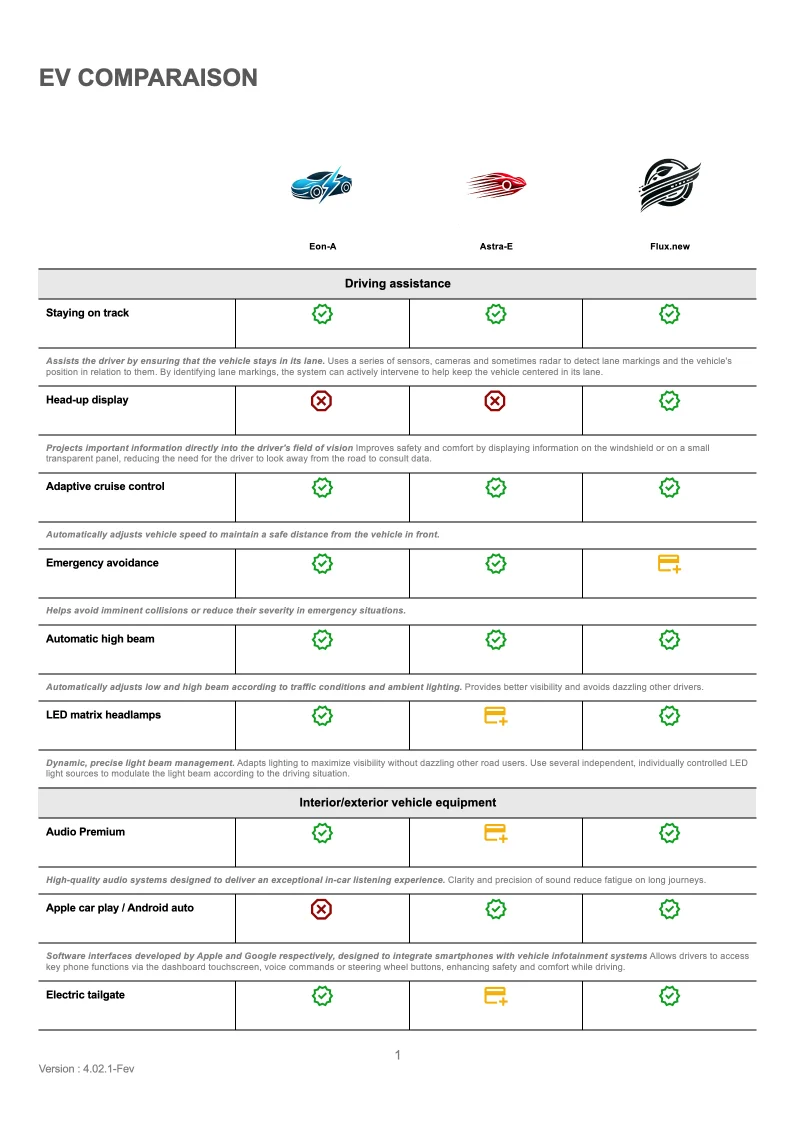
Product Comparison Table
Generate product comparison
- Template type document docx simple
- Carbone min. v4.24.0+
- Features bidirectional-loop placeholder
- Target product comparator insurance technology
Overview
Learn how to generate professional product comparison tables that automatically adapt to your data. This guide shows you how to:
- Compare multiple products or companies using horizontal loops
- Add dynamic company logos and images
- Create tables that look great across multiple pages
- Use conditional formatting for feature comparison
Step-by-Step Guide
1. Create the Basic Table Structure
Insert a table from the Insert menu
- Select Table and create your desired layout (e.g., 3x3)
- Add column headers using the horizontal loop syntax
- Example:
{d.datas[0].benchmark[i].product}for the first column and{d.datas[0].benchmark[i+1].product}for subsequent columns
Add Dynamic Logos
- Insert a temporary image in the table
- Use View alt text to set the dynamic logo path
- Example:
{d.datas[0].benchmark[i].logo}
You only need to use the [i+1] syntax once for each array iteration.
2. Set Up Feature Comparison
Create feature rows using vertical iteration:
{d.datas[i].features[i].name}
{d.datas[i].features[i+1]}
3. Add Conditional Images
- Insert status indicators using placeholders:
- Add an image placeholder
- Use View Alt Text to set the image path
- Implement conditional logic using the :ifEQ formatter
- Example of simple condition:
{d.datas[i].features[i].cols[i].status:ifEQ(1):show(d.legend.YES)} - Example of multiple conditions:
{d.datas[i].features[i].cols[i].status:ifEQ(1):show(d.legend.YES):ifEQ(2):show(d.legend.OPTION):ifEQ(3):show(d.legend.NO)}
Technical Tips for Better Layout
Prevent Row Breaks Across Pages
- Select the entire table
- Right-click → Table Properties
- Go to Row tab
- Uncheck "Allow rows to break across pages"
Repeat Headers on New Pages
- Select the table's header row
- Right-click → Table Properties
- Go to Row tab
- Check "Repeat as header row at the top of each page"
Related Examples

Trusted by 800+ paid customers in 40+ countries
Finance
Healthcare
Insurance
Legal
Public
Retail
Energy
Software
Telecom