Weekly class timetable
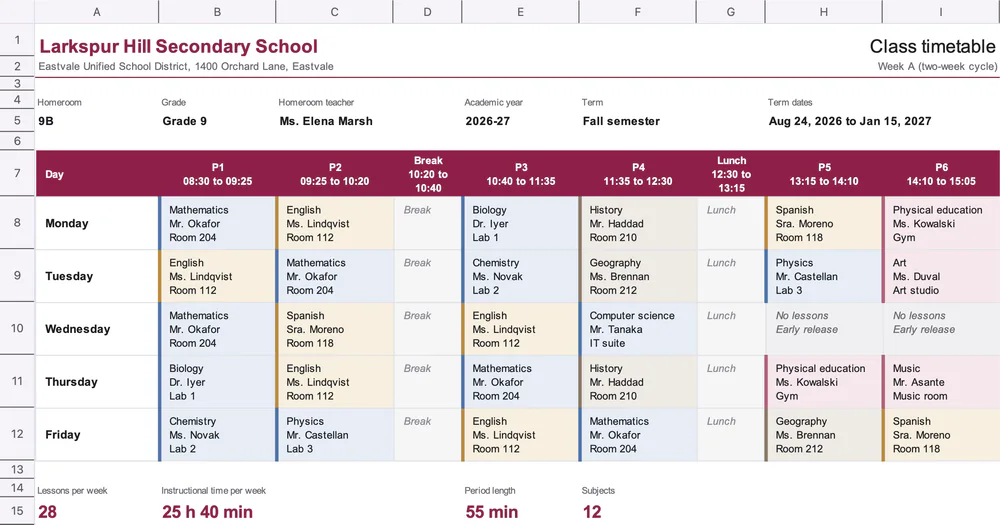
One homeroom's week, filled from your student information system
- Template
- XLSX
- Export as
- XLSX, PDF, ODS, CSV, HTML +19 more
- Carbone
- 5.18+
- Bi-directional loop
- Conditional formatting
- Formula
- mergeCell
Generate class timetables from your student information system
Secondary schools hand every homeroom its weekly timetable at the start of each term, and again after each schedule change. The student information system or the scheduling software holds the periods, the lessons, the teachers and the rooms: it sends them to the Carbone API as JSON and gets back an Excel file that the school prints or shares with families. In this example, homeroom 9B of the fictional Larkspur Hill Secondary School gets its Week A timetable for the fall semester, with an early release on Wednesday afternoon.
In this example, you will:
- Fill a days by periods grid with a bi-directional loop
- Color each lesson by department with conditional formatting
- Count the weekly periods and minutes of each subject with Excel formulas
How to generate a class timetable in Excel
1. Add the header and the option tag
- Write the school, homeroom and term with Carbone tags:
{d.school.name},{d.homeroomTeacher},{d.termStart:formatD('MMM D, YYYY')}. - Add
{o.preReleaseFeatureIn=5018000}in a cell that already holds text, here after the district name, so formulas, merged cells and conditional formatting follow the rows added by the loops. Learn more about XLSX templates.
2. Fill the grid with a bi-directional loop
- In the header row, repeat the periods in a horizontal loop:
{d.periods[i].code}, a line break, then{d.periods[i].start} to {d.periods[i].end}in B7, and{d.periods[i+1].code}in C7. - Fill the lessons with a bi-directional loop: the parent array (
days) fills the rows, the nested array (lessons) fills the columns.
| {d.days[i].name}   | {d.days[i].lessons[i].subject}   | {d.days[i].lessons[i+1].subject}   |
| {d.days[i+1].name} | | |- Each lesson cell holds three tags on three lines, in one font:
subject,teacherandroom. Breaks, lunch and the free afternoon are lessons too (Break,Lunch,No lessons), so every row has the same number of columns. The columns keep the widths of the template: the break and lunch columns are narrow.
3. Color the lessons by department
- Select the grid and open Conditional Formatting > New Rule > Format only cells that contain > Specific text > beginning with, and enter a subject, for example
Mathematics. - Give all the subjects of a department the same light fill and left border: blue for mathematics and sciences, sand for languages, taupe for humanities, rose for arts and PE. Breaks and lunch get a gray italic style.
- Carbone extends the rules to every generated row.
4. Count the weekly hours with formulas
- Repeat the subjects in a vertical loop, with
{d.subjects[i].department:mergeCell}to print each department once. Learn more about merged cells. - Count the periods of each subject in the grid:
=COUNTIF($B$8:$I$9,B16&"*"). Carbone widens the range to the 5 generated days. - Multiply by the period length,
{d.periodMinutes:formatN}, to get the minutes, and sum them below the loop:=SUM(E16:E17)covers all the subjects. The key figures above the table show the total time with the format[h]" h "mm" min", and a data bar shows the share of each subject.
Save the XLSX template, send the JSON of each homeroom, and let Carbone generate every class timetable of the school.
Related Examples
Check out these similar templates to learn more:
Trusted by 800+ paid customers in 40+ countries