
Self-hosted deployment
Carbone on Amazon Elastic Container Service
Generate and manage your reports inside your own Amazon ECS Cluster
Introduction
Setting up Carbone in an ECS environment is very simple and effective.
Here's the recommended configuration:

Running the Enterprise Edition on Amazon Elastic Container Service requires a license: see Licensing to get a free 30-day trial or a production license.
Quickstart
Create ECS Cluster
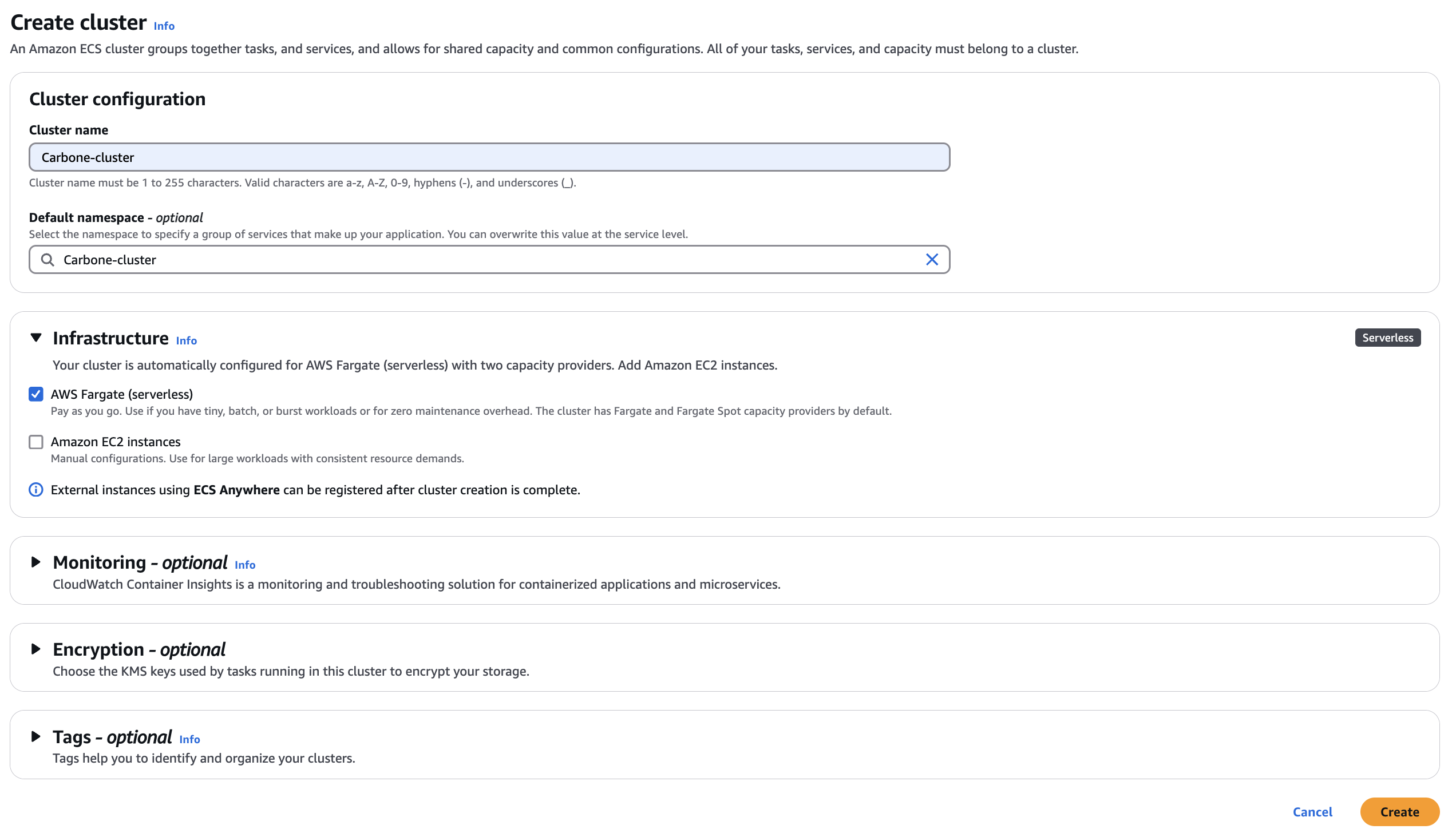
To set up Carbone in your environment, the first step is to create your cluster. To do this, connect to the Amazon Elastic Container Service console and create your cluster:
Create IAM role
You then need to prepare a role that will be used by your Carbone container.
For this example, we suggest you give access rights to CloudWatch and to read secrets for license storage.
You must first create the carbone_service_role with Elastic Container Service Task trusted entity :
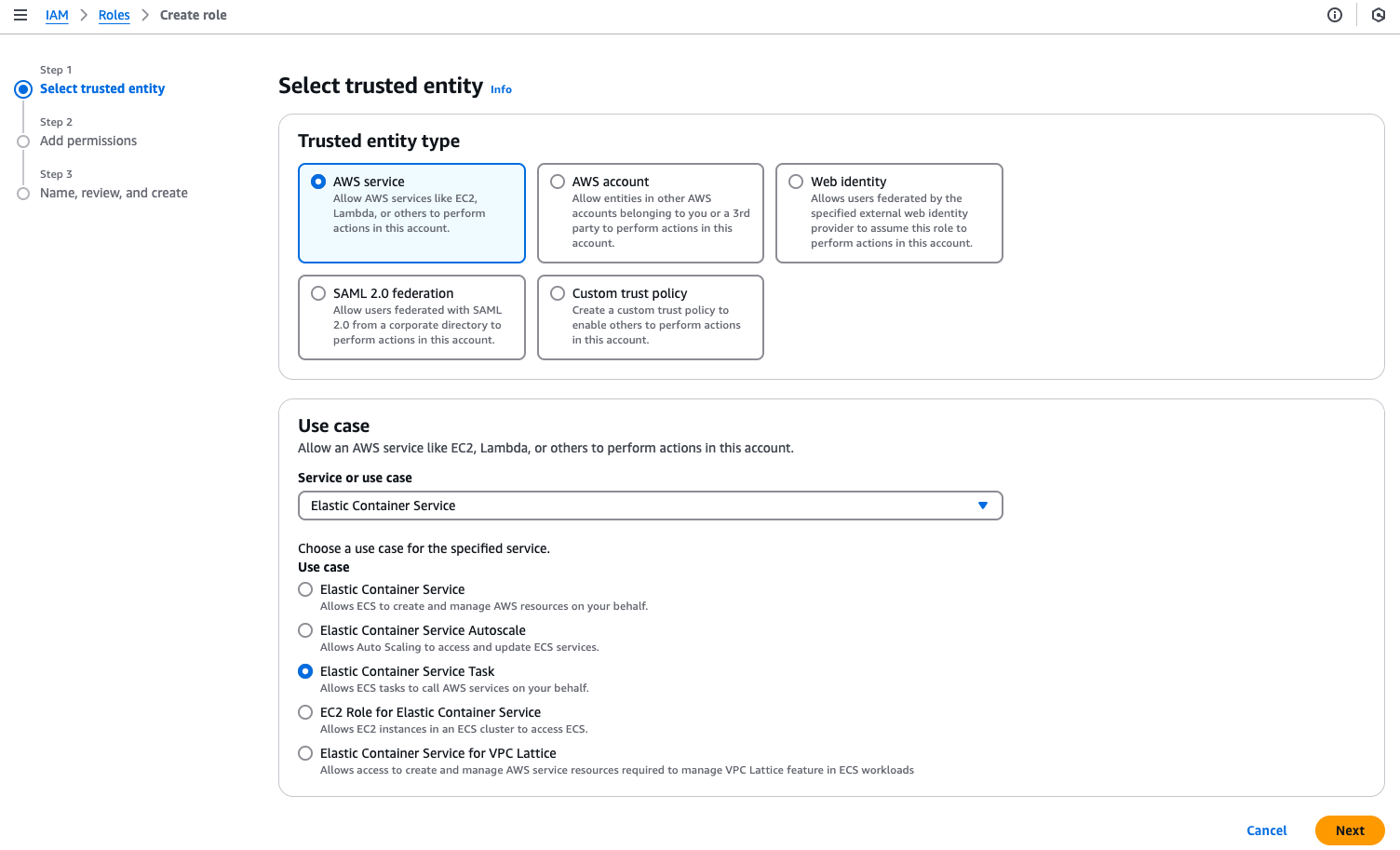
Then, you must assign AmazonECSTaskExecutionRolePolicy, CloudWatchLogsFullAccess and custom ReadSecret permissions policies :

Storing Carbone License
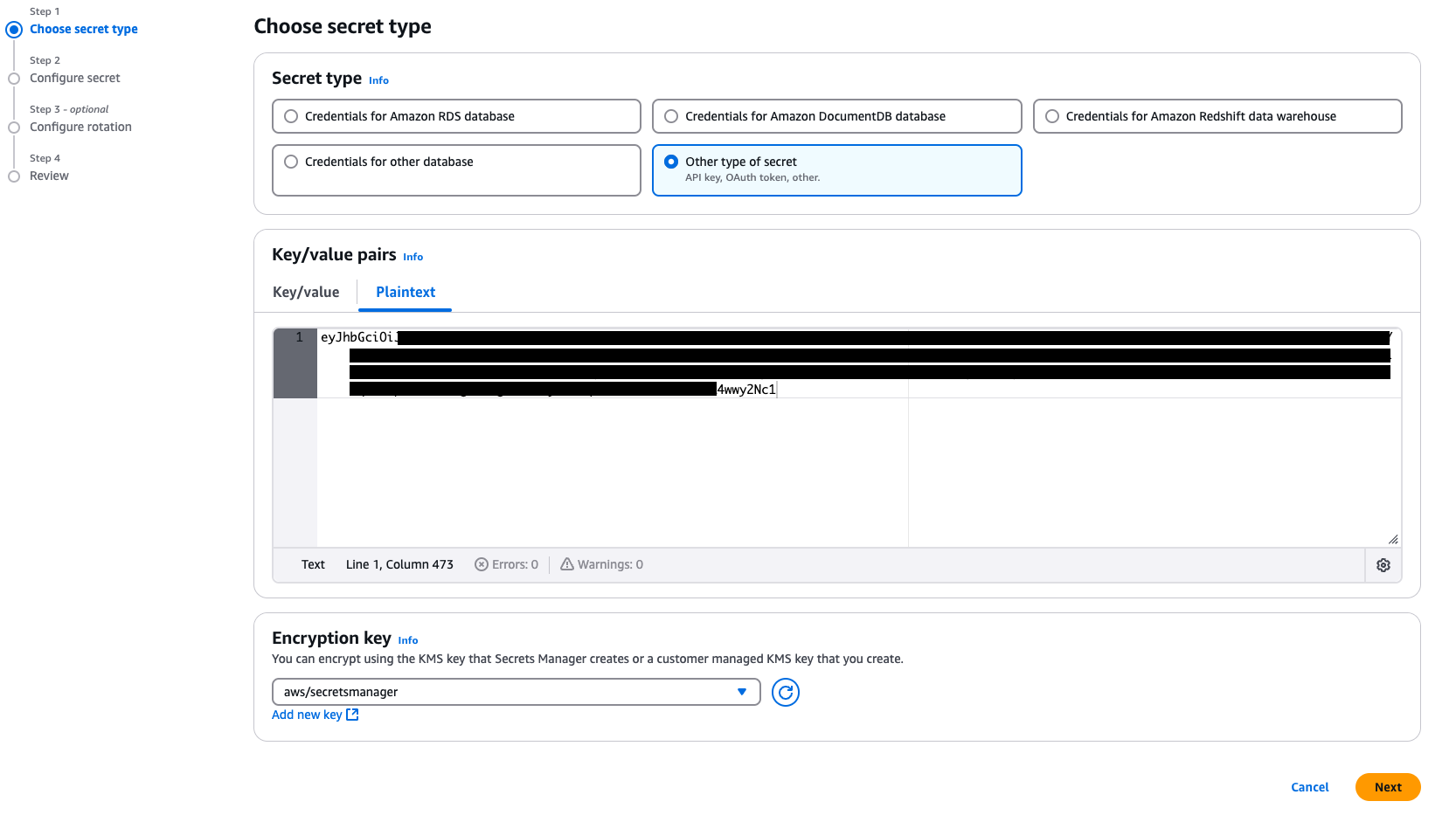
To store secrets properly, we recommend using AWS Secrets Manager. You'll need to create a new secret from the AWS Secrets Manager Console.
Insert your license as Other type of secret :
Create Task definition
You now need to create a task definition for the Carbone service. Go to the Task definitions console, and create a task. Here is an example of a json task definition:
{
    "family": "carboneService",
    "containerDefinitions": [
        {
            "name": "Carbone",
            "image": "carbone/carbone-ee:full",
            "cpu": 0,
            "portMappings": [
                {
                    "containerPort": 4000,
                    "hostPort": 4000,
                    "protocol": "tcp"
                }
            ],
            "essential": true,
            "environment": [
                {
                    "name": "CARBONE_STUDIO",
                    "value": "true"
                }
            ],
            "mountPoints": [],
            "volumesFrom": [],
            "secrets": [
                {
                    "name": "CARBONE_LICENSE",
                    "valueFrom": <REPLACE WITH YOUR LICENCE SECRET ARN>
                }
            ],
            "stopTimeout": 20,
            "logConfiguration": {
                "logDriver": "awslogs",
                "options": {
                    "awslogs-group": "awslog-carbone",
                    "awslogs-create-group": "true",
                    "awslogs-region": "eu-west-3",
                    "awslogs-stream-prefix": "Carbone"
                }
            },
            "systemControls": []
        }
    ],
    "executionRoleArn": <REPLACE WITH YOUR ROLE ARN>,
    "networkMode": "awsvpc",
    "placementConstraints": [],
    "requiresCompatibilities": [
        "FARGATE"
    ],
    "cpu": "1024",
    "memory": "2048",
    "runtimePlatform": {
        "cpuArchitecture": "ARM64",
        "operatingSystemFamily": "LINUX"
    }
}
Create Service
Finally, all that's left to do is create the service in your cluster using the task definition you've just created.
You can then configure the number of tasks you need, autoscaling, an Application Load Balancer, ...
Et voilà 🎉
Configuration
Storage backends
To use Carbone in production, you need to configure data persistence for template and rendering storage.
There are two possible solutions in the ECS environment: using S3 buckets or configuring an Elastic File System shared volume.
We recommend using S3 rather than EFS. If you run multiple instances with template management enabled, EFS is not supported as a storage backend — use S3 instead.
Storing persistent data on S3 bucket
To store your data on S3 buckets, you need to :
- Create 2 buckets, one for storing your templates, and one for storing renderings
- Create a user with a pair of API keys (KEY_ID and KEY_SECRET) with read and write rights to these buckets.
- In the task definition, you need to add the following environment variables:
AWS_ENDPOINT_URL=s3.amazonaws.com
AWS_REGION=<S3 REGION>
AWS_ACCESS_KEY_ID=<YOUR KEY_ID>
AWS_SECRET_ACCESS_KEY=<YOUR KEY_SECRET>
BUCKET_TEMPLATES=<YOUR TEMPLATES BUCKET NAME>
BUCKET_RENDERS=<YOUR RENDERS BUCKET NAME>
Storing persistent data on shared Elastic File System (EFS)
To use storage via the shared volume, you need to:
Create an EFS space from the Elastic File System Console
Check that the network configuration allows this storage to be accessed from Carbone containers
Mount a shared volume by adding the
volumedirective to the task definition:"volume": [ { "name": "template-storage", "efs_volume_configuration": { "file_system_id": <EFS ID>, "root_directory": "/app/template" } }, { "name": "render-storage", "efs_volume_configuration": { "file_system_id": <EFS ID>, "root_directory": "/app/render" } } ]
Enable Carbone options
All Carbone configuration options are available on this page.
You can also create your own plugins, configure your version of LibreOffice or add your own fonts by creating your own Carbone image.
Authentication
To enable API authentication:
Add the environment variable
CARBONE_AUTHENTICATION=trueto the task definition.Generate a key pair with the same helper used on Docker and Kubernetes:
docker run -it --platform "linux/amd64" carbone/carbone-ee:slim-5.16.2 generate-keysStore the public key content as a secret in AWS Secrets Manager (same as the license above), and reference it from the task definition as
CARBONE_AUTHENTICATION_PUBLIC_KEY, in thesecretsarray.Keep the private key secret — it never needs to leave your machine, it is only used to generate JWT tokens:
docker run -it --platform "linux/amd64" carbone/carbone-ee:slim-5.16.2 generate-token

## Paste in terminal content of key.pem
A JWT token is then displayed in the console. You can then use it in your API calls.
Scaling and availability
Since template and render storage is external (S3 or EFS, see Storage backends above), Carbone tasks are stateless and can be scaled horizontally:
- Put an Application Load Balancer in front of the service, with a target group health check on
/status(port4000). - Configure ECS Service Auto Scaling with a target-tracking policy (for example, target CPU utilization, or ALB request count per target) to adjust the desired task count automatically.
- Because every task shares the same S3 bucket or EFS volume, there is no clustering/peer configuration to set up — any task can serve any request.
Infrastructure as Code
Carbone Terraform deployment
A complete Terraform deployment example is available. It deploys Carbone EE on ECS Fargate behind an Application Load Balancer, with autoscaling and optional EFS or S3 storage, in one terraform apply.
Prerequisites:
Usage:
# 1. Store the license in Secrets Manager
aws secretsmanager create-secret \n  --name carbone-ee/license \n  --secret-string "<your-license-key>" \n  --profile ecs

# 2. Edit terraform.tfvars to match your environment, then deploy
terraform init
terraform apply
The service URL is printed at the end of the apply.
Configuration options
| Variable | Type | Default | Description |
|---|---|---|---|
region |
string |
"us-east-1" |
AWS region to deploy into |
studio |
bool |
false |
Enable the Carbone Studio web interface |
template_management |
bool |
false |
Enable the Template Management API |
debug |
bool |
false |
Enable ECS Exec to open a shell into running containers |
job_balancer |
bool |
false |
Enable Carbone's job balancer (CARBONE_JOB_BALANCER) — spreads document conversion load across the peers of a cluster |
Runtime limits (max_data_size, max_generation_time, max_download_file_size_total, max_download_file_count, max_download_file_timeout, max_download_file_concurrency) map directly to Carbone's own CARBONE_* configuration options and default to the same values.
Storage modes
efs_storage and s3_storage are mutually exclusive. template_storage and render_storage control which directories are persisted, independently of the backend used.
efs_storage |
s3_storage |
template_storage |
render_storage |
Result |
|---|---|---|---|---|
true |
false |
true |
false |
Templates persisted on EFS |
true |
false |
true |
true |
Templates + renders persisted on EFS |
false |
true |
true |
false |
Templates persisted on S3 |
false |
true |
true |
true |
Templates + renders persisted on S3 |
false |
false |
— | — | No persistent storage |
EFS is not supported with template_management enabled on more than one task: the template metadata is stored in an embedded SQLite store, and SQLite's POSIX file locks are not reliably enforced across NFS/EFS clients — this risks SQLITE_IOERR errors and metadata corruption. Use s3_storage = true in that case.
Autoscaling
The service scales between min_capacity (default 2) and max_capacity (default 6) tasks using a target-tracking policy on the queued metric that Carbone exposes on its /metrics endpoint.
An AWS Distro for OpenTelemetry (ADOT) sidecar runs alongside Carbone in each task, scrapes localhost:4000/metrics every 15 seconds, and publishes the queued metric to CloudWatch under the Carbone/ECS namespace. Application Auto Scaling then keeps the average queued value across tasks at or below target_value (default 5), adding or removing tasks as needed. ADOT logs are written to the same CloudWatch log group as Carbone, under the adot stream prefix.
Production best practices
- Remote state — store Terraform state in S3 with a DynamoDB lock table for team collaboration and to prevent concurrent applies.
- HTTPS — add an HTTPS listener on the ALB with an ACM certificate and redirect HTTP to HTTPS; never expose port 80 in production.
- IAM permissions — restrict the
secretsmanager:GetSecretValuepolicy to the exact ARN of the Carbone license secret instead ofResource: "*". - Disable Studio and debug in production (
studio = false,debug = false) —debugenables ECS Exec, which opens a shell into running containers. - Pin the image version (e.g.
carbone/carbone-ee:full-5.16.2) instead offull, for reproducible deployments.
FAQ
Open a shell into a running task — set debug = true and apply, then:
aws ecs list-tasks --cluster CarboneCluster --profile ecs
aws ecs execute-command --cluster CarboneCluster --task <task-id> --container Carbone --interactive --command "/bin/bash" --profile ecs
Disable debug and redeploy once done.
Check service logs:
aws logs tail awslog-carbone --follow --profile ecsRetrieve the service URL after deployment:
terraform output service_urlScale manually (note: autoscaling overrides this once active — update desired_count in ecs.tf to change the baseline permanently):
aws ecs update-service --cluster CarboneCluster --service carbone --desired-count 3 --profile ecsUpdate the license:
aws secretsmanager put-secret-value --secret-id carbone-ee/license --secret-string "<new-license>" --profile ecs
aws ecs update-service --cluster CarboneCluster --service carbone --force-new-deployment --profile ecs
Upgrade
To upgrade Carbone on ECS:
- Create a new revision of the task definition with the updated
imagetag (for examplecarbone/carbone-ee:full-5.16.2). - Update the service to use the new task definition revision. ECS performs a rolling deployment, starting new tasks and draining old ones behind the load balancer.
This is safe without downtime as long as template/render storage is external (S3 or EFS) rather than task-local.
Troubleshooting
Container logs. Every task ships its logs to the CloudWatch log group configured in the task definition (awslog-carbone in the example above) — check there first for application-level errors.
Task stuck in PENDING or fails to start. Common causes:
- Insufficient capacity for the requested
cpu/memoryin Fargate, or a subnet/security group that doesn't allow the task to reach the internet (to pull the image) or your VPC endpoints.
Task starts then stops immediately. Usually a permissions issue: the execution role needs secretsmanager:GetSecretValue on the license (and public key, if authentication is enabled) secret ARNs referenced in the task definition's secrets array.
Health check failures on the load balancer. Confirm the target group points at container port 4000 and path /status, and that the security group attached to the tasks allows inbound traffic from the load balancer.