
Vehicle inspection report
Generate a stunning report including images with Carbone
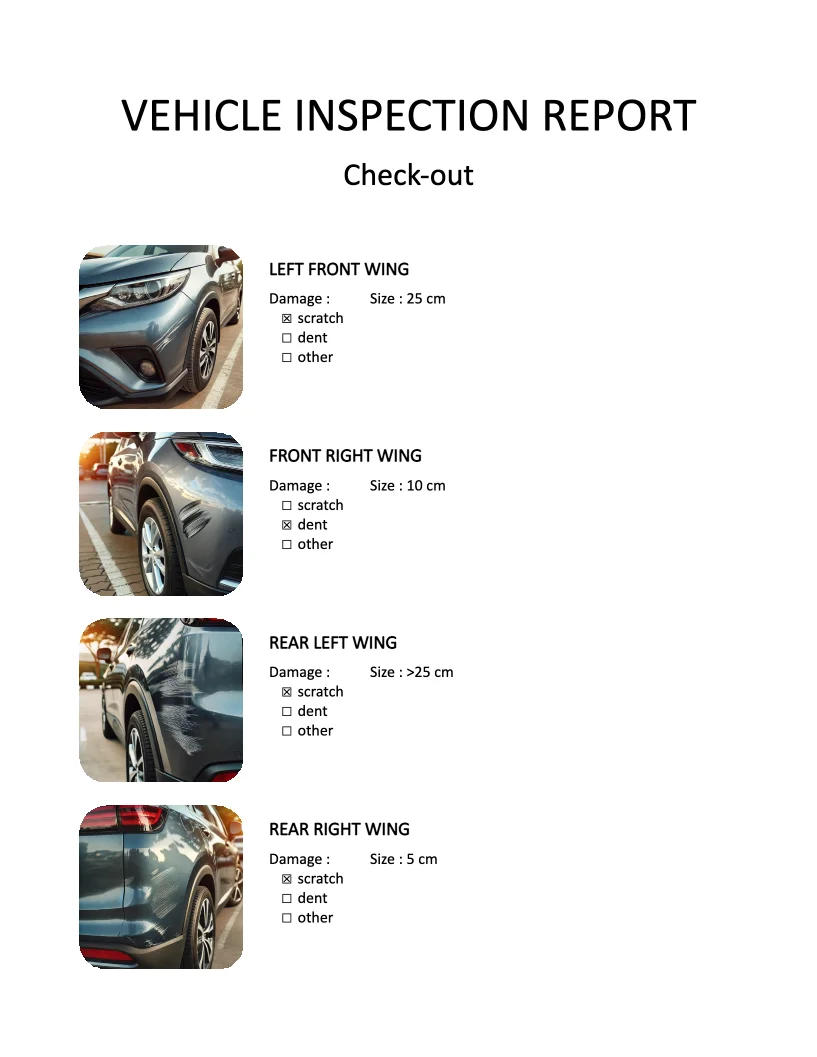
- Template type document docx simple
- Carbone min. v4.0.0+
- Features loop
- Target gallery inspection report check-in check-out checkbox
Overview
Learn how to create a professional vehicle inspection report that includes images and checkboxes. This template demonstrates how to:
- Work with arrays of data
- Create vertical loops for repeating content
- Implement dynamic checkboxes
- Handle image placement
Step-by-Step Guide
Follow these steps to create your vehicle inspection report template with Carbone:
1. Create the Layout Structure
- Insert a table to organize your content
- Use 2 columns (or as many as needed for your data)
- Add one row (it will be repeated for each inspection item)
- Set table borders to "None" for a clean design
2. Set Up Image Placeholders
- Add an image placeholder in the first cell
- For basic images: Insert a temporary picture
- For styled images: Use a Shape with custom formatting
- Navigate to Format Shape > Shape Options > Fill & Line
- Select "Picture or texture fill"
- Insert a temporary image
- Configure the image source
- Right-click the image
- Select "View Alt Text"
- Add the Carbone tag:
{d.image[i].pic}
3. Add Data Fields and Checkboxes
- Insert data fields in the second column
- Example:
{d.image[i].location}for location data
- Example:
- Implement dynamic checkboxes using:
4. Configure Data Iteration
- Add the iteration marker after the table
- Use
{d.image[i+1]}to loop through all items
Related Examples
Browse more templates in our gallery:
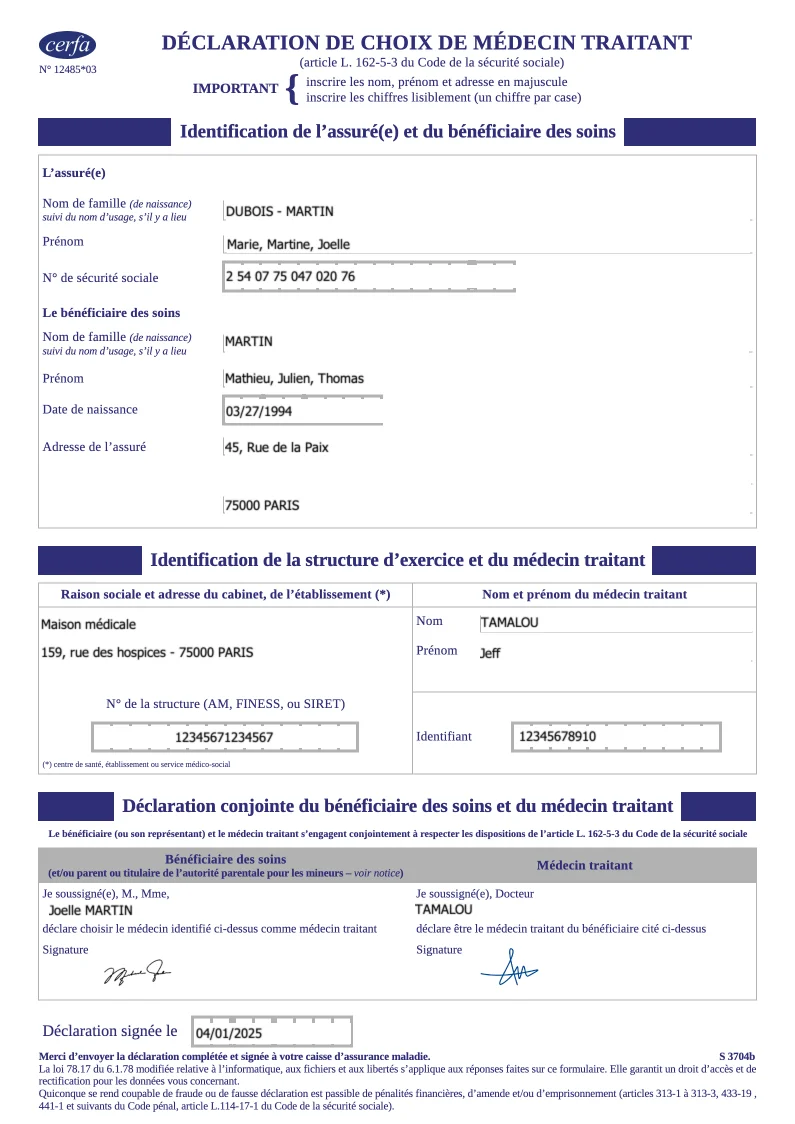
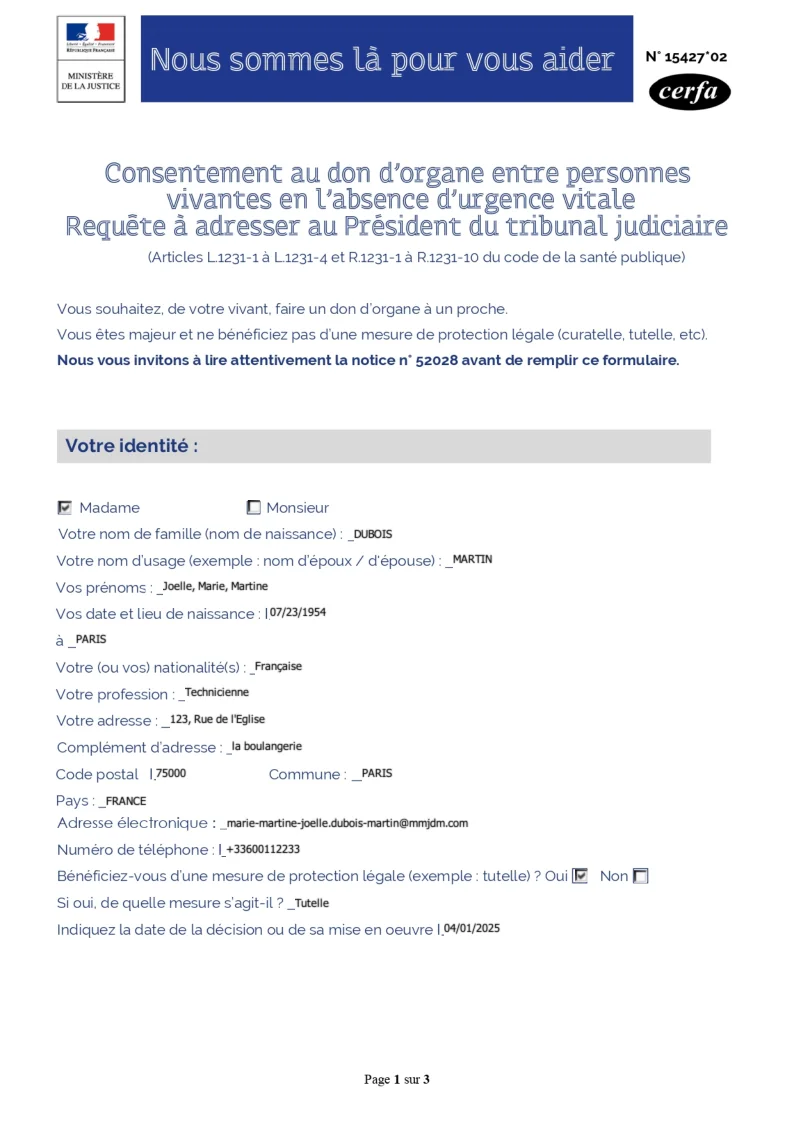
Trusted by 800+ paid customers in 40+ countries
Finance
Healthcare
Insurance
Legal
Public
Retail
Energy
Software
Telecom