EU energy label
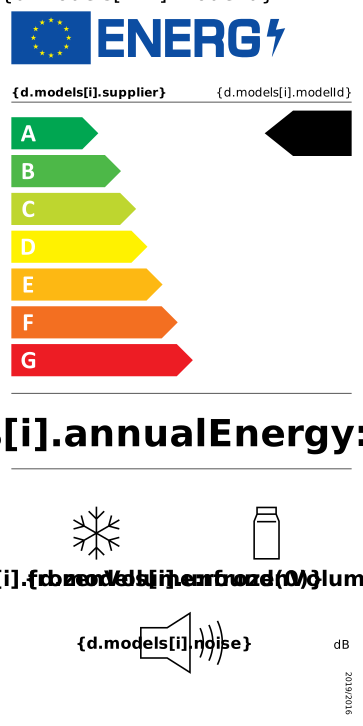
Refrigerator energy labels with the EPREL QR code, from your PIM
- Template
- SVG
- Export as
- PDF, PNG, SVG, WebP +24 more
- Carbone
- 5.18+
Generate EU energy labels from your PIM
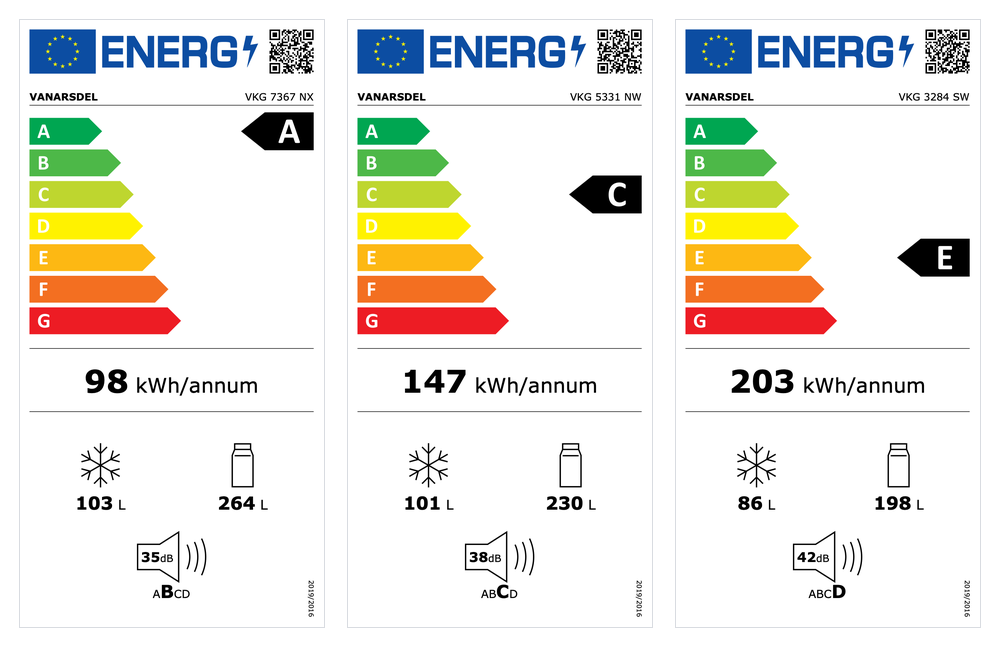
Every refrigerator sold in the EU comes with a printed energy label, and its supplier gives an electronic label to every dealer, as required by Delegated Regulation (EU) 2019/2016. The label shows the values the supplier declares in EPREL, the European Product Registry for Energy Labelling. Manufacturers and importers keep these values in their PIM, PLM or ERP. Your product software sends the models to the Carbone API as JSON, and an SVG template returns a PDF with one 96 x 192 mm label per page, for the label printer of the plant and for the dealers. In this example, VanArsdel, a fictional appliance maker, prints the labels of three refrigerator-freezers in classes A, C and E.
In this example, you will:
- Repeat the label for each model, one PDF page per label
- Compute the energy efficiency class from the EEI, and the noise class from the noise emissions
- Move the class arrow to the class of the model
- Round the declared values the way the label shows them
- Leave out the pictogram of a missing compartment
- Print the EPREL QR code from your data
Label layout
The label follows Annex III of the regulation: its content in point 1, and its design in point 3, in millimeters, with the colors in CMYK and the Verdana and Calibri typefaces.
| Area | Content | Rule |
|---|---|---|
| Header | EU flag, ENERG logo and QR code | QR code 14 mm wide, 100% black |
| Supplier | Trade mark and model identifier | Verdana Bold and Verdana 9 pt, on one line |
| Scale | Classes A to G | Arrows from green, CMYK 100,0,100,0, to red, CMYK 0,100,100,0. Letters in Calibri Bold 19 pt |
| Class | Energy efficiency class of the model | Black arrow with its letter in Calibri Bold 33 pt, tip aligned with the tip of its class in the scale |
| Energy | Annual energy consumption | In kWh/annum, rounded to the nearest integer |
| Volumes | Frozen compartments, then chill and unfrozen compartments | In liters, rounded. Without one of them, its pictogram is left out and the other one moves to the middle |
| Noise | Airborne acoustical noise emissions | In dB(A) re 1 pW, with the noise class from A to D |
| Regulation | 2019/2016 | Verdana 6 pt, vertical |
The classes come from Annex II, as amended by Delegated Regulation (EU) 2021/340: A up to an energy efficiency index (EEI) of 41, then B up to 51, C up to 64, D up to 80, E up to 100, F up to 125, and G above.
How to generate EU energy labels from JSON
Follow these steps to build the label template with Carbone:
1. Draw the label on a 96 x 192 mm artboard
- Set the size of the label on the
svgelement:width="96mm" height="192mm" viewBox="0 0 272.126 544.252". One unit is one point, so the sizes of Annex III go in as they are: 9 pt for the supplier, 0.5 pt for the dividers, 1.2 pt for the lines of the pictograms. With the printer at 100%, the label prints at 96 x 192 mm, the minimum size of the regulation. - Set the font once, on the
svgelement:font-family="Verdana, DejaVu Sans, sans-serif". Verdana is available on Carbone Cloud. On premise, install it on the server. - Draw the parts that never change in your design tool: the EU flag, the ENERG logo, the scale and the pictograms. The Calibri letters of the scale and of the class arrow are drawn as paths too, so they print the same on every server.
- SVG text does not wrap: the trade mark and the model identifier fit together up to about 38 characters. See SVG templates.
2. Repeat the label for each model
Group all the elements of the label, and move each copy one label width to the right with the loop index:
<g id="label" transform="translate({d.models[i].modelId:print(.i):mul(272.126)} 0)">A second group after it, with {d.models[i+1].modelId}, closes the loop. To print the labels, Carbone puts each model on its own page (step 7).
3. Compute the classes
Your PIM sends the values declared in EPREL for each model: eei, annualEnergy, frozenVolume, unfrozenVolume and noise. A comment at the top of the template computes the energy efficiency class and the noise class of every model with :set, before the layout:
{d.models[].eei:ifLTE(41):show('A'):ifLTE(51):show('B'):ifLTE(64):show('C'):ifLTE(80):show('D'):ifLTE(100):show('E'):ifLTE(125):show('F'):elseShow('G'):set(.energyClass)}
{d.models[].noise:ifLT(30):show('A'):ifLT(36):show('B'):ifLT(42):show('C'):elseShow('D'):set(.noiseClass)}- The switch case gives each model the first class whose threshold holds: an EEI of 58.8 gives C.
- The noise classes follow Table 2 of Annex II: below 30 dB, from 30 to 35, from 36 to 41, then 42 dB and above.
4. Move the class arrow
The class arrow is drawn on the line of class A, and moves down 10 mm, 28.346 points, for each class:
transform="translate(0 {d.models[i].energyClass:ifEQ('A'):show(0):ifEQ('B'):show(28.346):ifEQ('C'):show(56.693):ifEQ('D'):show(85.039):ifEQ('E'):show(113.386):ifEQ('F'):show(141.732):elseShow(170.079)})"- The tip of the arrow stays on the tip of its class in the scale, as Annex III requires. The arrow is 100% black on every label.
- The
defselement of the template holds the seven Calibri letters,class-Atoclass-G. The arrow shows the letter of its class:<use xlink:href="#class-{d.models[i].energyClass}"/>.
5. Print the declared values
- The label rounds the annual energy consumption to the nearest integer: :round prints 98 kWh/annum for the 97.86 kWh of the data, with
{d.models[i].annualEnergy:round(0)}. The volumes use the same formatter. - The noise class of the model prints in Verdana Bold 16 pt, the other classes in Verdana 10 pt:
font-size="{d.models[i].noiseClass:ifEQ('B'):show(16):elseShow(10)}". The same condition setsfont-weight. - A refrigerator without freezer has
"frozenVolume": 0, anddisplay="{d.models[i].frozenVolume:ifGT(0):show('inline'):elseShow('none')}"hides the snowflake. The other pictogram moves to the middle of the label, as Annex III requires:transform="translate({d.models[i].frozenVolume:ifGT(0):show(0):elseShow(-63.78)} 0)". A freezer without fridge compartment works the same way.
6. Add the EPREL QR code
Register each model in EPREL before you print its label: the QR code links to the public page of the model, https://eprel.ec.europa.eu/qr/ followed by its registration number. Your software creates the QR codes and sends each one as an SVG data URI in qrCode. The href of an image displays it:
<image x="223.937" y="8.504" width="39.685" height="39.685" xlink:href="{d.models[i].qrCode}"/>- The QR codes of this example are fictional: they encode links on the reserved
eprel.exampledomain, likehttps://eprel.example/qr/9904211. A real label links to the EPREL registration of its model. - The QR code is 14 mm wide, 100% black, 3 mm from the top and right edges. The white label around it is its margin, so the image has none.
- The PDF keeps the QR code as vector shapes: it stays sharp on any label printer.
7. Print every label in one request
Send the list of models with the batch options:
{
  "data": { "models": [ ... ] },
  "convertTo": "pdf",
  "converter": "C",
  "batchSplitBy": "d.models",
  "batchOutput": "pdf"
}- Carbone generates one label for each model, and merges them into one PDF, one page per label, ready for the label printer or the print shop.
- A batch is an asynchronous request: set the
carbone-webhook-urlheader. Carbone Cloud accepts up to 100 labels per request. "converter": "C"draws the SVG with Chrome.- For the electronic label that dealers show in their online shops, send one model without
batchSplitBy, and ask for a PNG:"convertTo": { "formatName": "png", "formatOptions": { "Scale": 2 } }. See Convert SVG to PNG or PDF.
SVG templates require Carbone v5. The conversion of an SVG to PDF with Chrome requires Carbone v5.17.0 or later.
Related Examples
Trusted by 800+ paid customers in 40+ countries