Event badge with QR code
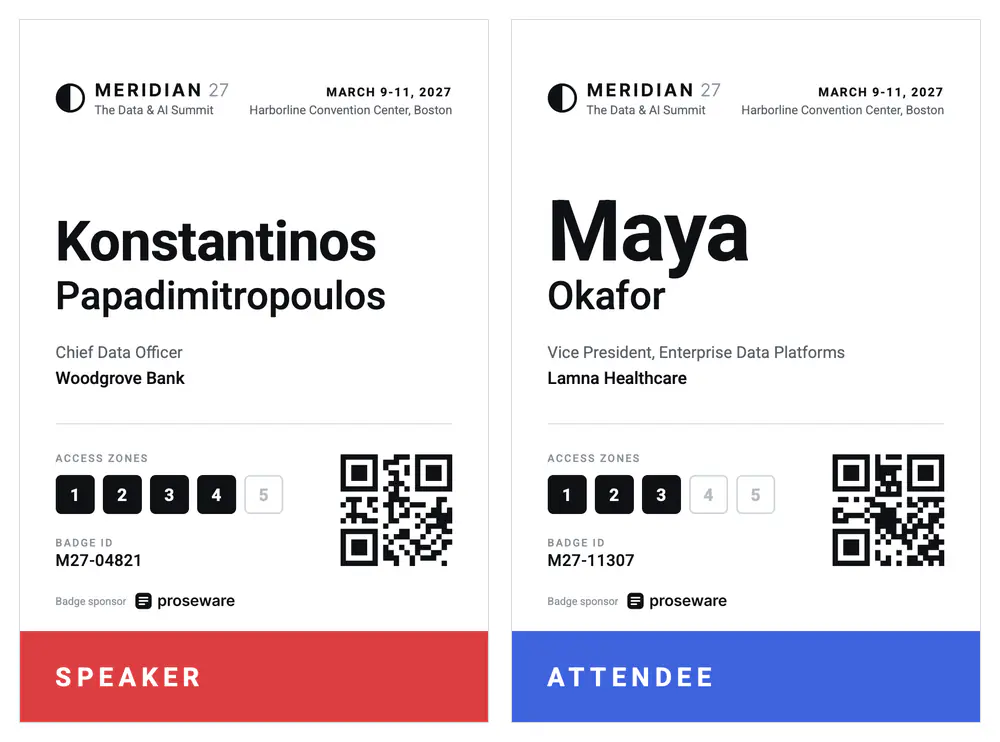
Attendee badges from your check-in system, printed onsite as PDF

- Template
- SVG
- Export as
- PDF, PNG, SVG, WebP +24 more
- Carbone
- 5.17+
Generate event badges from your check-in software
Conferences, trade shows and corporate events give a badge to every person who comes in. Registration, check-in and visitor management software print it on demand when the attendee scans their ticket at the kiosk, or in bulk before the doors open. Your software sends the attendees to the Carbone API as JSON, and an SVG template returns a PDF with one badge per page, at the size of the 4 x 6 in lanyard badges used by onsite badge printers. In this example, the Meridian 27 summit prints the badges of a speaker, an attendee, an exhibitor, a journalist and a staff member.
In this example, you will:
- Repeat one badge design for each attendee, one PDF page per badge
- Fit long names on one line
- Color each badge by ticket type
- Show the access zones of each attendee
- Print the check-in QR code from your data
Badge layout
The name is the largest element, readable from a few steps away. Security staff check the color band and the access zones at the doors, and the check-in app scans the QR code.
| Area | Content | Rule |
|---|---|---|
| Header | Event mark, name, dates and venue | Starts 1/2 in from the top: the middle of the top edge stays free for the slot of the lanyard clip |
| Name | First name from 23 to 52 pt, last name from 17 to 24 pt | One line each, the size follows the length of the name |
| Role | Job title and company | One line each |
| Access zones | 1 Keynote hall, 2 Expo floor, 3 Session rooms, 4 Speaker lounge, 5 Media center | A filled square grants access to the zone |
| Badge ID and QR code | The badge ID, printed and encoded in the QR code | QR code 24 mm wide, black on white, with its white margin |
| Ticket type | Color band and label: Attendee blue, Speaker red, Exhibitor green, Staff violet, Press amber | Runs to the edges of the badge |
Every text stays 0.3 in from the sides of the badge.
How to print event badges from JSON
Follow these steps to build the badge template with Carbone:
1. Design the badge on a 4 x 6 in artboard
- Set the size of the badge on the
svgelement:width="4in" height="6in" viewBox="0 0 288 432". One unit is one point, and Carbone gives the PDF page this size, so the badge prints at 100% on 4 x 6 in badge stock. - Set the fonts once, on the
svgelement:font-family="Roboto, Helvetica Neue, Arial, sans-serif". Roboto is available on Carbone Cloud. On premise, install it on the server. The event mark and the sponsor logo are drawn as paths, so they need no font. - Write the tags in text elements, like
{d.attendees[i].company}, and in attributes for colors and sizes. See SVG templates.
2. Repeat the badge for each attendee
Group all the elements of the badge, and move each copy one badge width to the right with the loop index:
<g id="badge" transform="translate({d.attendees[i].badgeId:print(.i):mul(288)} 0)">A second group after it, with {d.attendees[i+1].badgeId}, closes the loop. To print the badges, Carbone puts each attendee on its own page (step 7).
3. Fit long names on one line
SVG text does not wrap, so the font size follows the number of letters of the name, given by :len:
font-size="{d.attendees[i].firstName:len:ifLTE(6):show(52):ifLTE(8):show(44):ifLTE(10):show(38):ifLTE(12):show(34):ifLTE(15):show(28):elseShow(23)}"This switch case prints the first size whose condition is true: Maya prints at 52 pt, Konstantinos at 34 pt. The last name follows the same rule, from 24 to 17 pt, so Papadimitropoulos fits too.
4. Color the badge by ticket type
The color band takes the color of the ticket type:
fill="{d.attendees[i].ticketType:ifEQ('Speaker'):show('#DC3E42'):ifEQ('Exhibitor'):show('#0F8A7E'):ifEQ('Staff'):show('#6E56CF'):ifEQ('Press'):show('#FFB224'):elseShow('#3E63DD')}"- The label prints dark on the amber band of the press and white on the other colors:
fill="{d.attendees[i].ticketType:ifEQ('Press'):show('#0F1115'):elseShow('#FFFFFF')}". {d.attendees[i].ticketType:upperCase}prints the label in capital letters.
5. Show the access zones
Each attendee has the list of their zones in the data, like "zones": ["1", "2", "3"]. :ifIN fills the square of a zone when the list contains it:
fill="{d.attendees[i].zones:ifIN('3'):show('#0F1115'):elseShow('#FFFFFF')}"The border and the number of the square use the same condition, with their own colors.
6. Add the check-in QR code
Your check-in software reads the QR codes, so it creates them: it sends each one as an SVG data URI in the data, in qrCode. The href of an image displays it:
<image x="184.2" y="254.2" width="94.9" height="94.9" xlink:href="{d.attendees[i].qrCode}"/>- The QR code encodes the badge ID, with the error correction level Q, so a creased badge still scans.
- Keep the white margin of 4 modules around the QR code, and print it black on white, away from the color band.
- The PDF keeps the QR code as vector shapes: it stays sharp on any printer.
7. Print every badge in one request
Send the list of attendees with the batch options:
{
  "data": { "attendees": [ ... ] },
  "convertTo": "pdf",
  "converter": "C",
  "batchSplitBy": "d.attendees",
  "batchOutput": "pdf"
}- Carbone generates one badge for each attendee, and merges them into one PDF, one 4 x 6 in page per badge, ready for the badge printer or the print shop.
- A batch is an asynchronous request: set the
carbone-webhook-urlheader. Carbone Cloud accepts up to 100 badges per request. "converter": "C"draws the SVG with Chrome, letter spacing included.- At the check-in kiosk, send one attendee in
attendees, withoutbatchSplitBy: Carbone returns a one-page PDF. - A print shop asks for 1/8 in (3 mm) of bleed around a pre-printed badge: set
width="4.25in" height="6.25in" viewBox="-9 -9 306 450", then extend the white background and the color band to the new edges.
SVG templates require Carbone v5. The conversion of an SVG to PDF with Chrome requires Carbone v5.17.0 or later.
Related Examples
Trusted by 800+ paid customers in 40+ countries