
Design
Pictures
Insert a temporary picture, write a tag in its alt text, and Carbone replaces it with an image from your JSON data.
ENTERPRISE FEATURE
Available for:
Carbone Cloud
Carbone On-premise
Embedded Carbone JS
v3.0+
How to insert picture?
Compatible with PDF, ODT, ODS, ODP, ODG, PPTX, XLSX, and DOCX files.
Dynamic pictures can be a public URL or a Base64 Data URI. For the 2 solutions, a temporary picture has to be inserted in the template and the tag has to be written as an alternative text. Finally, during rendering, Carbone replaces the temporary picture by the new picture provided by the tag. The image is resized as 'fillWidth' by default. Learn more about the imageFit formatter to change the value.
If a fetch fails or the image type is not supported, Carbone uses a replacement error image. "failOn": ["IMAGE_URL_ERROR"] on the render request stops the report and returns an error when an image coming from a URL cannot be downloaded, instead of using that replacement image. An empty or undefined image value still produces the report.
The place to insert the tag on the temporary picture may change depending on the file format:
ODS,ODPandODGfiles: set the tag on the image titleODTfile: set the tag on the image alternative text, image descriptionDOCXandXLSXfiles: set the tag either on the image title, image description, or alternative text
The accepted image types are jpeg, png, gif, svg.
Loops of pictures:
A loop repeats a picture anchored to the text: "As Character" in ODT, "In Line with Text" in DOCX, like the examples below. For a picture placed at fixed coordinates, it depends on the format:
PPTX: a loop repeats the picture at the same place. Move each copy with the :transform formatter.ODP: loop over slides, one slide per item, to repeat the pictures of a slide.XLSX: a picture tag in a loop stops the render with an error.ODTandODG: a loop of floating pictures stops the render with an error.
Image aspect-ratio :imageFit
The imageFit formatter determines how the image should be resized to fit its container.
An argument must be passed to the formatter:
fillWidth: The replaced image is resized to fill the element’s content-box width, without changing its aspect ratio.contain: The replaced image is scaled to maintain its aspect ratio while fitting within the element’s content-box (the temporary image).fill: The replaced image is resized to fill the element’s content-box (the temporary image). The entire image will fill the box of the previous image. If the image's aspect ratio does not match the aspect ratio of its box, it will be stretched to fit.
{d.image:imageFit(contain)}
// or
{d.image:imageFit(fill)}
// or
{d.image} // 'fillWidth' is set by default
Image auto-orientation :autoOrient
Available since v5.6.0. Compatible with DOCX templates only.
The :autoOrient formatter automatically rotates JPEG images based on the EXIF orientation metadata embedded by cameras and smartphones. This ensures images captured on mobile devices appear in the intended orientation, without manual rotation.
{d.image:autoOrient:imageFit(contain)}
// or without imageFit (defaults to fillWidth)
{d.image:autoOrient}
Notes:
- Only JPEG images are rotated. Other image formats (PNG, GIF, SVG) ignore this formatter and render normally.
:autoOrientcannot be combined withimageFit(fill). Allowed parameters:imageFit(contain)orimageFit(fillWidth)instead.
Simple image [ODT]
Insert a temporary picture where the image should appear, then write the tag in its alternative text (right-click the picture > Properties > Options > Text Alternative). In this example, the tag is {d.photo}. Carbone downloads the image from the URL in the data, replaces the temporary picture with it, and keeps the width of the temporary picture.
{
  "title": "Contemporary villa with pool",
  "address": "Avenue des Pins, Cannes, France",
  "price": "€1,250,000",
  "area": "185 m²",
  "bedrooms": 4,
  "bathrooms": 3,
  "photo": "https://carbone.io/img/doc/pictures-villa.jpg"
}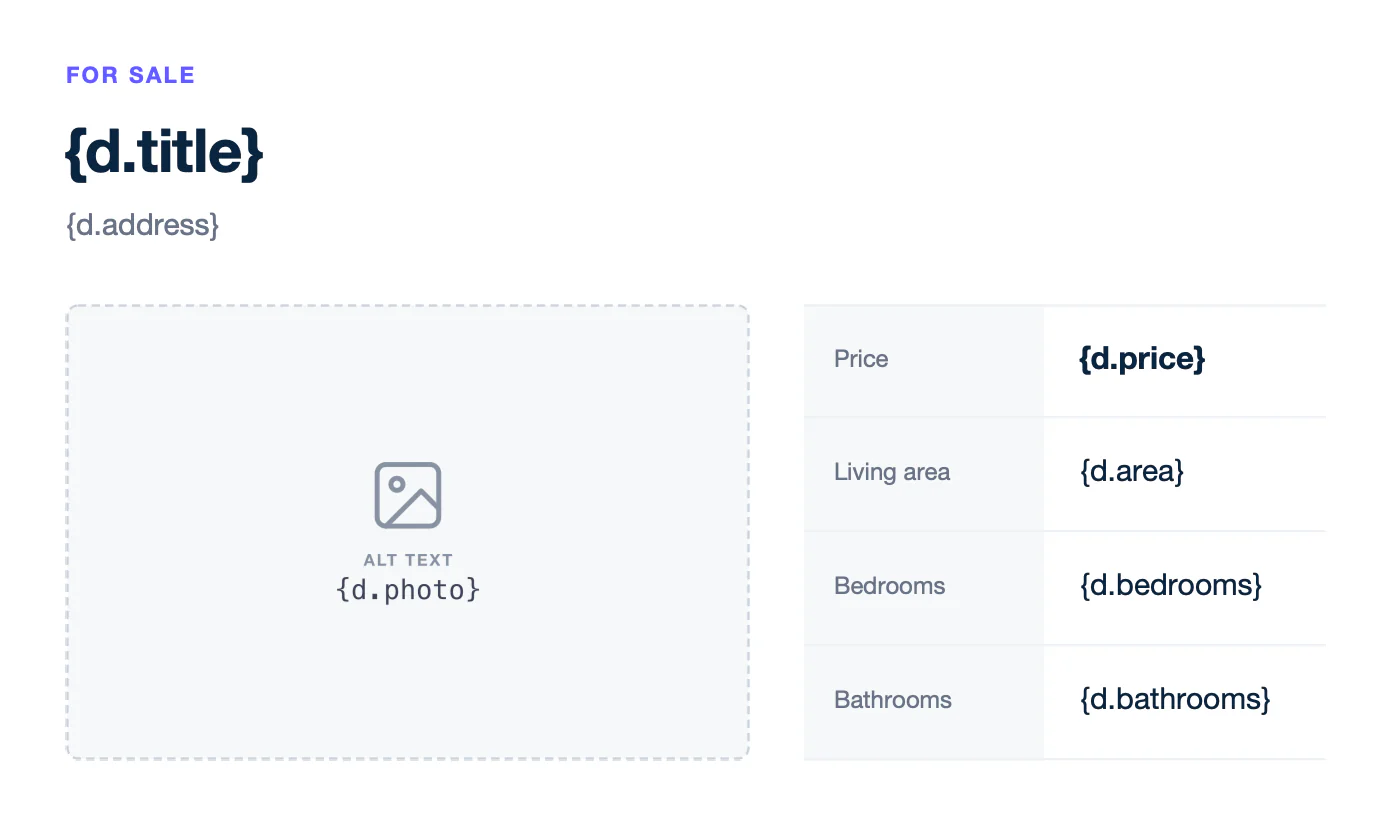
Text of template.odt
FOR SALE
{d.title}
{d.address}
[Picture: {d.photo}]
Price
{d.price}
Living area
{d.area}
Bedrooms
{d.bedrooms}
Bathrooms
{d.bathrooms}
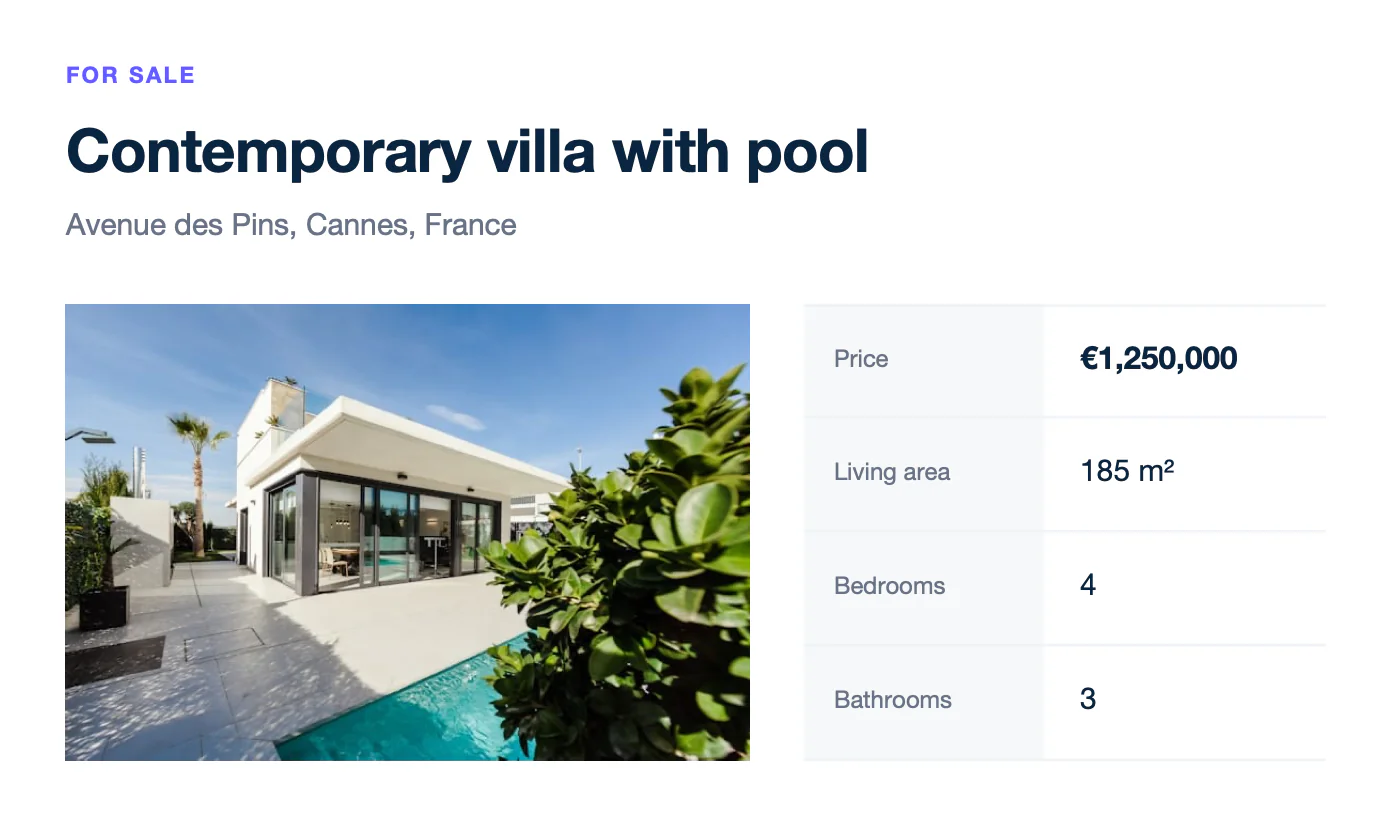
Text of report.odt
FOR SALE
Contemporary villa with pool
Avenue des Pins, Cannes, France
[Picture]
Price
€1,250,000
Living area
185 m²
Bedrooms
4
Bathrooms
3
The alternative text does not appear on the page. The label drawn on the temporary picture of this example only reminds you of the tag. To change how the image fits in the temporary picture, use :imageFit.
Loop of images [ODT]
Put the temporary picture in the repeated row of a loop, and write the tag of the current item in its alternative text, here {d.damages[i].photo}. One temporary picture is enough: Carbone repeats it on every row. The {d.damages[i+1].area} row marks the end of the loop.
Anchor the picture as a character: right-click it > Anchor > As Character.
| Anchor type | Carbone behavior |
|---|---|
| As Character | Recommended: replaces a single picture and repeats pictures in loops. |
| To Page, To Paragraph, To Character | The picture floats: it can replace a single picture, but a loop of floating pictures stops the render with an error. |
{
  "vehicle": "Grey SUV · AB-123-CD",
  "date": "November 10, 2026",
  "damages": [
    {
      "area": "Front left wing",
      "damage": "Scratch, 25 cm",
      "photo": "https://carbone.io/img/doc/pictures-damage-1.jpg"
    },
    {
      "area": "Front right wing",
      "damage": "Dent, 10 cm",
      "photo": "https://carbone.io/img/doc/pictures-damage-2.jpg"
    },
    {
      "area": "Rear left wing",
      "damage": "Scratch, over 25 cm",
      "photo": "https://carbone.io/img/doc/pictures-damage-3.jpg"
    }
  ]
}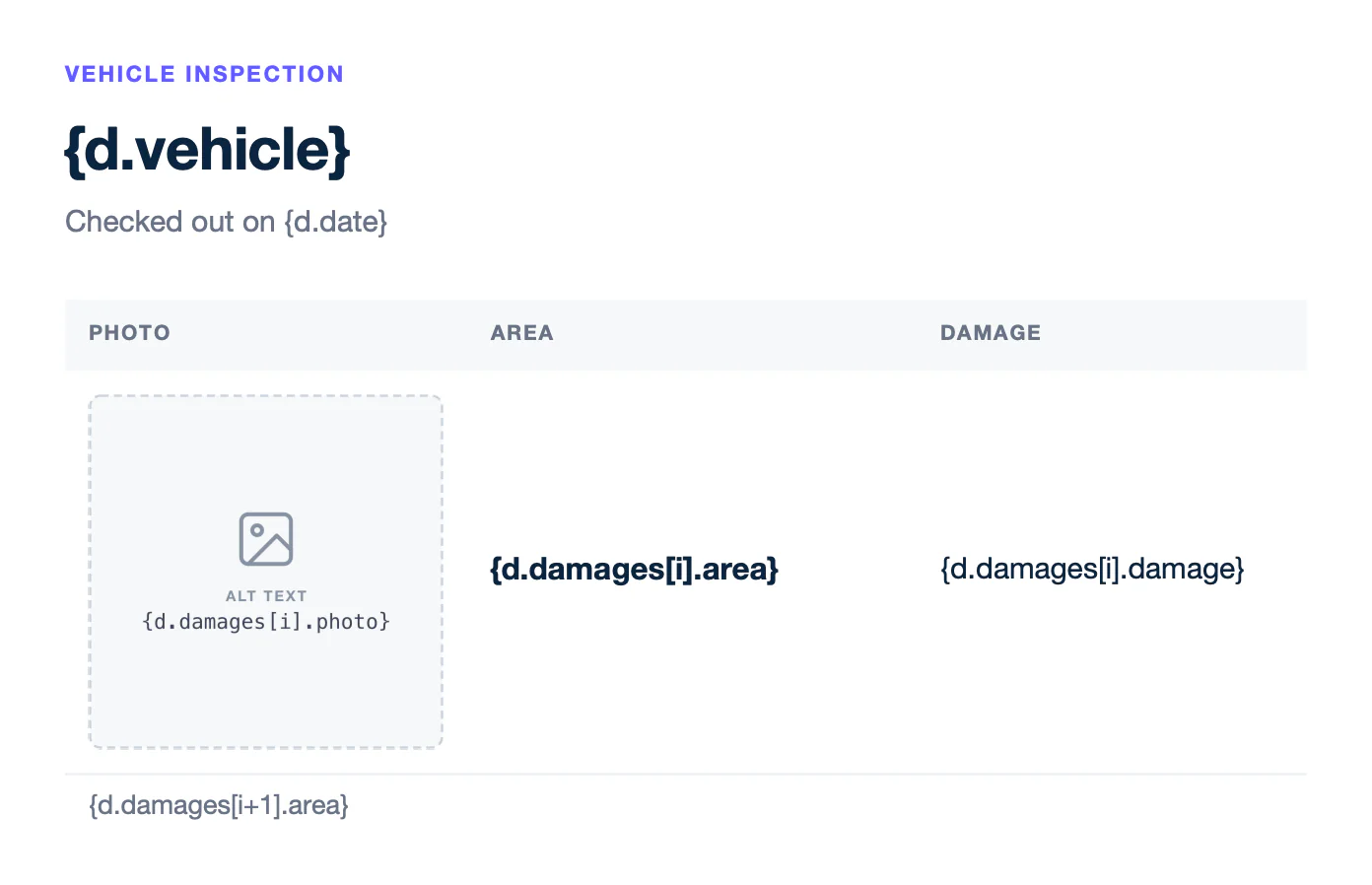
Text of template.odt
VEHICLE INSPECTION
{d.vehicle}
Checked out on {d.date}
PHOTO
AREA
DAMAGE
[Picture: {d.damages[i].photo}]
{d.damages[i].area}
{d.damages[i].damage}
{d.damages[i+1].area}
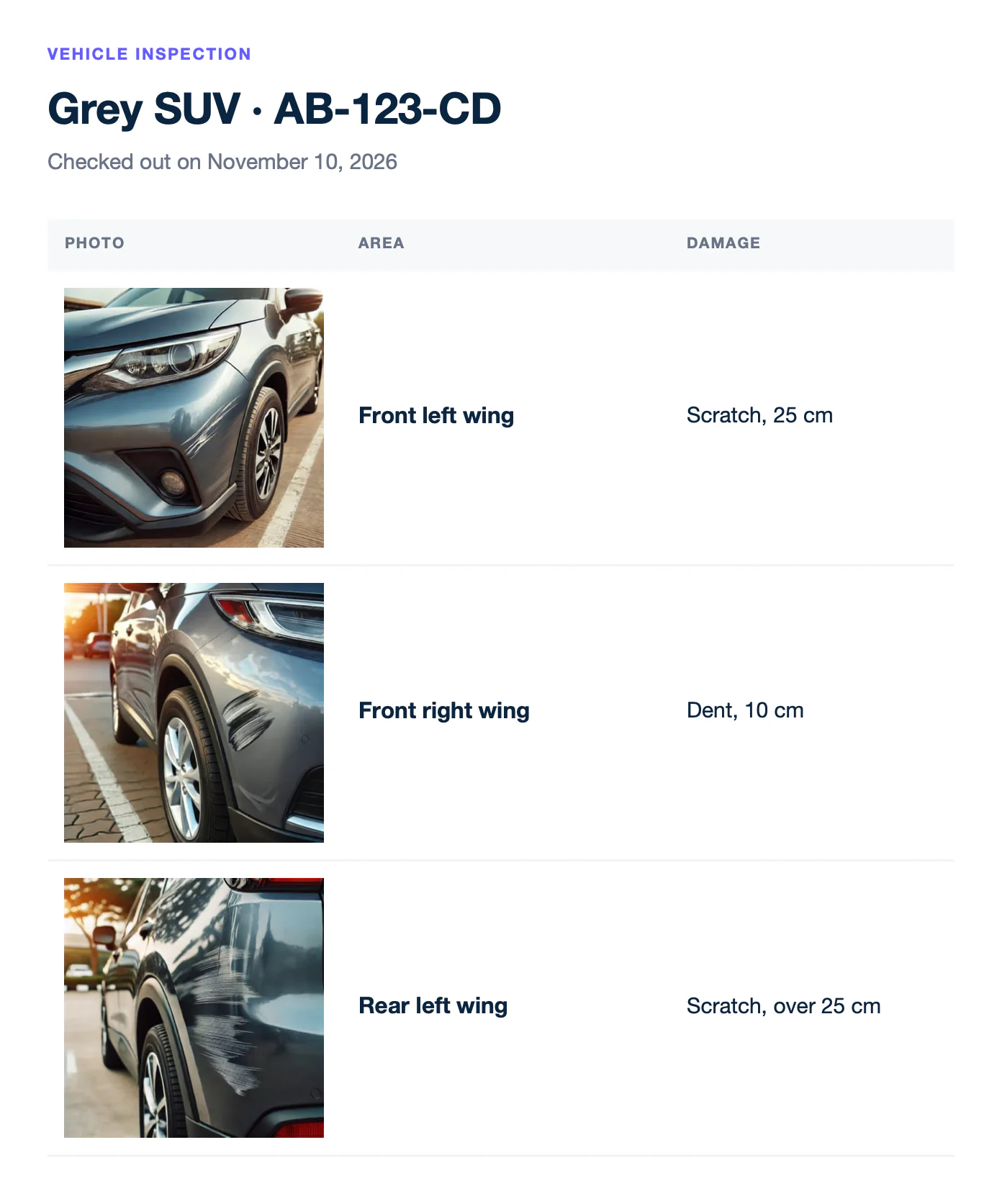
Text of report.odt
VEHICLE INSPECTION
Grey SUV · AB-123-CD
Checked out on November 10, 2026
PHOTO
AREA
DAMAGE
[Picture]
Front left wing
Scratch, 25 cm
[Picture]
Front right wing
Dent, 10 cm
[Picture]
Rear left wing
Scratch, over 25 cm
Base64 image [ODT]
To send the image itself in the data, like a signature captured on a tablet, encode it as a Base64 data URI: data:image/png;base64, followed by the encoded file. The template does not change: a temporary picture with the tag in its alternative text, like {d.signature}.
Simple image [DOCX]
Insert a temporary picture where the image should appear, then write the tag in its alternative text (right-click the picture > Edit Alt Text, or View Alt Text), like {d.photo}. The image can be a URL or a Base64 data URI, and it takes the width of the temporary picture, as in ODT.
Loop of images [DOCX]
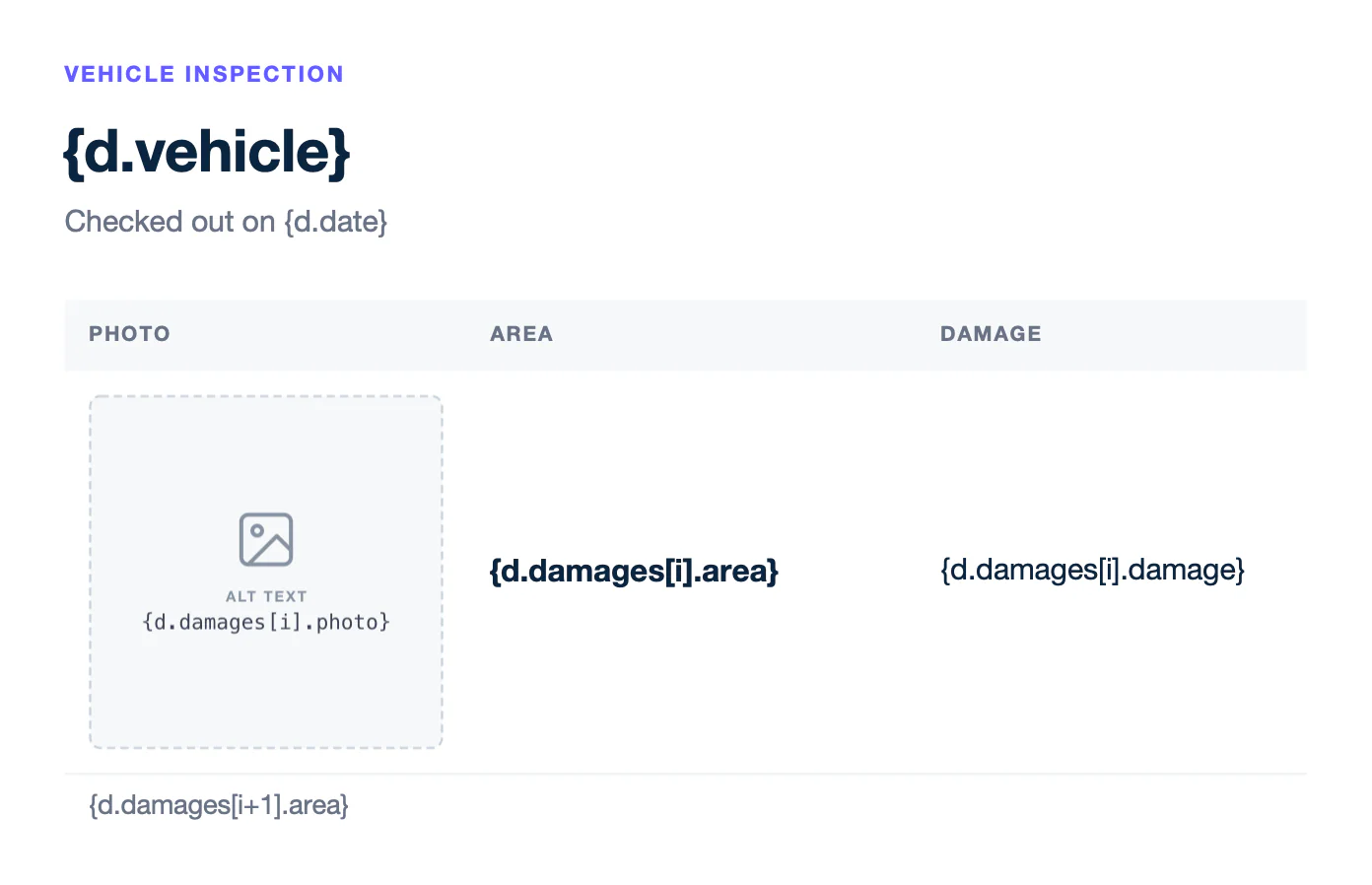
Build the loop as in ODT: one temporary picture in the repeated row, with {d.damages[i].photo} in its alternative text. Set the picture in line with text: select it, then Picture Format > Wrap Text > In Line with Text.
| Text wrapping | Carbone behavior |
|---|---|
| In Line with Text | Recommended: replaces a single picture and repeats pictures in loops. |
| Other wrapping styles | The picture floats: it can replace a single picture, but cannot be repeated in a loop. |
{
  "vehicle": "Grey SUV · AB-123-CD",
  "date": "November 10, 2026",
  "damages": [
    {
      "area": "Front left wing",
      "damage": "Scratch, 25 cm",
      "photo": "https://carbone.io/img/doc/pictures-damage-1.jpg"
    },
    {
      "area": "Front right wing",
      "damage": "Dent, 10 cm",
      "photo": "https://carbone.io/img/doc/pictures-damage-2.jpg"
    },
    {
      "area": "Rear left wing",
      "damage": "Scratch, over 25 cm",
      "photo": "https://carbone.io/img/doc/pictures-damage-3.jpg"
    }
  ]
}
Text of template.docx
VEHICLE INSPECTION
{d.vehicle}
Checked out on {d.date}
PHOTO
AREA
DAMAGE
[Picture: {d.damages[i].photo}]
{d.damages[i].area}
{d.damages[i].damage}
{d.damages[i+1].area}
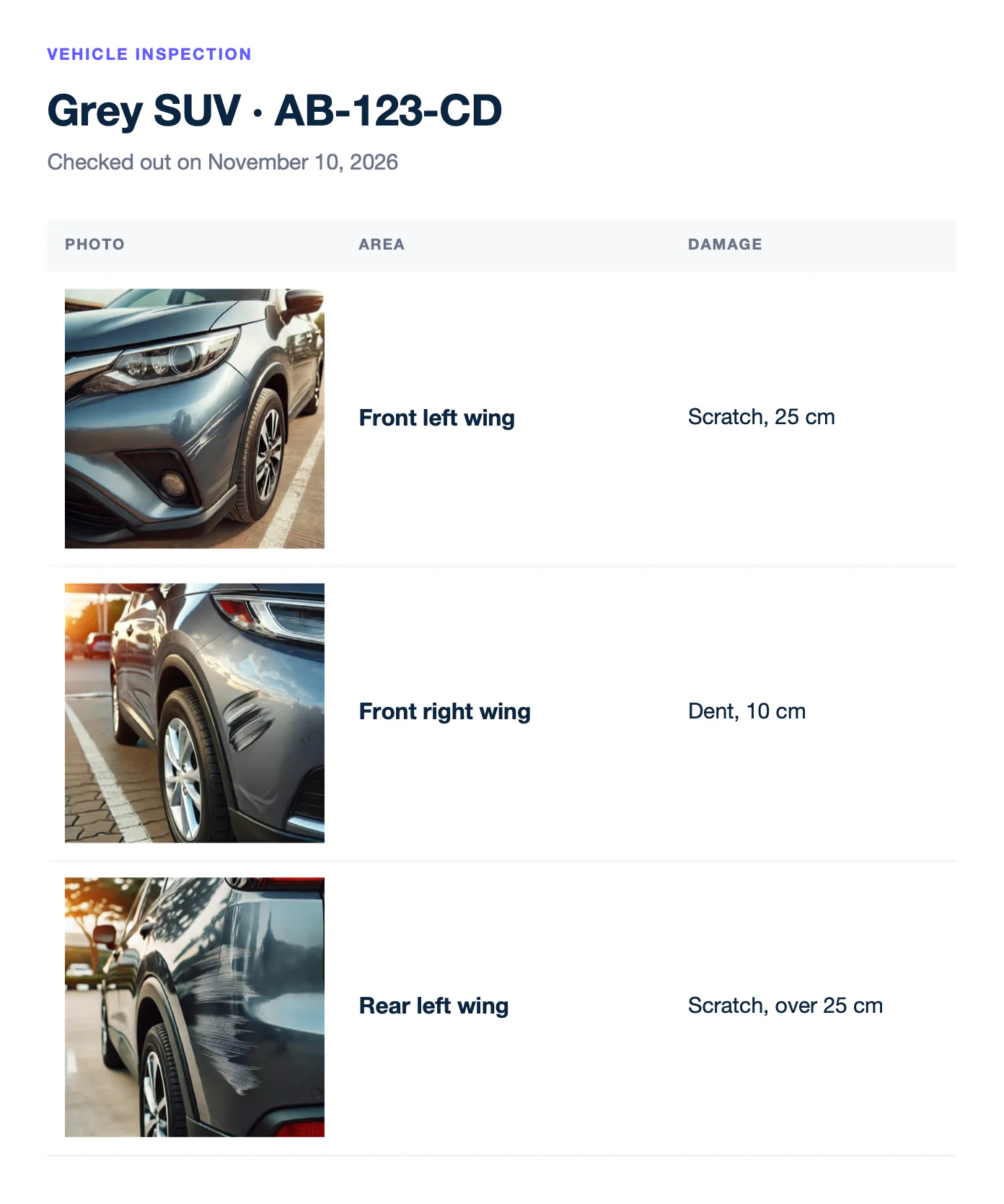
Text of report.docx
VEHICLE INSPECTION
Grey SUV · AB-123-CD
Checked out on November 10, 2026
PHOTO
AREA
DAMAGE
[Picture]
Front left wing
Scratch, 25 cm
[Picture]
Front right wing
Dent, 10 cm
[Picture]
Rear left wing
Scratch, over 25 cm
Image grid [DOCX]
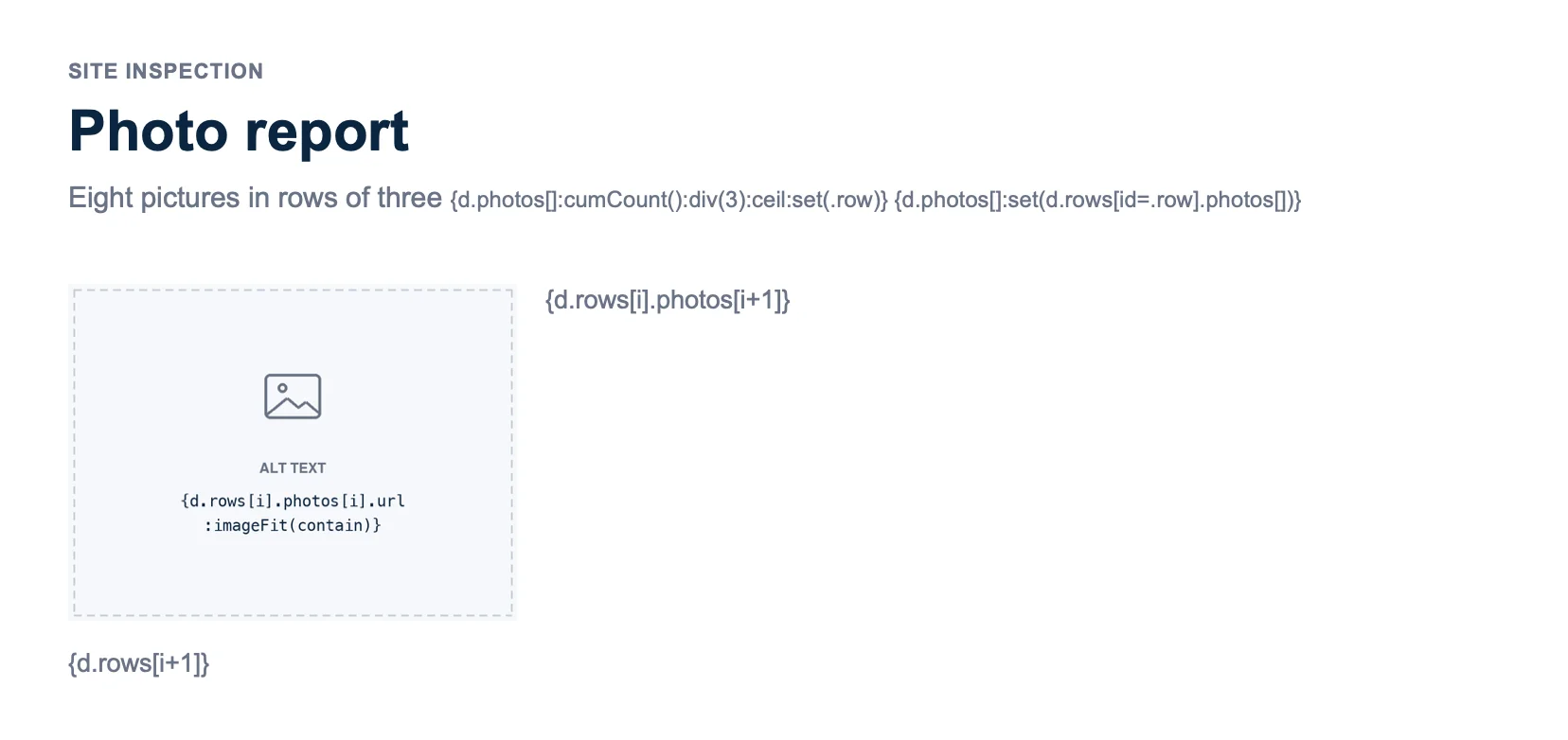
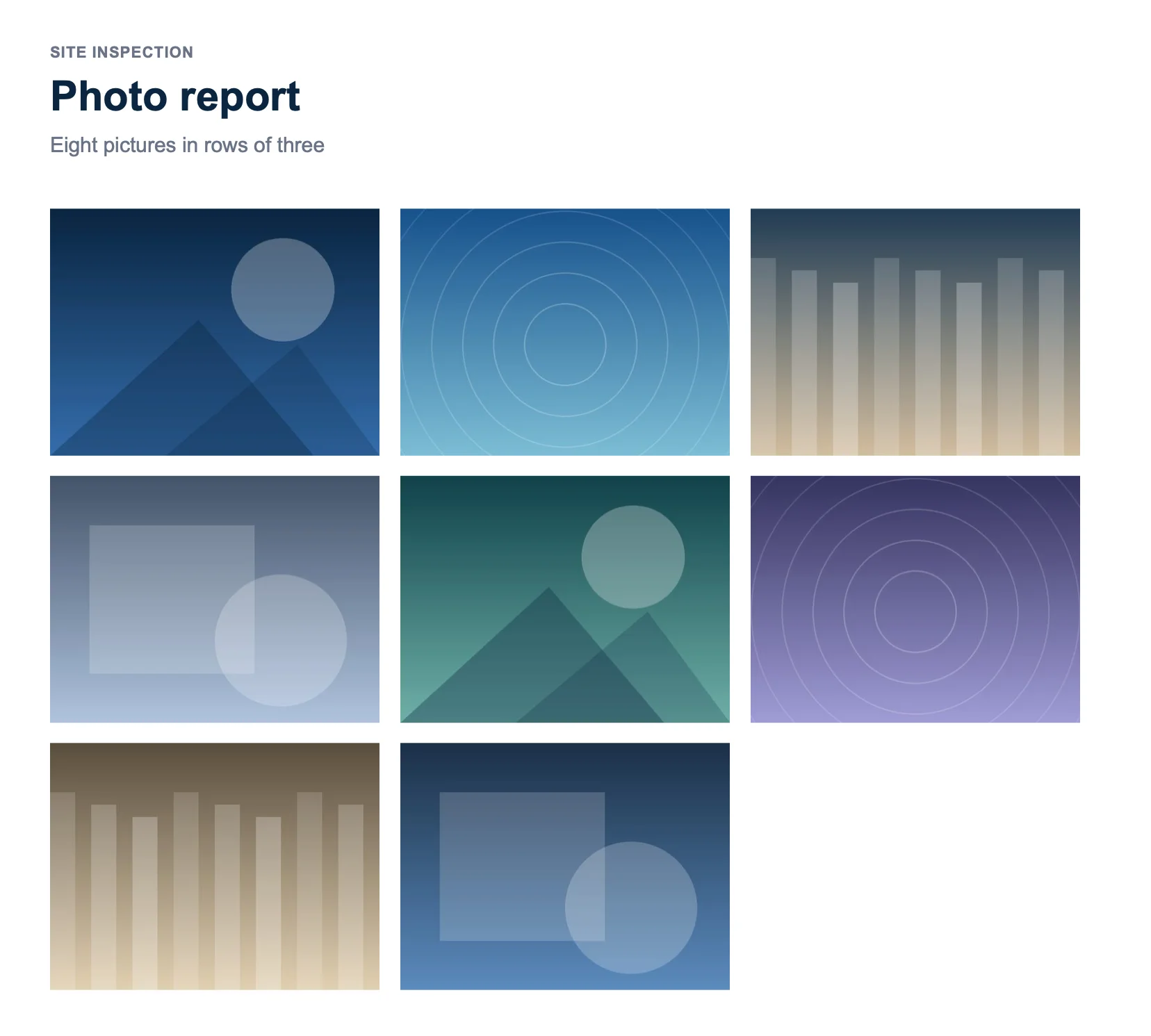
A photo report places pictures in rows of three. Group the photos by row first, then repeat the picture across and down a table.
- Number the rows.
{d.photos[]:cumCount():div(3):ceil:set(.row)}gives photos 1 to 3 row 1, photos 4 to 6 row 2, and so on. - Group the photos by row.
{d.photos[]:set(d.rows[id=.row].photos[])}builds arowsarray where each row holds its photos. Write both tags at the end of a paragraph that has text, like the subtitle: they print nothing. - In a table of two columns and two rows, put the temporary picture in the first cell, with
{d.rows[i].photos[i].url:imageFit(contain)}in its alternative text. - End the loops:
{d.rows[i].photos[i+1]}in the second cell repeats the picture across, and{d.rows[i+1]}in the first cell of the second row repeats the rows. Learn more about bi-directional loops.
{
  "photos": [
    {
      "url": "https://carbone.io/img/doc/pictures-grid-1.jpg"
    },
    {
      "url": "https://carbone.io/img/doc/pictures-grid-2.jpg"
    },
    {
      "url": "https://carbone.io/img/doc/pictures-grid-3.jpg"
    },
    {
      "url": "https://carbone.io/img/doc/pictures-grid-4.jpg"
    },
    {
      "url": "https://carbone.io/img/doc/pictures-grid-5.jpg"
    },
    {
      "url": "https://carbone.io/img/doc/pictures-grid-6.jpg"
    },
    {
      "url": "https://carbone.io/img/doc/pictures-grid-7.jpg"
    },
    {
      "url": "https://carbone.io/img/doc/pictures-grid-8.jpg"
    }
  ]
}
Text of template.docx
Site inspection
Photo report
Eight pictures in rows of three {d.photos[]:cumCount():div(3):ceil:set(.row)} {d.photos[]:set(d.rows[id=.row].photos[])}
[Picture: {d.rows[i].photos[i].url:imageFit(contain)}]
{d.rows[i].photos[i+1]}
{d.rows[i+1]}
Text of report.docx
Site inspection
Photo report
Eight pictures in rows of three
[Picture]
[Picture]
[Picture]
[Picture]
[Picture]
[Picture]
[Picture]
[Picture]
The last row has as many cells as remaining photos.