GHS chemical label
CLP hazard labels sized for each container, from your ERP
- Template
- HTML
- Export as
- PDF, HTML, PNG, WebP +7 more
- Carbone
- 5.18+
Generate GHS hazard labels from your ERP
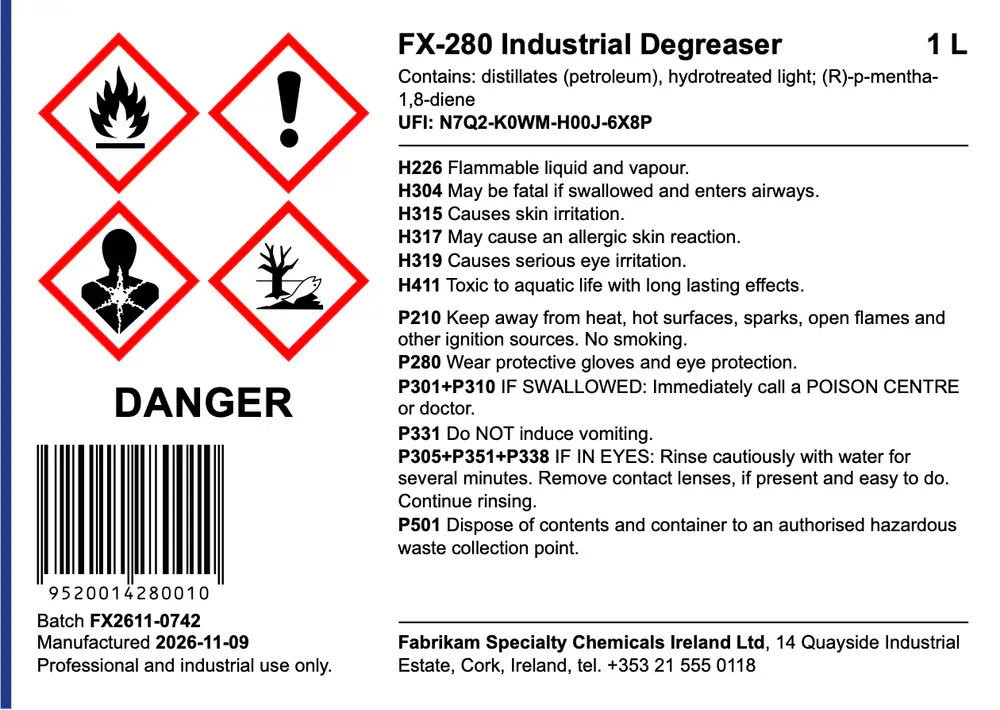
Every container of a hazardous chemical sold in the EU carries a hazard label, as required by Regulation (EC) No 1272/2008, the CLP Regulation that applies the UN GHS in the EU. Chemical manufacturers and distributors keep the classification of each product in their ERP or their SDS authoring software, and print the labels on the filling line, on a color label printer, for each batch. Your software sends the product and its containers to the Carbone API as JSON, and an HTML template returns a PDF with one label per container, each at the size the regulation sets for its capacity. In this example, Fabrikam, a fictional chemical maker, labels the 1 L bottle and the 20 L jerrycan of the FX-280 Industrial Degreaser, the product of the GHS safety data sheet example.
In this example, you will:
- Print one label per container, each on its own PDF page
- Set the size of the label from the capacity of the container
- Show the pictograms of the product among the nine GHS pictograms
- Print the hazard and precautionary statements on every label
- Add the UFI, the nominal quantity and the supplier
- Print the GTIN barcode and the batch number of each container
Label layout
The label holds the elements of Article 17 of the regulation: the supplier, the nominal quantity, the product identifiers, the hazard pictograms, the signal word, the hazard statements and the precautionary statements. Article 32 keeps the pictograms, the signal word and the statements together, and Annex VIII adds the unique formula identifier (UFI) of the mixture.
| Area | Content | Rule |
|---|---|---|
| Pictograms | GHS02, GHS07, GHS08 and GHS09 | Black symbol on a white background in a red diamond frame (Annex I, 1.2.1.1) |
| Signal word | Danger | One signal word per label: Danger wins over Warning (Article 20) |
| Product identifiers | Trade name, then "Contains:" and the substances that drive the classification | The substances behind the aspiration hazard and the skin sensitization (Article 18) |
| UFI | 16 characters in four groups, after "UFI:" | Mixture for professional use (Annex VIII, Part A, 5) |
| Statements | H statements, then P statements | The exact wording of Annexes III and IV, grouped by type (Article 32) |
| Supplier | Name, address and telephone number | The supplier on the EU market (Article 17) |
| Traceability | GTIN barcode, batch, manufacturing date, restriction of use | Supplementary information outside the hazard block |
Table 1.3 of Annex I, as amended by Regulation (EU) 2024/2865, sets the minimum sizes per capacity. The two labels of this example measure:
| Container | Minimum label | Label | Pictogram, minimum | Pictogram | Text x-height, minimum | Text x-height |
|---|---|---|---|---|---|---|
| 1 L bottle (over 0.5 L, up to 3 L) | 52 x 74 mm | 148 x 105 mm | 16 x 16 mm | 16.9 x 16.9 mm | 1.4 mm | 1.43 mm |
| 20 L jerrycan (over 3 L, up to 50 L) | 74 x 105 mm | 210 x 148 mm | 23 x 23 mm | 23.8 x 23.8 mm | 1.8 mm | 2.01 mm |
The text is black on a white background, in a single sans-serif font, with a line spacing of 123% of the font size. These format rules of Article 31(3) apply from 1 January 2028, after Regulation (EU) 2025/2439.
How to generate GHS labels from JSON
Follow these steps to build the label template with Carbone:
1. Size each label from its container
Your ERP sends the product once and the list of its containers in packages. Each container prints on its own page: the section element of the label holds the start of the loop, {d.packages[i].capacity}, and an empty section after it holds {d.packages[i+1].capacity}.
The capacity of the container picks the page format with a switch case:
<section class="label {d.packages[i].capacity:ifLTE(3):show('small'):elseShow('large')}"
style="--u: {d.packages[i].capacity:ifLTE(3):show('1mm'):elseShow('1.4095mm')}">- The CSS of the template defines one named page per format:
@page small { size: 148mm 105mm; margin: 0; }and@page large { size: 210mm 148mm; margin: 0; }. The.smallclass setspage: small, the.largeclass setspage: large. <carbone-pdf-options prefer-css-page-size="true" />keeps these page sizes in the PDF. See the PDF conversion options.- Every size of the layout is a multiple of
--u, likefont-size: calc(var(--u) * 2.75). On the 20 L label, the whole design grows by 1.4095, so the pictograms and the text stay above the minimums of their band.
2. Show the pictograms of the product
The template holds the nine GHS pictograms, GHS01 to GHS09, as SVG symbols drawn from the UNECE artwork, which is in the public domain. Each pictogram has a slot, shown only when the product lists it, with an array filter:
<svg style="display:{d.hazards.pictograms[code='GHS02'].code:ifEM():show('none'):elseShow('block')}"
viewBox="0 0 10 10"><use href="#GHS02" width="10" height="10"/></svg>- The slots wrap two per row, so the label works with one to five pictograms.
- Your ERP applies the precedence rules of Article 26 before it sends the list: for example, it leaves out GHS07 when GHS06 applies.
- Each slot is 24.5 mm wide on the 1 L label: the red diamond measures 23.9 mm across, for a square of 16.9 mm.
3. Print the statements on every label
The statements are the same on every container. Two comments at the top of the template build the line of each statement once with :set, its code in bold:
{d.hazards.statements[].code:prepend('<p><b>'):append('</b> '):set(.codeHtml)}
{d.hazards.statements[].text:prepend(.codeHtml):set(.line)}
Each label prints the lines with :arrayMap and :html, which keeps the markup:
<div class="stmts">{d.hazards.statements:arrayMap('', '', line):html}</div>- Put each
:setthat holds markup in its own HTML comment. The precautionary statements use a second comment with the same two tags ond.hazards.precautions. - Send the statements with the wording of Annexes III and IV in the language of the country of sale. A combined statement, like
P305+P351+P338, is one item. - The label carries six precautionary statements, the limit of Article 28(3), while the safety data sheet lists all eight: your ERP sends the selection made for the label.
4. Add the identifiers and the supplier
- The product identifier prints the trade name, then the substances that drive the classification:
Contains: {d.product.contains}. - The UFI prints with its acronym in capitals:
UFI: {d.product.ufi}. The UFI of this example is fictional: a real UFI comes from the ECHA UFI Generator, from the VAT number of the company and a formulation number. - The nominal quantity of the container,
{d.packages[i].nominalQuantity}, prints next to the trade name. - The supplier is the company that places the product on the EU market: here the Irish subsidiary of Fabrikam, with
{d.supplier.name},{d.supplier.address}and{d.supplier.phone}.
5. Print the GTIN barcode and the batch
Each container is a trade item with its own GTIN. The barcode formatter draws it as an EAN-13:
<img src="{d.packages[i].gtin:barcode(ean13)}" alt="GTIN {d.packages[i].gtin}">- Send the 13 digits, check digit included. The GTINs of this example use the GS1 prefix 952, which GS1 keeps for demonstrations.
- The CSS sets the width of the image to 27.55 mm on the 1 L label, a module of 0.29 mm, and 38.7 mm on the 20 L label. The height follows the ratio of the barcode.
- The batch number,
{d.packages[i].batch}, and the manufacturing date come from the filling order.
6. Generate the labels
Send the product and its containers in one request:
{
  "data": { "product": { ... }, "hazards": { ... }, "packages": [ ... ] },
  "convertTo": "pdf",
  "converter": "C"
}
"converter": "C"converts the HTML to PDF with Chrome. The PDF holds one page per container, at the size of its label, with the pictograms and the barcode as vector shapes.- Print the PDF at 100% on a color label printer, on labels of the same size.
Related Examples
Trusted by 800+ paid customers in 40+ countries