Excel transaction report
A bank account's entries, balances and totals in a live table
- Template
- XLSX
- Export as
- XLSX, PDF, ODS, CSV, HTML +19 more
- Carbone
- 5.18+
Generate account transaction reports from your accounting or banking app
Finance teams and accounting tools send the month's bank transactions to the Carbone API as JSON and get back the report as a native Excel file.
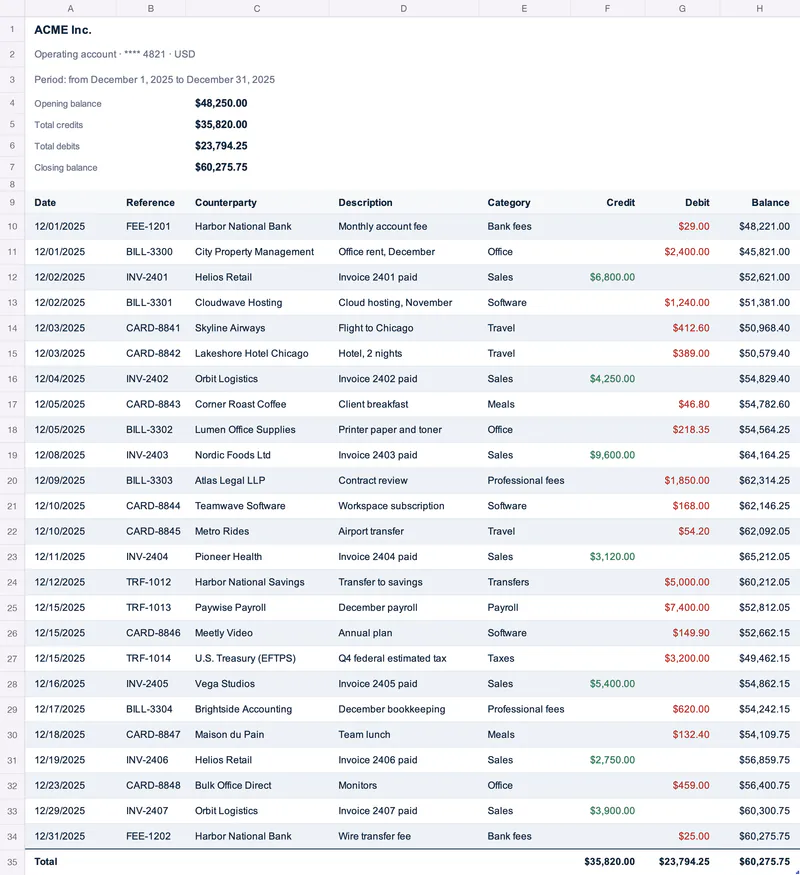
Here, an XLSX template fills an Excel table with the transactions of the month. Carbone extends the table to the generated rows, so the banded rows, the filter buttons and the total row apply to all the transactions. The generated XLSX stays a live workbook: the balance of each row, the totals and the closing balance are Excel formulas, so they update when you change an amount.
In this example, you will:
- Display the account, the period and a statement summary in a header block
- List the transactions in a loop inside an Excel table
- Compute a running balance, the totals and the closing balance with Excel formulas
- Color the credits and the debits with conditional formatting
How to build a transaction report in Excel
Follow these steps to create your template:
1. Create the Report Header
Display the report information at the top with Carbone tags and :formatD:
A1: {d.company}
A2: {d.account.name} · {d.account.number} · {d.account.currency}
A3: Period: from {d.period.from:formatD(LL)} to {d.period.to:formatD(LL)}
A4: Opening balance          C4: {d.openingBalance:formatN}
A5: Total credits            C5: =SUBTOTAL(109,Table1[Credit])
A6: Total debits             C6: =SUBTOTAL(109,Table1[Debit])
A7: Closing balance          C7: =C4+C5-C6
Tip: In XLSX, :formatN writes real numbers, so the Excel number format of the cell applies (here [$-409]$#,##0.00;[$-409]-$#,##0.00 to display US dollars with US separators).
2. List the Transactions
- In row 9, type the column labels Date, Reference, Counterparty, Description, Category, Credit, Debit and Balance.
- In the first row of the table, display the transactions in a loop:
{d.lines[i].date:formatD(L)},{d.lines[i].reference},{d.lines[i].counterparty},{d.lines[i].description},{d.lines[i].category},{d.lines[i].credit:formatN}and{d.lines[i].debit:formatN} - In the second row, define the iteration:
{d.lines[i+1]} - Select the header and the two loop rows, then choose Insert > Table and check My table has headers. In the Table Design tab, choose a table style and check Banded Rows and Total Row.
The amounts are single :formatN tags, so Excel reads them as numbers. A transaction has either a credit (money in) or a debit (money out): the empty value leaves its cell blank.
3. Compute the Running Balance
In the Balance column of the first row, type an Excel formula that adds the credit and subtracts the debit to the balance of the previous row:
H10: =IF(ROW()=ROW($A$9)+1,$C$4,H9)+F10-G10On the first transaction, the formula starts from the opening balance in $C$4. Carbone copies the formula to every generated row, and each row points to the row above, as Excel does when you insert rows.
4. Calculate the Totals
- In the total row, type Total in the first column and choose Sum in the Credit and Debit columns. Excel writes the formulas
=SUBTOTAL(109,Table1[Credit])and=SUBTOTAL(109,Table1[Debit]). - In the Balance column of the total row, type
=$C$4+SUBTOTAL(109,Table1[Credit])-SUBTOTAL(109,Table1[Debit]): the closing balance equals the opening balance plus the credits minus the debits, as in the summary of a bank statement, and the last running balance matches it. - Carbone extends the table range to all the generated rows, so the structured references
Table1[Credit]andTable1[Debit]cover every transaction.
5. Color the Amounts
Select the cells of the first loop row in the Credit column, then choose Conditional Formatting > Highlight Cells Rules > Greater Than, enter 0 and pick a green text color. Do the same in the Debit column with a red text color, and in the Balance column with a red text color for the values Less Than 0. Carbone extends the rules to all the generated rows.
This template requires Carbone v5.18.0 or later. Add the tag
{o.preReleaseFeatureIn=5018000}to the template to enable the Excel table, formula and conditional formatting support. Here, the tag is stored in the comments of the document properties.
Save the XLSX template, connect it to your JSON data, and let Carbone generate your transaction report automatically.
Related Examples
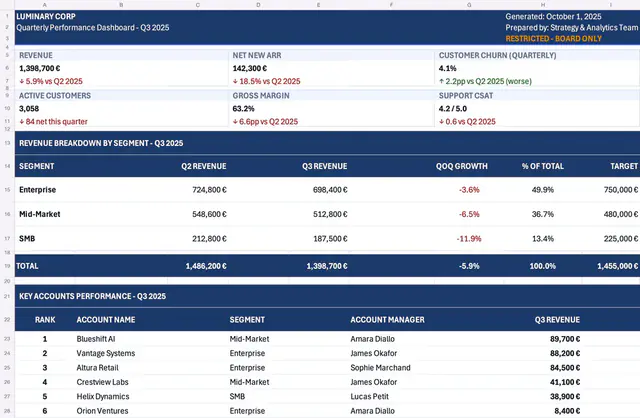
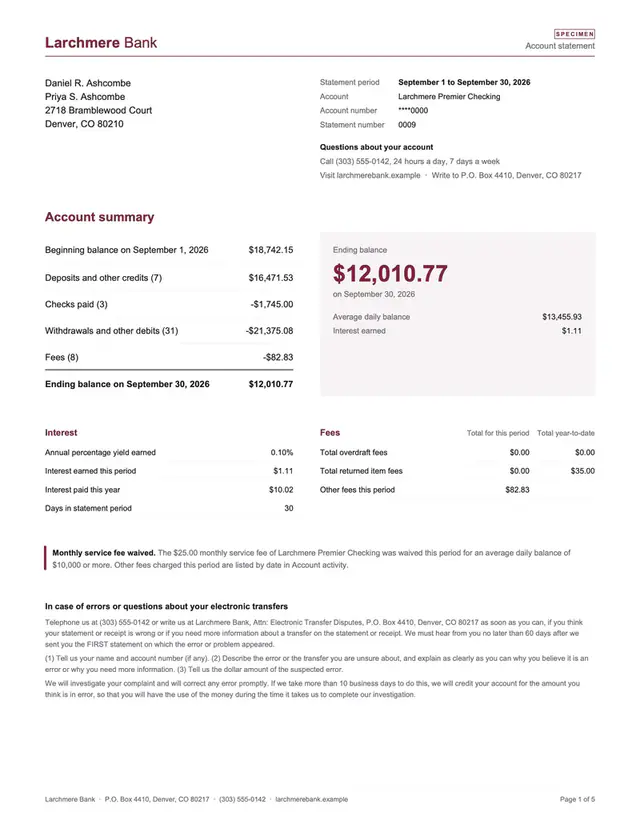
Check out these similar templates to learn more:
Trusted by 800+ paid customers in 40+ countries