Nutrition Facts label
FDA Nutrition Facts panels from your recipe and PLM data

- Template
- SVG
- Export as
- PDF, PNG, SVG, WebP +24 more
- Carbone
- 5.18+
Generate Nutrition Facts labels from your PLM
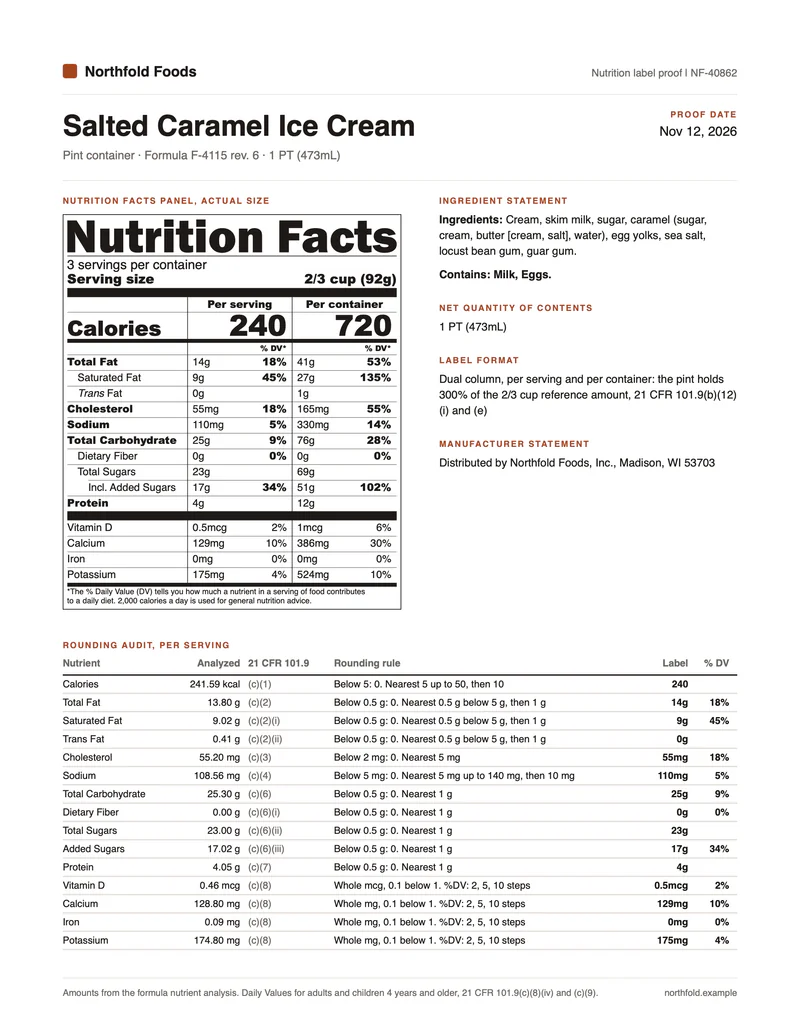
Every packaged food sold in the United States carries a Nutrition Facts label, laid out by 21 CFR 101.9 as revised in 2016. Food manufacturers keep their formulas and nutrient analyses in a PLM or recipe system, which applies the FDA rounding rules and computes the % Daily Values. For each new product or formula revision, the system sends the declared values to the Carbone API as JSON, and an SVG template returns a label proof: the panel at actual size for the packaging artwork, the ingredient and allergen statements, and a rounding audit for the regulatory review. In this example, Northfold Foods, a fictional food manufacturer, prints the proofs of a pint of ice cream, a granola and a protein bar.
In this example, you will:
- Print one proof per product, one PDF page each
- Switch between the standard vertical panel and the dual column panel
- Add the voluntary sugar alcohol line only when the product declares it
- Size the label box to the number of lines
- List the rounding audit with a nested loop
Panel layout
The panel follows paragraph (d) of the regulation and the graphic model of Appendix B to Part 101.
| Area | Content | Rule |
|---|---|---|
| Heading | Nutrition Facts | Full width of the panel, larger than any other text except the calories amount |
| Servings | Servings per container, serving size | 10 pt, serving size in bold. Servings between 2 and 5 round to 0.5, with "About" when rounded |
| Calories | Calories per serving | "Calories" in 16 pt bold, the amount in 22 pt bold, between a 7 pt and a 3 pt bar |
| Nutrients | Fat, cholesterol, sodium, carbohydrate, sugars, protein | 8 pt, key nutrients in bold, sub-nutrients indented, hairlines between lines. Added sugars read "Includes 9g Added Sugars", under a shortened rule |
| Vitamins and minerals | Vitamin D, calcium, iron, potassium | 8 pt, amount and % DV, after a 7 pt bar |
| Footnote | The % Daily Value statement | 6 pt, after a bar |
| Box | Black on white | 0.5 pt box rule, 3 pt from the text |
A product whose container holds 200% to 300% of its reference amount shows two columns, per serving and per container, separated by vertical lines, as required by paragraph (b)(12)(i). The pint of ice cream holds three servings of 2/3 cup.
How to generate Nutrition Facts labels from JSON
Follow these steps to build the label proof with Carbone:
1. Set the page and the type
- Set the page on the
svgelement:width="8.5in" height="11in" viewBox="0 0 612 792". One unit is one point, so the sizes of the regulation go in as they are: 8 pt for the nutrients, 7 pt and 3 pt for the bars, 0.25 pt for the hairlines. - Set the font once, on the
svgelement:font-family="Helvetica, Arial, Liberation Sans, sans-serif". Arial and Liberation Sans have the same widths as Helvetica, so the panel keeps its layout on every server. A class sets the bold nutrients in Arial Black, the heavy weight of the FDA model. - The heading "Nutrition Facts" is drawn as a path in Franklin Gothic Heavy, one of the two typefaces of Appendix B, stretched to the full width of the panel.
- SVG text does not wrap. The ingredient statement and the audit table sit in a
foreignObjectelement, where the text flows like in HTML. See SVG templates.
2. Repeat the proof for each product
Group all the elements of the page, and move each copy one page width to the right with the loop index:
<g id="proof" transform="translate({d.products[i].itemNo:print(.i):mul(612)} 0)">A second group after it, with {d.products[i+1].itemNo}, closes the loop. Carbone puts each product on its own page (step 6).
3. Print the declared values
Your PLM applies the rounding rules of paragraph (c) and sends the declared values of each product in perServing, and in perContainer for a dual column product. The template adds the units:
<text x="3.5" y="101.46" font-size="8"><tspan class="k">Total Fat</tspan> {d.products[i].perServing.totalFat}g</text>
<text x="173.5" y="101.46" font-size="8" class="k" text-anchor="end">{d.products[i].perServing.totalFatDV}%</text>- The % Daily Value is right-aligned with
text-anchor="end"on the right edge of the panel. - The added sugars line reads
Includes {d.products[i].perServing.addedSugars}g Added Sugars, the wording of paragraph (c)(6)(iii).
4. Choose the panel format
The template holds both panels. A condition shows one of them:
<g id="panel-standard" display="{d.products[i].dualColumn:ifEQ(true):show('none'):elseShow('inline')}">
<g id="panel-dual" display="{d.products[i].dualColumn:ifEQ(true):show('inline'):elseShow('none')}">
The dual column panel prints {d.products[i].perContainer.calories} next to {d.products[i].perServing.calories}, and "Incl. Added Sugars", the abbreviation that the regulation allows in dual column displays.
5. Add the optional sugar alcohol line
The protein bar declares its sugar alcohol, the granola does not. The line shows only when the value exists:
<g display="{d.products[i].perServing.sugarAlcohol:ifEM():show('none'):elseShow('inline')}">- Every line below it sits in a group that moves down one line of 12 points:
transform="translate(0 {d.products[i].perServing.sugarAlcohol:ifEM():show(0):elseShow(12)})". - The height of the box follows with the same condition:
height="{d.products[i].perServing.sugarAlcohol:ifEM():show(294.98):elseShow(306.98)}".
6. List the rounding audit
The audit shows, for each nutrient, the analyzed amount, the paragraph of 21 CFR 101.9, its rounding rule, and the value on the label. A nested loop repeats the table row for each item of audit:
<tr><td>{d.products[i].audit[i].nutrient}</td><td class="n">{d.products[i].audit[i].analyzed:formatN(2)} {d.products[i].audit[i].unit}</td> ... </tr>
<tr><td>{d.products[i].audit[i+1].nutrient}</td></tr>
:formatN(2) prints every analyzed amount with two decimals, and :formatD prints the proof date as Nov 12, 2026.
7. Print every proof in one request
Send the list of products with the batch options:
{
  "data": { "products": [ ... ] },
  "convertTo": "pdf",
  "converter": "C",
  "batchSplitBy": "d.products",
  "batchOutput": "pdf"
}- Carbone generates one proof for each product and merges them into one PDF, one Letter page per product.
- A batch is an asynchronous request: set the
carbone-webhook-urlheader. "converter": "C"draws the SVG with Chrome. The PDF keeps the panel as vector shapes, ready to place in the packaging artwork.
SVG templates require Carbone v5. The conversion of an SVG to PDF with Chrome requires Carbone v5.17.0 or later.
Related Examples
Trusted by 800+ paid customers in 40+ countries