French rail e-ticket
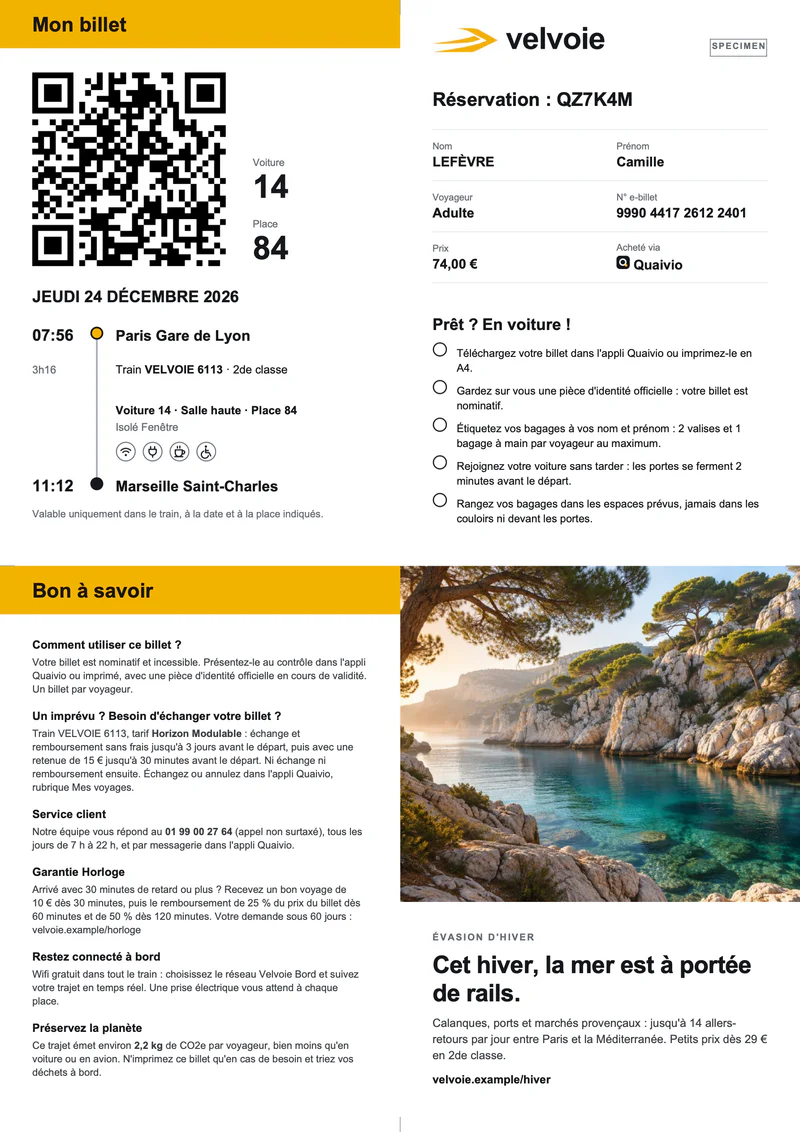
A folded A4 e-billet with QR code, journey and seat
- Template
- DOCX
- Export as
- PDF, DOCX, ODT, HTML, PNG +25 more
- Carbone
- 5.18+
- Barcode
- Date
- Currency format
- Number format
- Text
- Condition
- In-template options
Generate French rail e-tickets from your ticketing system
French rail travellers receive their "e-billet" as an A4 PDF, folded in four: "Mon billet" with the QR code the conductor scans and the journey, the booking panel with the "Réservation" code and the passenger, a "Bon à savoir" panel with the exchange conditions of the fare, and a promotional panel. The ticketing system (the "logiciel de billetterie") of the operator or of the booking app produces one e-billet per passenger as soon as the payment clears, and sends it by email and to the app.
In this example, Velvoie, a fictional French operator, issues a second class ticket from Paris Gare de Lyon to Marseille Saint-Charles, bought through the fictional Quaivio app. The ticket carries a "SPECIMEN" tag, a QR code that points to a .example address, and a customer service number from the range reserved for fiction.
In this example, you will:
- Lay out a page folded in four panels with one Word table
- Fill in the passenger and the journey from the JSON of the booking
- Generate the QR code of the ticket
- Print the date in French capitals, the times in Paris time and the price in euros
- Print the class and the deck with simple conditions
How to generate a French e-billet
1. Lay out the four panels
- Set the page to A4 portrait with zero margins.
- Insert a table with two columns of 297.65 pt and give each row an exact height, so each panel fills a quarter of the page. The "Mon billet" and "Bon à savoir" banners are two shaded rows of 36 pt; the panels on the right are merged cells.
- Inside a panel, a nested table holds the QR code and the timeline. The timeline is three columns: the times, a column of small pictures that draw the line and the dots, and the stations.
- The fold marks are one picture in front of the text, anchored to the page.
2. Fill in the passenger and the journey
- Insert the Carbone tags where the data goes:
{d.booking.reference},{d.passenger.firstName},{d.passenger.category},{d.ticket.number},{d.journey.departureStation},{d.journey.coach},{d.journey.seat},{d.journey.seatPosition},{d.fare.name}and{d.fare.conditions}. {d.passenger.lastName:upperCase}prints LEFÈVRE, the way French tickets print the last name, with the :upperCase formatter.
3. Add the QR code
- Insert a temporary square picture of 144 pt in the "Mon billet" panel.
- Right-click it, select View Alt Text and write
{d.ticket.qrCode:barcode(qrcode, eclevel:M)}. - The :barcode formatter replaces the picture with the QR code of the ticket, at the width of the temporary picture.
4. Format the date, the times and the price in French
{o.lang=fr-fr}{o.timezone=Europe/Paris}, at the end of the validity line under the timeline, sets the language and the time zone of the document. See the in-template options.- The booking system sends UTC times, for example
"departure": "2026-12-24T06:56:00.000Z":{d.journey.departure:formatD('dddd D MMMM YYYY'):upperCase}prints JEUDI 24 DÉCEMBRE 2026 with :formatD;{d.journey.departure:formatD('HH:mm')}prints 07:56, Paris time.
{d.ticket.price:formatC}prints 74,00 €: with thefr-frlanguage, :formatC writes euros with the French separators.{d.journey.co2Kg:formatN(1)}prints 2,2 with :formatN.
5. Print the class and the deck with conditions
{d.journey.travelClass:ifEQ(1):show('1re classe'):elseShow('2de classe')}turns the class number into its French label.{d.journey.deck:ifEQ(upper):show('Salle haute'):elseShow('Salle basse')}prints the deck of a double-deck train. See the inline conditions.
Save the DOCX template, send it with the JSON of the booking, and Carbone returns the e-billet in PDF, ready to attach to the confirmation email.
Related Examples
Trusted by 800+ paid customers in 40+ countries